
Search the Community
Showing results for tags 'fps fix'.
Found 17 results
-
Fix.thumb.gif.1c578ff01b954548648adb2653e1675b.gif)
Version 1.0.0
55 downloads
This fix adds modern PC features to The Hobbit (2003). Official Video Guide Requirements before using fix For the fix to work properly YOU MUST HAVE patched the game up to version 1.3, which also contains bug fixes. If you have not done so already then you can download the patch from here - The Hobbit (2003) 1.3 Patch Features included in this fix FPS Toggle (between 60 and 30fps) Higher FOV support Full mouse look movement Windowed/Borderless Window support How to use Download the latest The Hobbit (2003) fix (that is correct for you) of either: The Hobbit (2003) Mouse Look On Fix (Main fix to use) The Hobbit (2003) DLL Only Fix (If user wishes to use other 3rd party apps such as Reshade use this fix) The Hobbit (2003) General Fix Once you have downloaded the correct fix for you extract the files into your games main install folder next to the Meridian.exe file and you are good to go! You can edit the settings you wish to use in the various ini files. Resolution It is advised that the Resolution is changed within the pause menu options. This is due to a bug that can occur on the main menu which prevents the user from being able to change their Resolution properly. FPS FPS can be toggled in the game, you can set whichever hotkey you wish in d3d8.ini use [hotkey]keycodes.txt to see which hex code belongs to the key you want to use and copy paste it to the d3d8.ini hotkey setting. This will mean that you can use the key you select to toggle between 30 and 60 FPS in game at any time. The default is 0x55 which is the "U" key on the keyboard. The user will have to use this toggle on the chest puzzles as they speed up on any FPS above 30 and become impossible to complete. It is also advised the user does this for the vines that can break under Bilbo's weight. These can sometimes break faster than intended but not all the time. FOV FOV is off by default in the ini which is set to '0'. The d3d8ini has 3 options to choose from in this fix, slightly zoomed out, a bit more zoomed out and mega zoomed out (1),(2) or (3). The Hobbit (2003) Mouse Look On Fix This version is so that you can use the mouse to not only pan the camera left and right but also pan the camera up and down at all times during gameplay using the MouseLook feature. IMPORTANT make sure to go into the main menu -> options -> controls -> keyboard -> next -> next -> MouseLook -> Remap this key specifically to the NUMPAD - (subtract) on your keyboard by clicking the key its set to -> then clicking NUMPAD subtract '-'. Play the game with full camera pan in all directions on the mouse. Incase you dont have acess to the NUMPAD subtract '-' key on your keyboard then follow the instructions below: Set your own key for this inside of d3d8.ini under [INPUT] AlwaysHoldVK=0x6D -> default is numpad - (subtract) You can use the included file called [hotkey]keycodes.txt to change the key. If you change the key in the d3d8.ini make sure you also go into the main menu -> options -> controls -> keyboard -> next -> next -> MouseLook -> Remap this key specifically to the key you have now set inside of d3d8.ini otherwise this feature will not work. The Hobbit (2003) DLL Only Fix This version uses 13AGs ultimate ASI loader to inject a DLL only version of the fix into the game. This will work alongside ReShade, RTX Remix, and other mods using d3d8.dll. Put the winmm.dll and update folder into your game folder next to the Meridian.exe and your good to go. If you want to just use the DLL only then take Chip.asi and chip.ini rename Chip.asi to Chip.dll and you can inject it yourself. Issues/Problems If you have any issues, with the fixes then please go to discord for help linked below. Fix Enhancers Discord Server Vote to see the game return via GOG Dream list If you are interested in potentially seeing this game easily available to purchase and use today then go and vote on the games GOG Dream list to help make this become a reality, you can vote for the game here and write a message about the game if you wish – The Hobbit (2003) GOG Vote Fix Enhancers Fix Enhancers Website “Creating compatibility fixes and enhancements for legacy PC games.” Credit to Elisha Riedlinger for the base wrapper and ThirteenAG ultimate asiloader. Chip – Founder, Reverse Engineer, Programmer, Developer, Game Preservationist JokerAlex21 – Founder, Admin, Tester -
Fix.thumb.gif.d8bbddc2c30a540510d0e41e81f88a52.gif)
Version 1.0.0
69 downloads
This fix adds modern PC features to Spider-Man: The Movie Game (2002) and fixes MAJOR ISSUES. Official Video Guide Requirements before using fix For the fix to work properly YOU MUST HAVE patched the game up to version 1.3, which also contains major bug fixes. If you have not done so already then you can download the patch from here - Spider-Man; The Movie Game (2002) 1.3 Patch Features included in this fix Start up crash fix for modern versions of Windows Higher Resolutions and Aspect Ratio with Aspect Ratio auto calculated by users Resolution FMV's fixed for higher resolutions and functionality on modern Windows Custom higher framerate support Higher FOV support Custom X-Input Support Windowed/Borderless Window support Custom ICO (icon file) by XanderNT How to use Download the latest Spider-Man (2002) fix (that is correct for you) of either: Spider-Man (2002) Custom Controller Support Fix (Main fix to use) Spider-Man (2002) Start Up Crash with Controller Fix (If user has start up crash MUST use this fix) Spider-Man (2002) Fix Windowed V-Sync DX8to9 Spider-Man (2002) BASIC Fix Please bare in mind that if you have the start up crash issue then you can’t use the custom controller support fix (X-Input) controller addition due to compatibility issues. In order to fix that crash problem, so YOU MUST USE the Start Up Crash with Controller Fix to be able to use the games original controller D-Input support. Once you have downloaded the correct fix for you extract the files into your games main install folder next to the SpiderMan.exe file and you are good to go! You can edit the settings you wish to use in the various ini files. Resolution/Aspect Ratio Choose the Resolution you wish to use in the d3d8.ini file by writing the Width and Height for your specific Resolution. Aspect Ratio is automatically calculated. FMVs Chip has spent lots of time fully reverse engineering the games FMVs to fix them. All fix releases now come with two folders inside 4K and 1080p this is for the FMVS fullscreen fix. To set the size of the FMVS edit the settings inside of the d3d8.ini file. The FMV fullscreen fix has been tested on 1080p, 4K resolutions. This is also tested on the Steam Deck by using the 1080p folder and setting the Resolution in d3d8.ini. The basic rule is: 1080p and any Resolution under use the 1080p fix folder Anything above 1080p Resolution use the 4K fix folder You may however need to play around with this If you don’t want intro movies to play and get straight into the game then: Go to path-to-game\movies and delete or rename the following files (make sure you back them up somewhere else) ACTIVISN.bik GrayMatr.bik Origin1.bik Treyarch.bik If you are still experiencing a crashing issue with the FMVS/Movies, then you may have to rename the folder in your games install location ‘Movies’ to a different name such as ‘Movies Broken’ so then the game plays without the FMVS/movies at all. This should however, not happen anymore and if it does its extremely uncommon. FPS The default for FPS is '60' you can change it as you wish in the dxwrapper.ini file under the option OverrideRefreshRate. It is also recommended that you leave both v-sync options on by default. FOV To choose your FOV edit it in the d3d8.ini file There are 4 different options to choose from '1', '2', '3' and '4' with each one zooming out the FOV more each time. It’s advised to not go above (2) if you do not wish to see any objects popping in and out of view in open city levels. If you don’t wish to use any FOV and stick with original, you can just set this to '0'. Controller Support (X-Input) Chip has spent some time writing a full custom dinput8.dll which provides X-Input support for the game. This will work with Xbox controllers. You can tweak right stick sensitivity in controllersupport.ini. If you don’t have an Xbox controller and use PlayStation, you can use DS4/5 or add the game to Steam as a non Steam game. If you want to use the custom controller support download the Spider-Man (2002) Custom Controller Support Fix. Custom controller support will only work for those without the crashing on start up issue, if you have the crashing on start up then you MUST USE THE Spider-Man (2002) Start Up Crash with Controller Fix. Issues/Problems If you have any issues, with the fixes then please go to discord for help linked below. Fix Enhancers Discord Server Vote to see the game return via GOG Dream list If you are interested in potentially seeing this game easily available to purchase and use today then go and vote on the games GOG Dream list to help make this become a reality, you can vote for the game here and write a message about the game if you wish – Spider-Man: The Movie Game (2002) GOG Vote Fix Enhancers Fix Enhancers Website “Creating compatibility fixes and enhancements for legacy PC games.” Credit to Elisha Riedlinger for the base wrapper, ThirteenAG and Samuel Grossman - xidi used to get controllers working in Spider-Man (2002) Start Up Crash with Controller Fix. Chip – Founder, Reverse Engineer, Programmer, Developer, Game Preservationist JokerAlex21 – Founder, Admin, Tester-
- 1
-

-
- sp2002
- spider-man
- (and 19 more)
-
Version 1.0.0
504 downloads
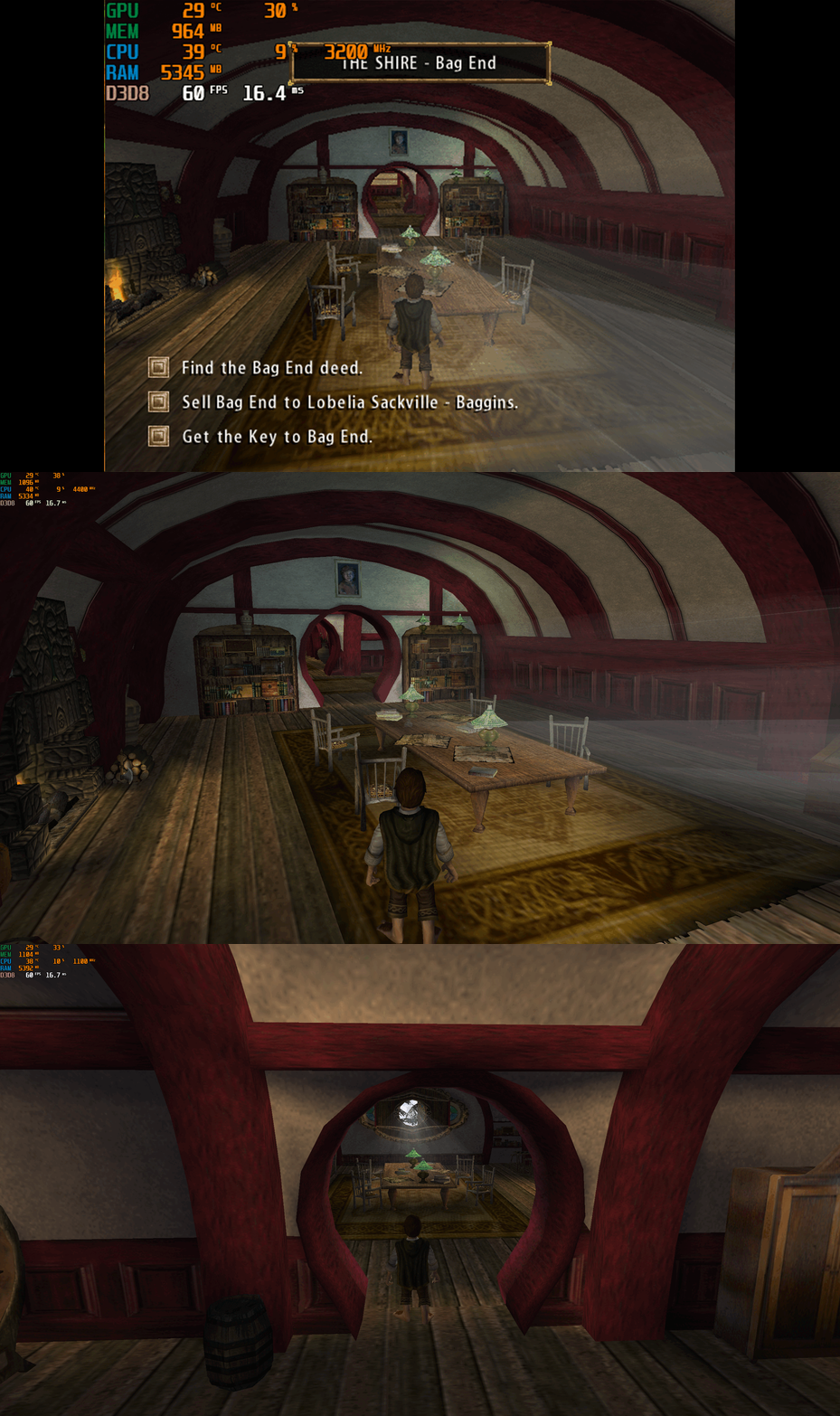
The Lord of the Rings the Fellowship of the Ring V1.1 – PC Fix Requirements before using this fix For this fix to work properly you MUST be on the 1.1 release of the game. You can update your version of the game with the Official Update for this game here - The Lord of the Rings the Fellowship of the Ring 1.3 Patch This fix adds modern PC features to The Lord of the Rings The Fellowship of the Ring V1.1, including black screen on start up fix, unlocking widescreen resolution support, higher framerates (custom FPS limiter added), auto calculated FOV, custom windowed mode support, X-Input controller support, level selection menu and cheat hotkeys. It is based on Elisha Riedlinger’s Direct3D 8 wrapper and expanded with additional enhancements and patches by Blankname and Chip. Features included in this fix Black Screen on start up fix Widescreen and ultrawide resolution support (recommended to not go above 2K due to culling) FPS Unlocking (custom FPS limiter added) Adjustable FOV X-Input Controller Support Custom Windowed Mode support Level Selection Menu on New Game Cheat Hotkeys Editable d3d8.ini and fellowship.ini configuration and patcher.exe How to use Download the Lord of the Rings the Fellowship of the Ring V1.1 fix. Extract d3d8.dll, d3d8.ini, fellowship.dll, fellowship.ini, fellowship.rfl, levellist.txt and FellowshipPatcher.exe into your game folder next to the fellowship.exe. Run FellowshipPatcher.exe to patch the games exe to fix Black Screen and unlock Level Selection Menu. Edit d3d8.ini to configure X-Input controller options. Edit fellowship.ini to unlock Resolutions, change FOV, change FPS limit, enable or disable Cheats, set Windowed Mode options and enable Game Speed Tied to FPS (experimental BREAKS cutscenes and is recommended to be kept off). Resolution and Aspect Ratio This can be edited in the fellowship.ini file. It is advised to only go as high as 2560 x 1440 resolution because this game engine on anything above that will have texture popping issues (culling) so for example at 4K (3840 x 2160) on the edges of the screen you will have texture popping but this is not present in 2560 x 1440 or under. FPS Default for FPS is 60 which you can change in the fellowship.ini file. The game functions on higher fps up to 120 without too many issues, however above this or uncapped is not advised. It is best to leave the option for FPSAnimations alone as this can easily break the game in multiple areas and the option only exists for experimentation in gameplay. FOV This fix automatically calculates FOV in the game based on the resolution that you choose in the game. It can however be changed in the fellowship.ini file but this is not advised due to it potentially causing issues. X-Input Controller Support Fellowship now features custom controller X-Input (Xbox) controller support which mimics the layout of the PS2 port of the game in the d3d8.ini you can turn this off with 0 or have controller support on by setting [Xinput] ControllerSupport = 1 then you will be able to use a Xbox controller In the game, if you don't have an Xbox controller you can spoof it with the software DS4 Windows or you can add the game to Steam as a non Steam game and make sure Steam uses X-Input then you can enjoy the game with full controller support! The layout can be seen in the image attached. Changing Level List Names If you would like to be able to change the level list names to the correct names instead of the developer names given to them then you will need to do the following edits to the levels listed below: Weathertop Mtn Night Weathertop Mtn Troll Shaws House of Elrond IGC_Forest Anduin 1 Inside of the LevelList.txt file edit the levels above lines to the following and save it: Levels/Weathertop/Weathertop Mtn/Weathertop.lvl Levels/Weathertop/Weathertop Mtn/Night Weathertop.lvl Levels/Weathertop/Troll Shaws/Trollshaws.lvl Levels/Rivendell/House of Elrond/Rivendell.lvl Levels/Lothlorien/IGC_Forest/Lothlorien.lvl Levels/River Anduin/Anduin 1/Amon Hen.lvl Then you will need to go to where Fellowship is installed, Levels and then inside of each of the levels listed above’s folders find and edit the .lvl file to the name of the level. For example, IGC_Forest.lvl you would edit to Lothlorien.lvl. Once you do this for each of the levels above when you go in game you should now see the names have been updated in the menu level list. Cheats/Extras Enable or disable Cheats in the fellowship.ini file. To use the cheats when in gameplay simply press the options listed below: F5 - fly -> Fly F6 - drop -> Drop F7 - tim -> Invincible F8 - tele -> Teleport F9 - mrclean -> MrClean F10 - heal -> Full Health F11 - bye -> Suicide F12 - invisowalls -> Show Invisible Statics On clicking New Game, you shall now have access right away to all the levels within the game. Simply select a level you wish to play or the first level in you wish to start from the beginning of the game like normal. Official video guide Official Video Guide Issues/Problems If you have any issues, with the fixes then please go to discord for help linked below. Fix Enhancers Discord Server Vote to see the game return via GOG Dream list If you are interested in potentially seeing this game easily available to purchase and use today then go and vote on the games GOG Dream list to help make this become a reality, you can vote for the game here and write a message about the game if you wish – The Lord of the Rings The Fellowship of the Ring (2002) GOG Vote Credits Base wrapper by Elisha Riedlinger & ThirteenAG. Additional game-specific patches, reverse engineering, enhancements, and configuration by Blankname and Chip. Fix Enhancers Fix Enhancers Website “Creating compatibility fixes and enhancements for legacy PC games.” Chip – founder, reverse engineer, programmer, developer, game preservationist JokerAlex21 – founder, admin, tester Blankname - fellowship.dll and ini creator Testers - (These people helped us with multiple tests of Fellowship's fix) Osen33, LovelyClaire -
Version 1.0.0
1,322 downloads
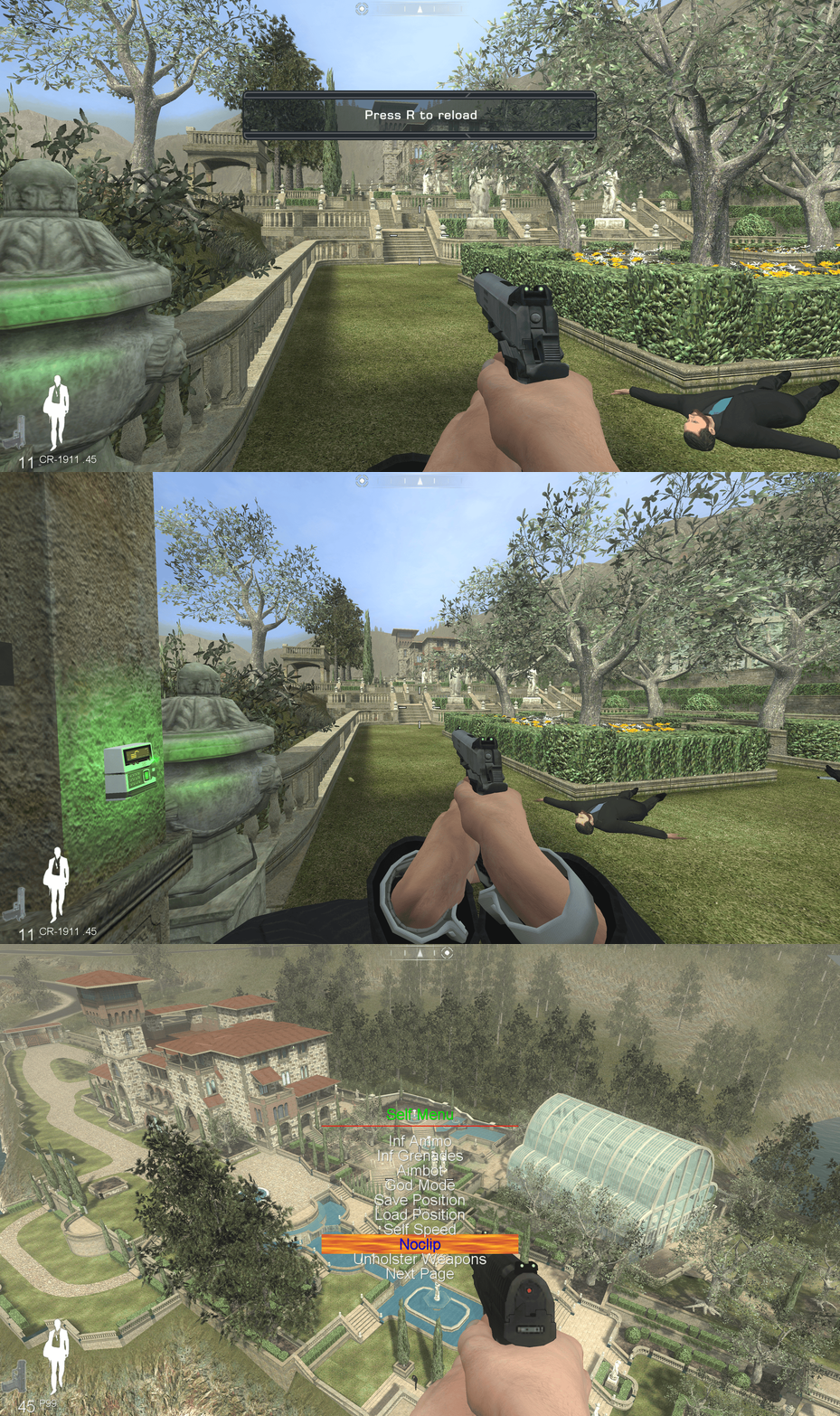
Important Information This fix is made for the Singleplayer portion of the game, if you need a Multiplayer fix then please see the Plutonium client for their fix - Plutonium Multiplayer Fix This fix adds modern PC features to James Bond Quantum of Solace Fix Features included in this fix Custom higher framerate support Custom higher FOV support X-Input Controller Support Mod Menu How to use Download the James Bond Quantum of Solace fix. Depending on the fix chosen of either 'JamesBondQOSFix' or 'JamesBondQOSFixASI' extract the contents of the folder into your games install folder next to the JB_Launcher_s.exe. If using the 'JamesBondQOSFix' edit the d3d9.ini to configure the options. If using the 'JamesBondQOSFixASI' open the Scripts folder and edit Chip.ini to configure the options. Play the game. It is advised that if using the mod menu and you have played the game before to make a backup of your save file. FPS Default for FPS is 120 which you can change in the d3d9.ini or chip.ini file. The user can use the FPS toggle if they find it breaks at certain points at too high FPS. The toggle will set it back down to the original 30fps. When in game, press the hotkey the user has chosen in [hotkey]keycodes.txt and enter the virtual code in the d3d9.ini or chip.ini to toggle between the original and the new FPS setting. FOV Default is FOVAutomatic=1 You can set your preferred in-game FOV using: [FOV] value=100 ; set this to any FOV you prefer Automatic FOV Mode (FOVAutomatic=1) If FOVAutomatic=1, the game will always enforce the FOV from value= for the entire session (no hotkey toggle). [FOV] FOVAutomatic=1 value=100 Toggle FOV Mode (FOVAutomatic=0) If FOVAutomatic=0, the mod enables the FOV toggle hotkey. While in-game, press the hotkey configured in d3d9.ini or chip.ini to toggle between: The game’s original FOV Your user-defined FOV (value=) [FOV] FOVAutomatic=0 value=100 The original FOV is automatically detected and stored when the game initializes, allowing safe switching between the default value and your custom value during gameplay. Controller This is the first as accurate as possible implementation of controller support written by Chip (ChipXinput) for the Singleplayer of this game. The layout is the same as the layout of the Xbox 360 release of the game. VERY IMPORTANT – user must go into the games option menu controls and set the ‘Cycle Weapon’ option to ‘5’. If this is not done, then the ability to cycle weapons will not work. QTEs (Quick Time Events) will still show up as keyboard prompts so it is advised that the user makes a note of what these keys correspond to on the controller. You can fully customise the layout of the controller inside of d3d9.ini or chip.ini all explained inside the configuration file. Recomended if you are using the controller to go into the game options -> gameplay -> look sensitivity and turn it down to somewhere between 0 - 4 otherwise it is very fast trying to look around on controller. You can use controller also for the FOV toggle and FPS toggle by default it would be LB + left FPS toggle, LB + right FOV toggle. If you change the hotkeys for FOV and FPS here: [FOV] hotkey_vk=0x05 [FPS] toggle_vk=0x06 You will have to update the corresponding key here: combo6=LB+DpadRight combo6_vks=0x05 ----- FOV toggle <- make sure this matches the same hotkey as under [FOV above] combo6_modes=HOLD combo6_suppress=1 combo7=LB+DpadLeft combo7_vks=0x06 ----- FPS toggle <- make sure this matches the same hotkey as under [FPS above] combo7_modes=HOLD combo7_suppress=1 You can use controller also for the Mod Menu as follows: xbox input ----------------------- keyboard input ------------------ action select -------------------------------- tab---------------------- open phone menu LB + UP -------------------------------- 2----------------------- start the mod menu Start --------------------------------- esc --------------------- back to game right trigger/ left trigger --------- rmb/lmb --------------- navigate the mod menu X -------------------------------------- F ------------------- select things in the menu LB + Down ------------------------------ Q ---------------------- quit the menu Mod Menu This fix includes the mod menu from Speedrun QOS Mod Menu for convenience of the end user to have everything all together in one fix and to preserve the menu so that it is not lost. FIX ENHANCERS MAKES IT CLEAR THAT IT DID NOT MAKE THIS MOD MENU AND IF THE ORIGINAL CREATOR WISHES IT REMOVED FROM THE FIX, THEN IT WILL BE REMOVED. All this DLL does with Mod Menu is installs the required file for you via automation instead of having to do it yourself, it will also revert back to the original file if on = 0 under [ModMenu] in the ini The user can turn on the Mod Menu inside of the d3d9.ini or chip.ini file via the option [ModMenu] which is off ‘0’ by default. Once turned on in the d3d9.ini or chip.ini file to activate in-game, press Tab then use the ‘2’ key. Left Click and Right Click to navigate the menus, ‘F’ to select, and ‘Q’ to exit. Note that the first step is always tied to opening the phone and will reflect if this binding is changed from the default Tab. You can use controller also for the Mod Menu as follows: xbox input ----------------------- keyboard input ------------------ action select -------------------------------- tab---------------------- open phone menu LB + UP -------------------------------- 2----------------------- start the mod menu Start --------------------------------- esc --------------------- back to game right trigger/ left Trigger --------- rmb/lmb --------------- navigate the mod menu X -------------------------------------- F ------------------- select things in the menu LB + Down ------------------------------ Q ---------------------- quit the menu Issues/Problems If you have any issues, with the fixes then please go to discord for help linked below. Fix Enhancers Discord Server Vote to see the game return via GOG Dream list If you are interested in potentially seeing this game easily available to purchase and use today then go and vote on the games GOG Dream list to help make this become a reality, you can vote for the game here and write a message about the game if you wish – James Bond Quantum of Solace GOG Vote Credits Credit to Elisha Riedlinger for the base wrapper (d3d9) and ThirteenAG for the ultimate asi loader xlive.dll used in JamesBondQOSFixASI.zip. Fix Enhancers Fix Enhancers Website “Creating compatibility fixes and enhancements for legacy PC games.” Chip – Founder, Reverse Engineer, Programmer, Developer, Game Preservationist JokerAlex21 – Founder, Admin, Tester -
Version 1.0.0
105 downloads
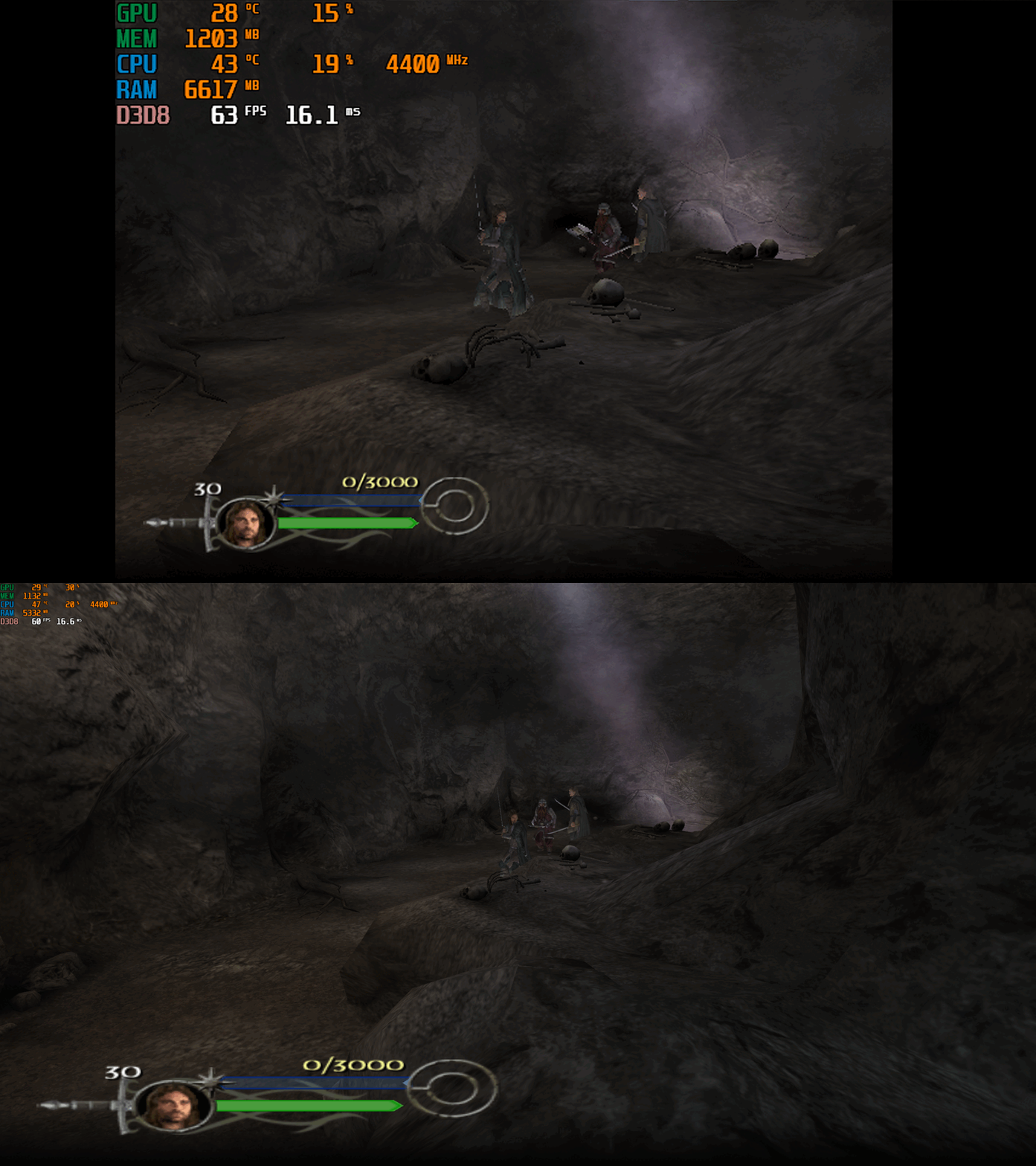
This fix adds modern PC features to The Lord of the Rings the Return of the King. Official Video Guide Requirements before using the fix YOU MUST download the amazing Nemesis2000 widescreen fix from here - Nemesis 2000 LOTRROTK Resolution/Aspect Ratio Fix Once you download the Nemesis2000 fix place the LOTRW.dll and LOTR.ini into the games install folder next to the ROTK.exe file. DO NOT PLACE THE d3d8.dll file from Nemesis2000 fix into the game install area as this is replaced by the Fix Enhancers Fix.dll file instead. The Nemesis2000 fix will cover the resolution and aspect ratio side while the Fix Enhancers fix covers everything else. Features included in this fix Higher Resolutions and Aspect Ratio support (via the Nemesis 2000 fix) Custom higher framerate support Higher FOV support Windowed/Borderless Window support How to use Download the latest The Lord of the Rings the Return of the King PC Fix file Extract it and put the Fix.dll and d3d8.ini into your game folder next to the ROTK.exe file and you are good to go! You can edit the settings you wish to use in the d3d8.ini file. Download the Nemesis 2000 Fix and extract the LOTR.ini and LOTRW.dll files into your game folder next to the ROTK.exe file. Edit the LOTR.ini file to edit the resolution you wish to use. Resolution/Aspect Ratio Open the LOTR.ini file and next to Width and Hight put your resolution for example (3840x2160). Note that once you boot up the game it will now be set to the correct resolution and aspect ratio. However, DO NOT change the resolution in the games graphics options, the resolution you put in the LOTR.ini file will not show up in the resolution list within the game which is normal. FPS The default for FPS is (60) you can change it as you wish or fully uncap it with (0) with the FPSLimit option in the d3d8.ini file. The FPS has been limited to 120fps in this fix due to game breaking bugs going above 120fps. FOV The default for FOV is (0) which is off, you can turn this on in the d3d8.ini by changing the (0) to (1). It is recommended that this is kept off by default due to FOV being quite broken in multiple areas of the game such as the level selection menu. You can use this setting, and it will work mostly fine during gameplay and will fix issues on higher resolutions where the camera goes inside the characters during cutscenes. The FOV is a work in progress and will be further looked into. Issues/Problems If you have any issues, with the fixes then please go to discord for help linked below. Fix Enhancers Discord Server Vote to see the game return via GOG Dream list If you are interested in potentially seeing this game easily available to purchase and use today then go and vote on the games GOG Dream list to help make this become a reality, you can vote for the game here and write a message about the game if you wish – The Lord of the Rings the Return of the King GOG Vote Fix Enhancers Fix Enhancers Website “Creating compatibility fixes and enhancements for legacy PC games.” Chip – Founder, Reverse Engineer, Programmer, Developer, Game Preservationist JokerAlex21 – Founder, Admin, Tester -
Version 1.0.0
62 downloads
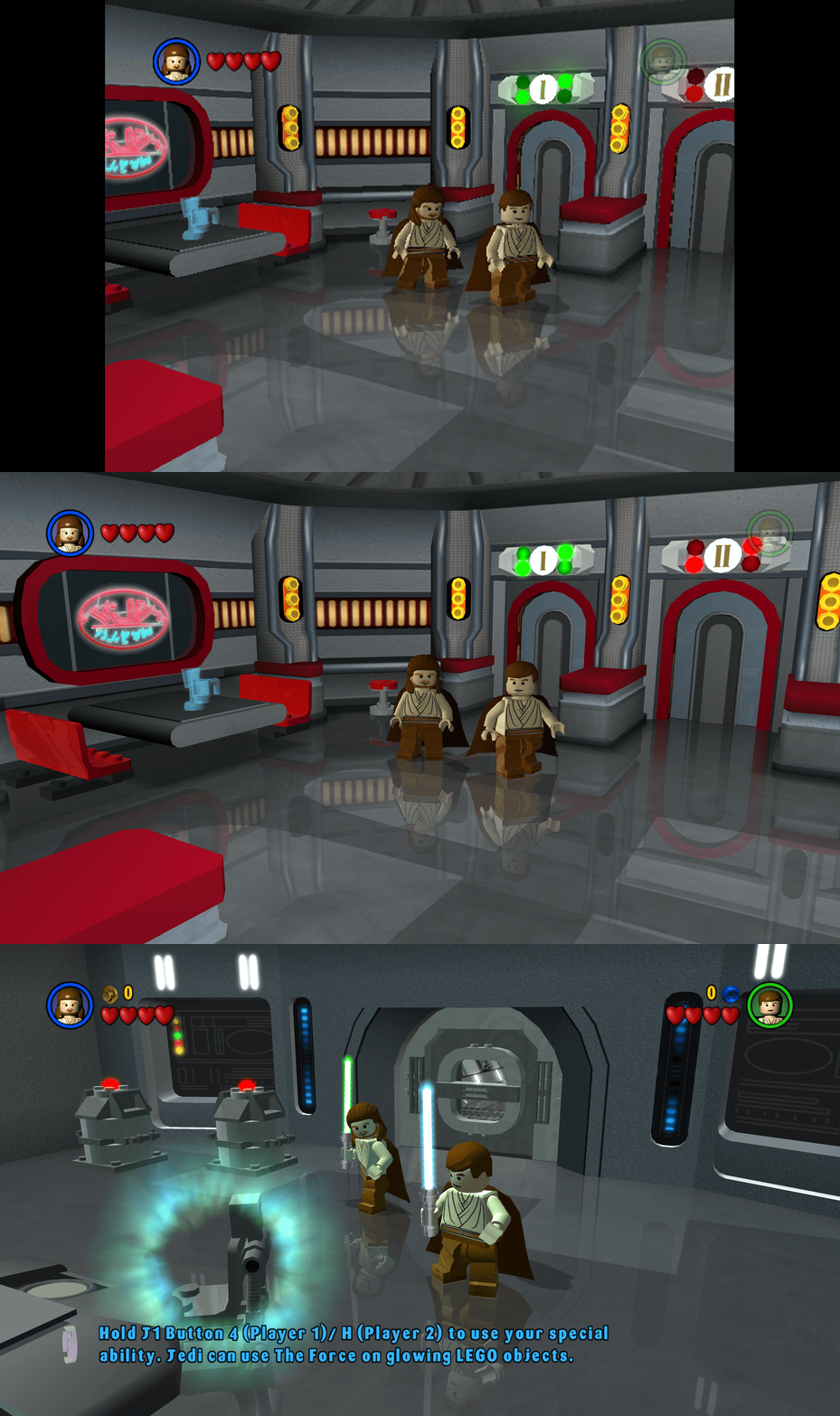
This fix adds modern PC features to Lego Star Wars (2005). Requirements before using the fix Before using the fix for it to work properly you MUST have patched the game up to 1.0.0.2 release. If you have not updated your Lego Star Wars (2005) already then you can download the patch from here - Lego Star Wars (2005) 1.0.0.2 Patch Features included in this fix Higher Resolutions and Aspect Ratio support HUD corrections for higher resolutions/aspect ratios Custom higher framerate support Developer Menu How to use Download the latest Lego Star Wars (2005) PC Fix.zip Extract the d3d9.dll, d3d9.ini, ChipDebug.ini and ChipDebugLSW.exe files into your game folder next to the LegoStarWars.exe file and you are good to go! You can edit the settings you wish to use in the d3d9.ini and ChipDebug.ini files. Resolution,Aspect Ratio and HUD Corrections The default for resolution is set to (1920 x 1080) in the d3d9.ini file. Put the resolution that you wish to use in both the Width and Height area. Aspect Ratio and HUD size is auto calculated by the Resolution you choose. FPS The default for FPS is (60) you can change it as you wish with the FPSLimit option in the d3d9.ini file. It is recommended to not go above 60. Developer Menu Put ChipDebugLSW.exe and ChipDebug.ini with d3d9.dll and d3d9.ini. Go into ChipDebug.ini and set the settings, you SHOULD pay attention to your region of your game. if you want the game to run after you run the patcher program set LAUNCH_GAME=1 if not then LAUNCH_GAME=0 the default is 0 REGION SETTINGS: Set EXACTLY ONE of the following to 1. All others must be 0. EU = Patch the EUROPE / PAL version of the game EU_RESET = Restore the ORIGINAL EU executable US = Patch the UNITED STATES / NTSC version of the game US_RESET = Restore the ORIGINAL US executable Examples: Enable EU debug: EU=1 Disable EU debug: EU_RESET=1 [REGION] Region selection (choose ONE only) EU=1 EU_RESET=0 US=0 US_RESET=0 Developer Menu becomes available in the game after patching it once enabled it is advised that you DON'T use in the main menu its a bit buggy use it once you get into the game itself by pausing and going to options. After setting up in the ini then run ChipDebugLSW.exe then you can play the game normally by using LegoStarwars.exe, if for any reason you want to turn off developer mode then just use the patcher program again. it will also give you a LegoStarwars.exe.bak incase of failures. Issues/Problems If you have any issues, with the fixes then please go to discord for help linked below. Fix Enhancers Discord Server Vote to see the game return via GOG Dream list If you are interested in potentially seeing this game easily available to purchase and use today then go and vote on the games GOG Dream list to help make this become a reality, you can vote for the game here and write a message about the game if you wish – Lego Star Wars (2005) GOG Vote Fix Enhancers Fix Enhancers Website “Creating compatibility fixes and enhancements for legacy PC games.” Chip – Founder, Reverse Engineer, Programmer, Developer, Game Preservationist JokerAlex21 – Founder, Admin, Tester -

Version 1.0
2,820 downloads
All credits go to: lk19 This is a mirror from the author's GitHub page (https://github.com/lukek19/CPAGameFixes), for easier reachability. This widescreen fix contains improvements to the game. Instructions (taken from GitHub): Note: This fix is intended for the retail version of the game only. DO NOT USE IT WITH ANY PRE-PATCHED EXE FILES. The official Russian "portable" edition (the one with bugfixes.dll in the game directory) was not tested, but should be compatible with the fix. It simply has a few of the same patches hardcoded into the game's exe. In this case, please set CompatibilityPatch, NoCD and MakePortable to false, although it shouldn't do any harm to patch the code twice). Please note that the Russian version is not really "portable", as the game stores its savegames and configuration in %appdata%\Disney\DonaldDuck. Copy the folder "Donald" from the CD anywhere on your harddrive (e.g. C:\Games\Donald). In the following this will be referred to as <GameDir>. Copy the folder "Data" from the CD to <GameDir>. From the fix, copy Donald.asi, Donald.ini & ubi.ini to <GameDir>. Also copy \dll\GliDX6vf.dll to <GameDir>\dll. Download Ultimate ASI Loader (Win32 version of dinput.dll), and extract it to <GameDir>. Set up a Direct3D wrapper. Instructions for either dgVoodoo or DDrawCompat can be found below. To change aspect ratio and for advanced options, edit <GameDir>\Donald.ini with a text editor. Setup of Direct3D Wrapper dgVoodoo 2 Download the latest stable version of dgVoodoo from here: https://github.com/dege-diosg/dgVoodoo2/releases Copy dgVoodooCpl.exe & dgVoodoo.conf from the main directory as well as D3DImm.dll & DDraw.dll from the \MS\x86\ subdirectory to <GameDir>. Open the configurator dgVoodooCpl.exe. In the "DirectX" tab under "Resolution", choose "Desktop". Under "Miscellanneous", uncheck "dgVoodoo Watermark". Click "Apply" to save the changes. DDrawCompat Download the latest release of DDrawCompat. Also download DDrawCompat.ini. Copy ddraw.dll and DDrawCompat.ini to <GameDir>. Open DDrawCompat.ini with a text editor. Uncomment (remove the "#") the relevant rows and set the following parameters: AlternatePixelCenter = on DisplayAspectRatio = display LogLevel = none ResolutionScale = display(1) Using a game controller To use XInput devices: Download the latest version of Xidi. Find the Win32 version of dinput.dll and rename it to dinputHooked.dll. Copy dinputHooked.dll to <GameDir>. Download the pre-configured Xidi.ini and place it in <GameDir>. Adjust the the configuration to your own taste. FAQ / Known Issues Weird looking symbols in the top left corner This is actually not a bug. The symbols are actual HUD elements, stored in this position when they are not needed. At 4:3 aspect ratio they are off-screen, but at wider aspect ratios (which the developers never intended) they become visible. If you press "9" on the keyboard, they will magically teleport to their proper position in the HUD. To fix this, one would likely need to edit \Data\World\Levels\MapMonde\MapMonde.sna, which is currently out-of-scope for this patch. Background elements in 2D sidescrolling levels In the sidescrolling levels, the 3D background elements will sometimes clip in and out of view. This is likely related to the game's draw distance and I currently do not have a fix for this. GliDX6vf.dll The included file GliDX6vf.dll has been patched to fix the game's internal frame limiter sometimes altering between 60 and 30 FPS. It is almost identical to the one created by Dege (the author of dgVoodoo) for Rayman 2 and Goin' Quackers. However, I have updated it so that it also works with DDrawCompat. Disable internal frame limiter To disable the game's internal frame synchro completely, you may set DisableInternalSync = true in Donald.ini. In this case, there is no need to replace the game's original GliDX6vf.dll with the one provided in this fix. Please make sure that you are using an external frame limiter (e.g. dgVoodoo/DDrawCompat's built-in functionality) and limit the framerate to 60 FPS to avoid speed-up and crashes. FMVs are too small and stretched Plese refer to the separate FMV Troubleshooting Guide. -
Version 1.0.0
376 downloads
This archive contains a modified d3d9.dll that cuts down Internal Resolution by more than half for lower end machines. There are two 'modes' present which can be toggled by pressing the Right Shift key. According to the author: There is a catch though: Shadows seem to be completely disabled with no way to toggle them. The rendering resolution is reduced by a fixed amount with no way to adjust it. Will require the player to press Right Shift to toggle between two modes should there be visual glitches, though the author claims Mode 2 is close to perfect outside of a chance of Rebecca's hair bugging out. Credits: megatenfreak: https://residentevilmodding.boards.net/thread/9676/low-fps-slow-motion-finally -
Version 1.0.0
530 downloads
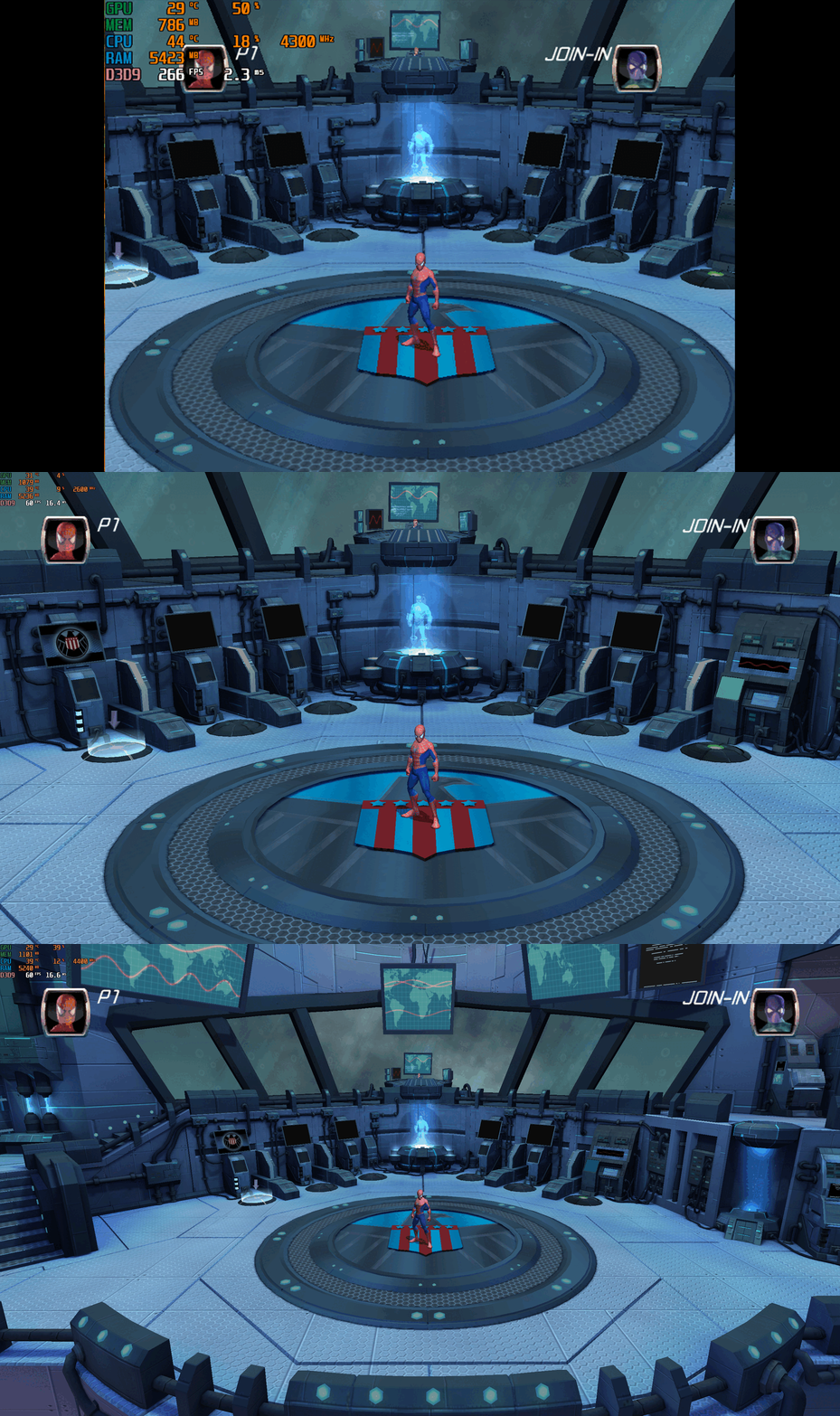
Spider-Man Friend or Foe – PC Fix This fix adds modern PC features to Spider-Man Friend or Foe, including widescreen resolution support, higher aspect ratios, higher framerates and adjustable FOV. It is based on Elisha Riedlinger’s Direct3D 9 wrapper and expanded with additional enhancements and patches by Chip. Features included in this fix Widescreen and ultrawide resolution support Higher aspect ratio options Adjustable FOV values FPS unlocking Editable d3d9.ini configuration How to use Download the Spider-Man Friend or Foe fix. Extract d3d9.dll and d3d9.ini into your game folder next to game.exe. Edit d3d9.ini to configure resolution, aspect ratio, FPS and FOV. Resolution and Aspect Ratio The default Resolution is set to 1920x1080. Change the Width and Height fields to your preferred resolution. The default Aspect Ratio value is 1 (16:9). Choose a different preset by selecting the number matching your display. FPS The default FPS limit is 60. You may change this value or uncap it completely with 0 using the FPSLimit option in d3d9.ini. FOV The default FOV value is 0, which corresponds to the game’s original FOV. Increase the FOV value to zoom out the camera further. Additional notes This game benefits greatly from higher modern resolutions, aspect ratios, and FOV support. All configuration is handled through d3d9.ini. Official video guide Issues/Problems If you have any issues, with the fixes then please go to discord for help linked below. https://discord.gg/eVJ7sQH7Cc Vote to see the game return via GOG Dream list If you are interested in potentially seeing this game easily available to purchase and use today then go and vote on the games GOG Dream list to help make this become a reality, you can vote for the game here and write a message about the game if you wish – https://www.gog.com/dreamlist/game/spider-man-friend-or-foe-2007 Credits Base wrapper by Elisha Riedlinger & ThirteenAG. Additional game-specific patches, reverse engineering, enhancements, and configuration by Chip. Fix Enhancers https://fixenhancers.wixsite.com/fix-enhancers “Creating compatibility fixes and enhancements for legacy PC games.” Chip – founder, reverse engineer, programmer, developer, game preservationist JokerAlex21 – founder, admin, tester -
Version 1.0.1
364 downloads
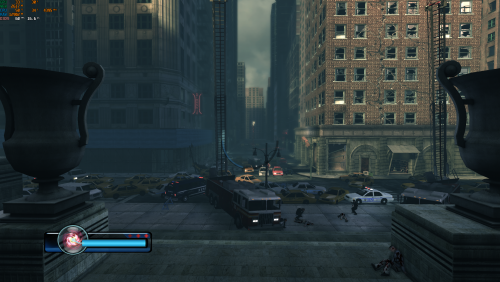
Legendary FPS PC Fix This fix adds an FPS toggle system from 60fps to 30fps (to fix broken areas at high fps), Windowed modes (window will go to the resolution set in game) Instructions Download the fix and place the contents d3d9.dll, d3d9.ini and [hotkey]keycodes.txt files into the Legendary main directory (where the exe is located). If using steam then go to the game in your library right click the game in the game list -> Manage -> Browse Local Files -> Binaries. That is where the Exe for the game is located. You can edit the settings you want in the d3d9.ini file. To edit the FPS hotkey you wish to use for the toggle find the keycode from inside the [hotkey]keycodes.txt file and then paste this into the d3d9.ini file for the hotkey option. FPS will start at 60 and you can toggle between that and 30 using the hotkey in the d3d9.ini that you specify default is F11. FPS can be set in d3d9.ini [DefaultFPS] this is the fps which the game will always start with and [HotkeyFPS] this is the fps which the game will go to on hotkey press. After toggling to HotkeyFPS you can toggle between that and DefaultFPS indefinitely using the chosen hotkey. Window mode can be toggled in d3d9.ini using the ForceWindowedMode entry, window will go to the size of the resolution in the game. Vote to see the game return via GOG Dream list If you are interested in potentially seeing this game easily available to purchase and use today then go and vote on the games GOG Dream list to help make this become a reality, you can vote for the game here and write a message about the game if you wish – https://www.gog.com/dreamlist/game/legendary-2008 Issues/Problems If you have any issues, with the fixes then please go to discord for help linked below. https://discord.gg/eVJ7sQH7Cc Credits Base wrapper by Elisha Riedlinger & ThirteenAG Additional game-specific patches, reverse engineering, enhancements, and configuration by Chip Fix Enhancers https://fixenhancers.wixsite.com/fix-enhancers “Creating compatibility fixes and enhancements for legacy PC games.” Chip – founder, reverse engineer, programmer, developer, game preservationist JokerAlex21 – founder, admin, tester -
Version 1.0.0
1,008 downloads
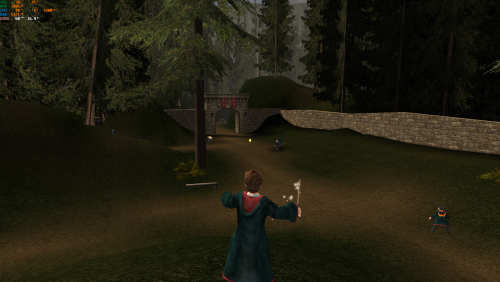
Harry Potter and the Prisoner of Azkaban – PC FPS Fix with Custom Controller Support This fix adds a stable 60 FPS or 120 FPS cap to Harry Potter and the Prisoner of Azkaban using the game’s internal logic. Running the game uncapped causes major timing issues such as the frozen Imp glitch. This release also includes full custom X-Input controller support using Chip’s X-Input backend, allowing the entire game to be played with a modern controller. Features included in this fix 60 FPS or 120 FPS launchers Prevents high-FPS game bugs (including the frozen Imp glitch) Full X-Input controller support Analogue walking and running Fully editable control layout through d3d8.ini Standalone launchers; no game files are overwritten How to use (FPS launchers) Download the fix and extract the folder then go into HP3-FPS-Cap-Game-Launchers. Choose either HP3-60FPSLauncher.exe or HP3-120FPSLauncher.exe. Extract the launcher you want into the game’s system folder next to hppoa.exe. Run the chosen launcher one time. If the launcher does not start the game, try running it as administrator. You can then continue to play the game normally using hppoa.exe. How to use (Custom controller support) Download the fix and extract the folder then go into HP3-Custom-Controller. The controller layout is provided by default as in the images above. Extract d3d8.dll and d3d8.ini into the game’s install folder, usually: C:\Program Files (x86)\EA Games\Harry Potter and the Prisoner of Azkaban(TM)\system The game must load through hppoa.exe in this folder. Walking and running are analogue using the left stick. All controls can be customised inside d3d8.ini, with clear explanations in the file. If you experience double input Go to: C:\Users\YOUR_NAME\Documents\Harry Potter and the Prisoner of Azkaban Open hppoa.ini Set UseJoystick=True to UseJoystick=False This disables the game’s built-in controller detection to prevent conflicts with X-Input. Vote to see the game return via GOG Dream list If you are interested in potentially seeing this game easily available to purchase and use today then go and vote on the games GOG Dream list to help make this become a reality, you can vote for the game here and write a message about the game if you wish – https://www.gog.com/dreamlist/game/harry-potter-and-the-prisoner-of-azkaban-2004 Issues/Problems If you have any issues with the fixes then please go to the Discord for help: https://discord.gg/eVJ7sQH7Cc Credits Base wrapper by Elisha Riedlinger & ThirteenAG. Additional game-specific patches, controller support, reverse engineering, enhancements, and configuration by Chip. Fix Enhancers https://fixenhancers.wixsite.com/fix-enhancers “Creating compatibility fixes and enhancements for legacy PC games.” Chip – founder, reverse engineer, programmer, developer, game preservationist JokerAlex21 – founder, admin, tester -
Version 1.0.0
906 downloads
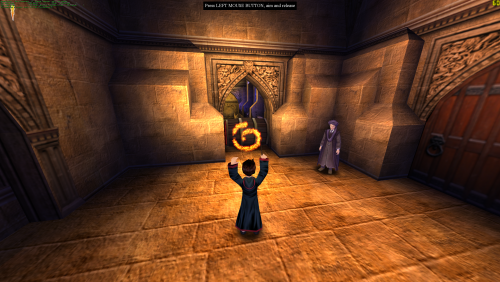
Harry Potter and the Philosopher’s Stone / Sorcerer’s Stone – PC FPS Fix This fix applies a stable 60 FPS cap to Harry Potter and the Philosopher’s Stone / Sorcerer’s Stone using the game’s internal timing logic. The engine does not have a proper way to limit framerate, and running uncapped can break physics, animations, and scripted events. This launcher forces a safe, stable framerate so the game behaves correctly. Features included in this fix Stable 60 FPS cap using internal engine logic Standalone launcher; no game files are modified Prevents high-FPS bugs, physics issues, and animation timing errors How to use Download the fix. Extract hp1-60FPSLauncher.exe into the game’s “system” folder next to hp.exe. Launch the game using hp1-60FPSLauncher.exe instead of hp.exe one time. You can now proceed to play the game normally using the games original hp.exe. Additional notes Running the game above 60 FPS causes timing issues; the launcher prevents this by using the games internal FPS logic and capping it. Issues/Problems If you have any issues, with the fixes then please go to discord for help linked below. https://discord.gg/eVJ7sQH7Cc Vote to see the game return via GOG Dream list If you are interested in potentially seeing this game easily available to purchase and use today then go and vote on the games GOG Dream list to help make this become a reality, you can vote for the game here and write a message about the game if you wish – https://www.gog.com/dreamlist/game/harry-potter-and-the-sorcerer-s-stone Credits Chip for creating the patcher program. Fix Enhancers https://fixenhancers.wixsite.com/fix-enhancers “Creating compatibility fixes and enhancements for legacy PC games.” Chip – founder, reverse engineer, programmer, developer, game preservationist JokerAlex21 – founder, admin, tester -
Version 1.0.0
1,148 downloads
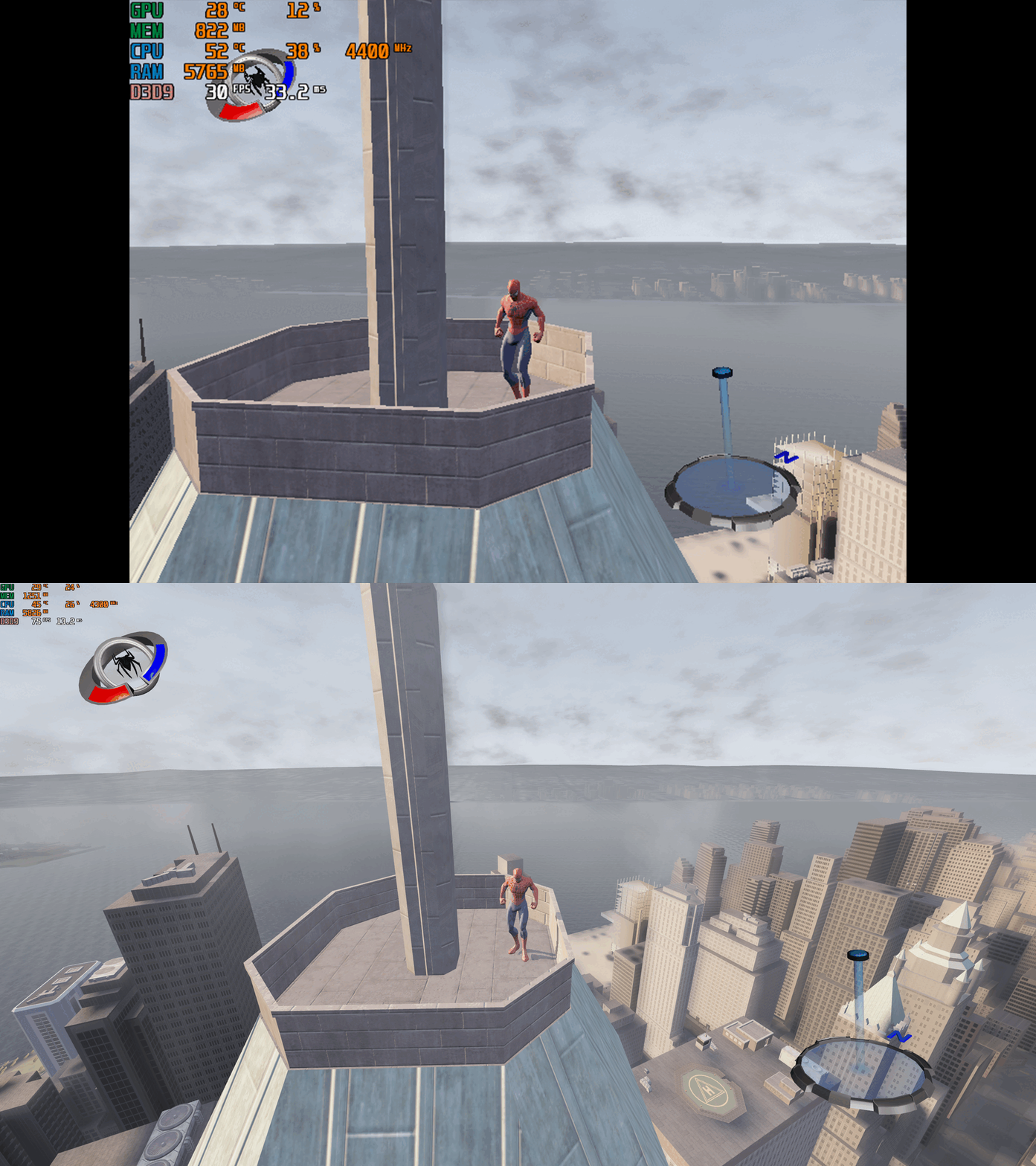
Spider-Man 3 – PC Fix This fix adds modern PC features to Spider-Man 3, including widescreen resolution support, higher aspect ratios, higher framerates (with a toggle system for broken areas) and adjustable FOV. It is based on Elisha Riedlinger’s Direct3D 9 wrapper and expanded with additional enhancements and patches by Chip. Features included in this fix Widescreen and ultrawide resolution support Higher aspect ratio options Adjustable FOV values FPS unlocking (with 30fps toggle for broken areas) Editable d3d9.ini configuration How to use Download the Spider-Man 3 PC Fix. Extract the contents d3d9.dll, d3d9.ini and [hotkey]keycodes.txt files into the installation folder next to game.exe. You can edit the settings you want in the d3d9.ini file. To edit the FPS hotkey you wish to use for the toggle find the keycode from inside the [hotkey]keycodes.txt file and then paste this into the corresponding area inside of the d3d9.ini file for the hotkey option. Resolution and Aspect Ratio The default Resolution is set to 1920x1080. Change the Width and Height fields to your preferred resolution. The default Aspect Ratio value is 1 (16:9). Choose a different preset by selecting the number matching your display. FPS The default FPS limit is 60. You may change this value or uncap it completely with 0 using the FPSLimit option in d3d9.ini. FOV The default FOV value is 0, which corresponds to the game’s original FOV. Increase the FOV value to zoom out the camera further. Issues/Problems If you have any issues, with the fixes then please go to discord for help linked below. https://discord.gg/eVJ7sQH7Cc Vote to see the game return via GOG Dream list If you are interested in potentially seeing this game easily available to purchase and use today then go and vote on the games GOG Dream list to help make this become a reality, you can vote for the game here and write a message about the game if you wish – https://www.gog.com/dreamlist/game/spider-man-3-2007 Credits Base wrapper by Elisha Riedlinger & ThirteenAG. Additional game-specific patches, reverse engineering, enhancements, and configuration by Chip. Fix Enhancers https://fixenhancers.wixsite.com/fix-enhancers “Creating compatibility fixes and enhancements for legacy PC games.” Chip – founder, reverse engineer, programmer, developer, game preservationist JokerAlex21 – founder, admin, tester -
Version 1.0.0
1,760 downloads
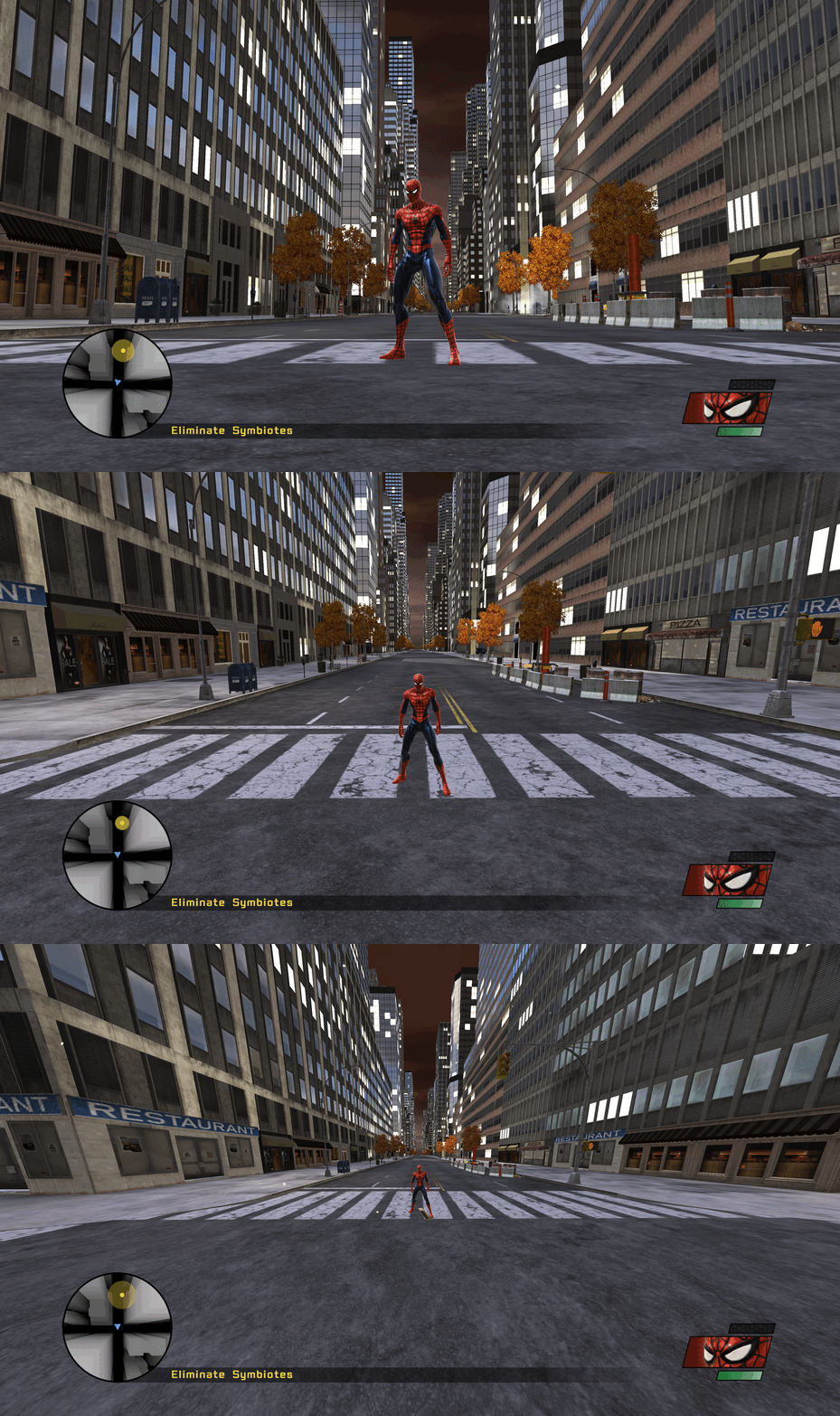
Spider-Man Web of Shadows – PC Fix Requirements before using this fix For this fix to work properly you must be on the 1.1 release of the game. You can update your version of the game with the Official update for this game here - https://www.moddb.com/games/spider-man-web-of-shadows/downloads/spider-man-web-of-shadows-v11-patch1 You should also do the following to help make the game run more smoothly on your PC. You will need to go to - C:\Users\YourUserName\AppData\Local\Activision\Spider-Man Web of Shadows and open Config.xml in notepad. Then add these lines at the bottom of the file and save it: <s id="Windowed">0</s> <s id="MaxCpuCount">4</s> <s id="VideoHz">60</s> </r> This fix adds QOL improvements to Spider-Man Web of Shadows, this includes a toggle FPS system from 60fps down to 30fps and a toggle FOV system which allows up to 4 different fovs to choose from, with each one being more zoomed out. It is based on Elisha Riedlinger’s Direct3D 9 wrapper and expanded with additional enhancements and patches by Chip. Features included in this fix Toggle FPS system from 60 to 30fps Toggle FOV system Editable d3d9.ini configuration How to use Download the Spider-Man Web of Shadows PC Fix. Extract the contents d3d9.dll, d3d9.ini and [hotkey]keycodes.txt files into the installation folder next to Spider-Man Web of Shadows.exe. You can edit the settings you want in the d3d9.ini file. To edit the FPS/FOV hotkey you wish to use for the toggles find the keycodes from inside the [hotkey]keycodes.txt file and then paste this into the corresponding areas inside of the d3d9.ini file for the hotkey options. Issues/Problems If you have any issues, with the fixes then please go to discord for help linked below. https://discord.gg/eVJ7sQH7Cc Vote to see the game return via GOG Dream list If you are interested in potentially seeing this game easily available to purchase and use today then go and vote on the games GOG Dream list to help make this become a reality, you can vote for the game here and write a message about the game if you wish – https://www.gog.com/dreamlist/game/spider-man-web-of-shadows-2008 Credits Base wrapper by Elisha Riedlinger & ThirteenAG. Additional game-specific patches, reverse engineering, enhancements, and configuration by Chip. Fix Enhancers https://fixenhancers.wixsite.com/fix-enhancers “Creating compatibility fixes and enhancements for legacy PC games.” Chip – founder, reverse engineer, programmer, developer, game preservationist JokerAlex21 – founder, admin, tester -
Version 1.0.0
785 downloads
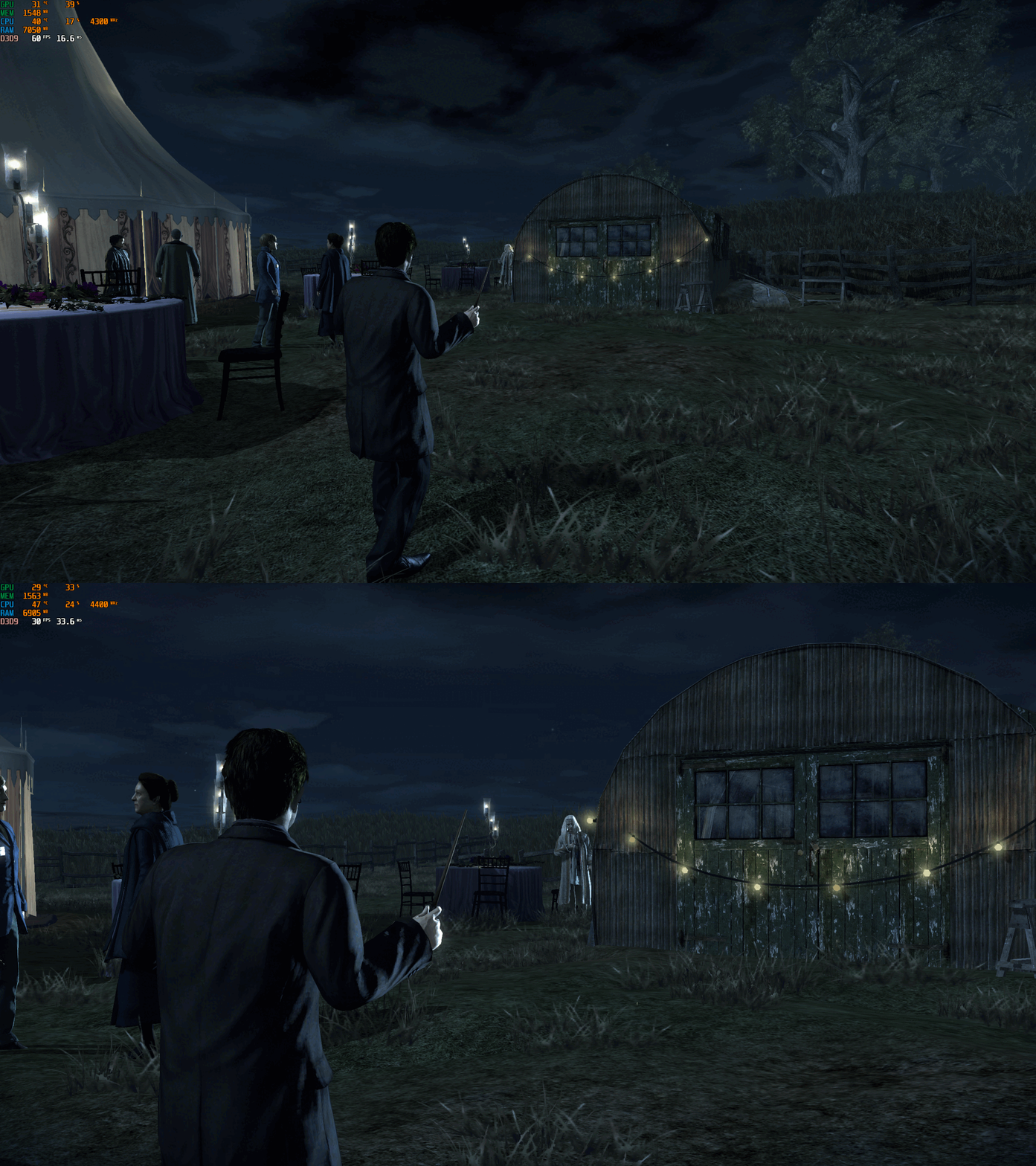
Harry Potter and the Deathly Hallows Part 1 – PC Fix This fix adds modern PC features to Harry Potter and the Deathly Hallows Part 1, including higher aspect ratios, FPS unlocking with optional toggle hotkey, and selectable FOV options. It is based on Elisha Riedlinger’s Direct3D 9 wrapper and expanded with additional enhancements and patches by Chip. Features included in this fix Correct aspect ratio options Optional zoomed-out FOV or original game FOV FPS unlocking with or without toggle Editable d3d9.ini configuration How to use Download the Harry Potter and the Deathly Hallows Part 1 fix. Use one of the following fixes: hp7fix.zip, hp7fixNOTOGGLE.zip, hp7fixOriginalFOV.zip, or hp7fixOriginalFOVNOTOGGLE.zip. Extract d3d9.dll and d3d9.ini into your game folder next to hp7.exe. Edit d3d9.ini to set your preferred aspect ratio, FPS and FOV. Aspect Ratio The default Aspect Ratio value is 0, which corresponds to 16:9. Choose another preset by replacing 0 with the number that matches your display. FPS The default FPS limit is 60. You can change this value or fully uncap it by setting it to 0. hp7fixNOTOGGLE.zip runs at the FPS you set in the ini file. Menus will speed up, but cutscenes remain correctly timed. hp7fix.zip allows toggling between your chosen FPS and the original 30 FPS using the “9” key (top row, not numpad). Press the key again if it does not toggle the first time. After the initial switch, it will alternate cleanly. FOV hp7fix.zip and hp7fixNOTOGGLE.zip include a zoomed-out FOV. hp7fixOriginalFOV.zip and hp7fixOriginalFOVNOTOGGLE.zip use the original FOV values. Choose the version that fits how you want to play the game. Additional notes The “9” key toggle helps bypass FPS-related menu issues. Cutscenes are unaffected and play at correct speed. All settings are controlled through d3d9.ini. Official video guide https://www.youtube.com/watch?v=B1HhMPvchx0 Issues/Problems If you have any issues, with the fixes then please go to discord for help linked below. https://discord.gg/eVJ7sQH7Cc Vote to see the game return via GOG Dream list If you are interested in potentially seeing this game easily available to purchase and use today then go and vote on the games GOG Dream list to help make this become a reality, you can vote for the game here and write a message about the game if you wish – https://www.gog.com/dreamlist/game/harry-potter-and-the-deathly-hallows-part-1-2010 Credits Base wrapper by Elisha Riedlinger & ThirteenAG. Additional game-specific patches, reverse engineering, enhancements, and configuration by Chip. Fix Enhancers https://fixenhancers.wixsite.com/fix-enhancers “Creating compatibility fixes and enhancements for legacy PC games.” Chip – founder, reverse engineer, programmer, developer, game preservationist JokerAlex21 – founder, admin, tester -
Version 1.0.0
923 downloads
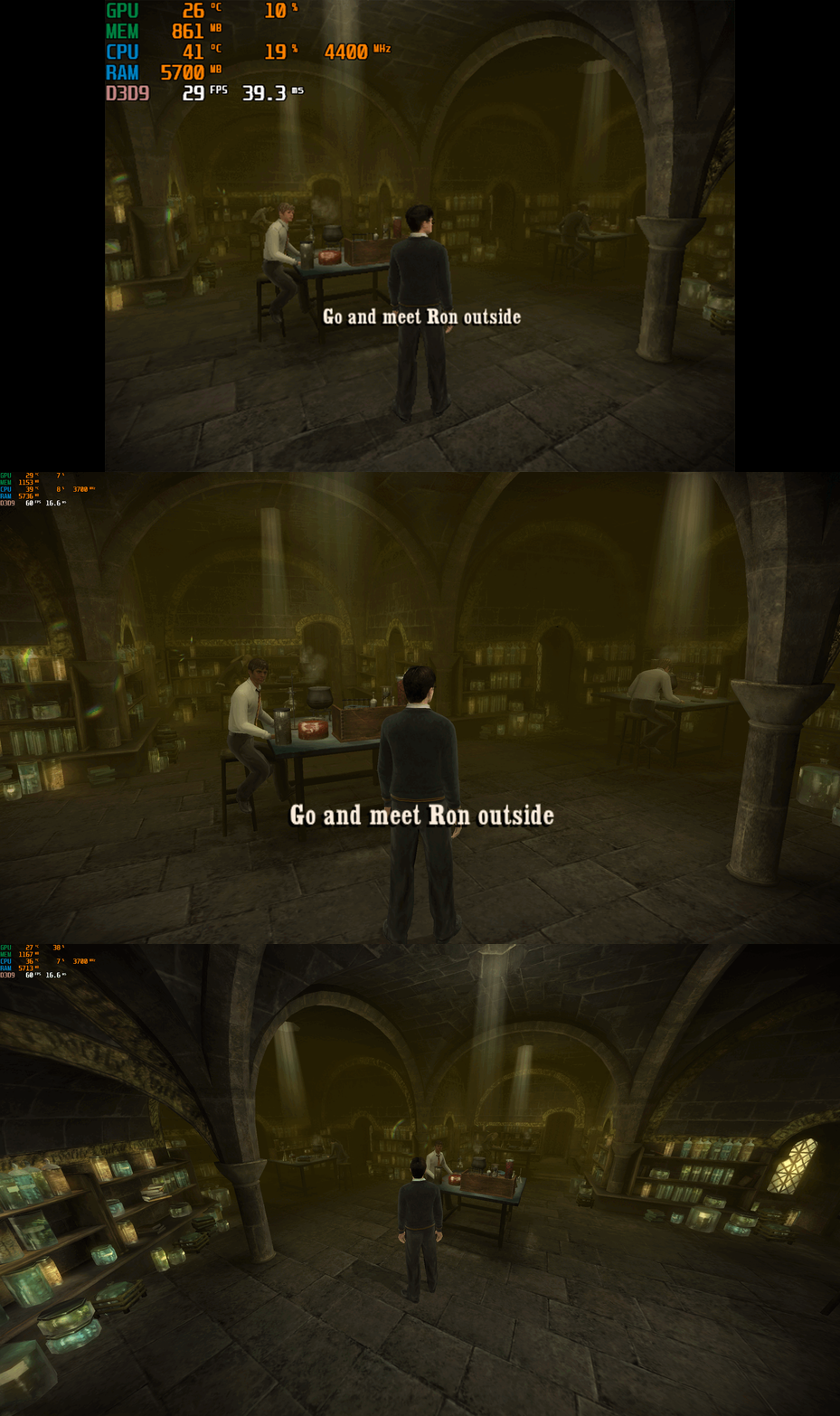
Harry Potter and the Half-Blood Prince – PC Fix This fix adds modern PC features to Harry Potter and the Half-Blood Prince, including widescreen resolution support, aspect-ratio correction, 60 or 120 FPS options, and optional FOV adjustments. It is based on Elisha Riedlinger’s Direct3D 9 wrapper and expanded with additional enhancements and patches by Chip. Features included in this fix Widescreen and ultrawide resolution support Correct aspect ratio options FOV / camera distance adjustments (0–3 levels) 60 FPS or 120 FPS frame-rate versions Editable d3d9.ini configuration Optional Nvidia Control Panel settings to fix stutter for affected users How to use Launch the game once, open the Video Options, set the resolution to 640x480, then exit the game. This step is required so the wrapper initializes correctly. Download the folder; inside there are two folders. Choose the one which matches your monitor’s refresh rate (60 FPS for 60 Hz, 120 FPS for 120 Hz and above). Put d3d9.dll, d3d9.ini, and fps.dll into the game folder next to HP.exe. Edit d3d9.ini to set your preferred resolution, aspect ratio, FOV, and other options. Additional notes If the resolution does not apply automatically, select it once inside the in-game Video Options. AspectRatio in the ini file uses numbered presets. The default is 0 (16:9). FOV values 1–3 move the camera further back. Value 0 keeps the original game camera. If FPS is stuttery or unstable, set the FPS cap in d3d9.ini to 0 (uncapped), then configure the game in your GPU control panel: Low Latency Mode: Ultra Max FPS: 278 V-Sync: Fast This also fixes issues where the mouse cursor jumps or spins across the screen. A full installation walkthrough is available in the video below. Official video guide https://www.youtube.com/watch?v=DTkDNoQrxhU Issues/Problems If you have any issues, with the fixes then please go to discord for help linked below. https://discord.gg/eVJ7sQH7Cc Vote to see the game return via GOG Dream list If you are interested in potentially seeing this game easily available to purchase and use today then go and vote on the games GOG Dream list to help make this become a reality, you can vote for the game here and write a message about the game if you wish – https://www.gog.com/dreamlist/game/harry-potter-and-the-half-blood-prince-2009 Credits Base wrapper by Elisha Riedlinger & ThirteenAG. Additional game-specific patches, reverse engineering, enhancements, and configuration by Chip. Fix Enhancers https://fixenhancers.wixsite.com/fix-enhancers “Creating compatibility fixes and enhancements for legacy PC games.” Chip – founder, reverse engineer, programmer, developer, game preservationist JokerAlex21 – founder, admin, tester -
Version 1.0.0
709 downloads
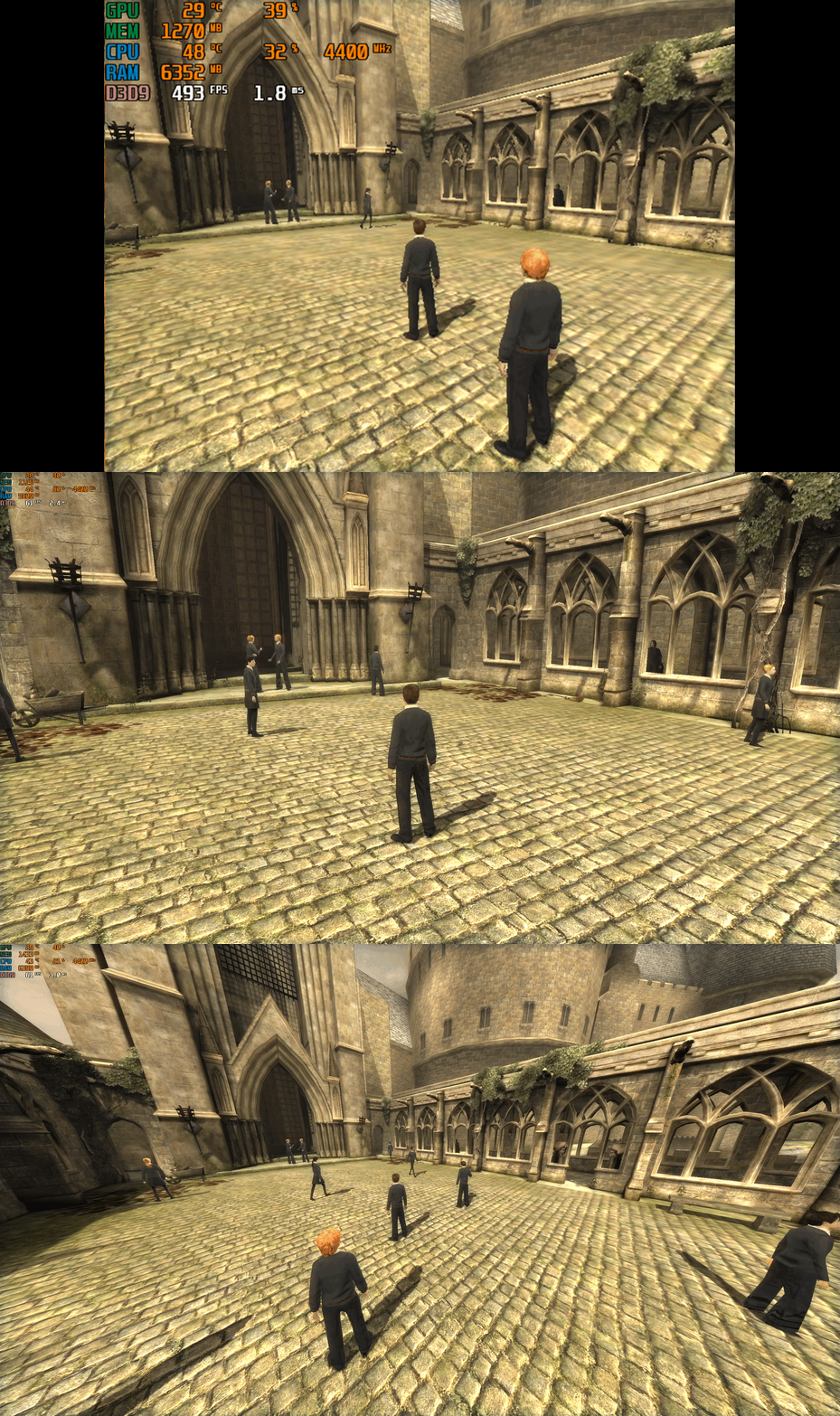
Harry Potter and the Order of the Phoenix – PC Fix This fix adds modern PC features to Harry Potter and the Order of the Phoenix, including widescreen resolution support, aspect-ratio correction, higher frame rates (60 or 120 FPS), and optional FOV adjustments. It is based on Elisha Riedlinger’s Direct3D 9 wrapper and expanded with additional enhancements and patches by Chip. Features included in this fix Widescreen and ultrawide resolution support Correct aspect ratio options FOV / camera distance adjustments (0–3 levels) 60 FPS or 120 FPS frame-rate versions Editable d3d9.ini configuration How to use Launch the game once, open the Video Options, set the resolution to 640x480, then exit the game. This step is required so the wrapper initializes correctly. Download the folder; inside there are two folders. Choose the one which matches your monitor’s refresh rate (60 FPS for 60 Hz, 120 FPS for 120 Hz and above). Put d3d9.dll, d3d9.ini, and fps.dll into the game folder next to HP.exe. Edit d3d9.ini to set your preferred resolution, aspect ratio, FOV, and other options. Play the game. Additional notes If the resolution does not apply automatically, select it once inside the in-game Video Options. AspectRatio in the ini file uses numbered presets. The default is 0 (16:9). FOV values 1–3 move the camera further back. Value 0 keeps the original game camera. A full installation walkthrough is available in the video below. Official video guide https://www.youtube.com/watch?v=VeZ-Envz9ME Issues/Problems If you have any issues, with the fixes then please go to discord for help linked below. https://discord.gg/eVJ7sQH7Cc Vote to see the game return via GOG Dream list If you are interested in potentially seeing this game easily available to purchase and use today then go and vote on the games GOG Dream list to help make this become a reality, you can vote for the game here and write a message about the game if you wish – https://www.gog.com/dreamlist/game/harry-potter-and-the-order-of-the-phoenix-2007 Credits Base wrapper by Elisha Riedlinger & ThirteenAG. Additional game-specific patches, reverse engineering, enhancements, and configuration by Chip. Fix Enhancers https://fixenhancers.wixsite.com/fix-enhancers “Creating compatibility fixes and enhancements for legacy PC games.” Chip – founder, reverse engineer, programmer, developer, game preservationist JokerAlex21 – founder, admin, tester
Fix.thumb.gif.1c578ff01b954548648adb2653e1675b.gif)
Fix.thumb.gif.d8bbddc2c30a540510d0e41e81f88a52.gif)

.thumb.png.573424dca099f94733865bd8286986b1.png)


