
About This File
This fix adds modern PC features to The Lord of the Rings the Return of the King.
Requirements before using the fix
YOU MUST download the amazing Nemesis2000 widescreen fix from here - Nemesis 2000 LOTRROTK Resolution/Aspect Ratio Fix
Once you download the Nemesis2000 fix place the LOTRW.dll and LOTR.ini into the games install folder next to the ROTK.exe file. DO NOT PLACE THE d3d8.dll file from Nemesis2000 fix into the game install area as this is replaced by the Fix Enhancers Fix.dll file instead.
The Nemesis2000 fix will cover the resolution and aspect ratio side while the Fix Enhancers fix covers everything else.
Features included in this fix
- Higher Resolutions and Aspect Ratio support (via the Nemesis 2000 fix)
- Custom higher framerate support
- Higher FOV support
- Windowed/Borderless Window support
How to use
- Download the latest The Lord of the Rings the Return of the King PC Fix file
- Extract it and put the Fix.dll and d3d8.ini into your game folder next to the ROTK.exe file and you are good to go!
- You can edit the settings you wish to use in the d3d8.ini file.
- Download the Nemesis 2000 Fix and extract the LOTR.ini and LOTRW.dll files into your game folder next to the ROTK.exe file.
- Edit the LOTR.ini file to edit the resolution you wish to use.
Resolution/Aspect Ratio
Open the LOTR.ini file and next to Width and Hight put your resolution for example (3840x2160). Note that once you boot up the game it will now be set to the correct resolution and aspect ratio. However, DO NOT change the resolution in the games graphics options, the resolution you put in the LOTR.ini file will not show up in the resolution list within the game which is normal.
FPS
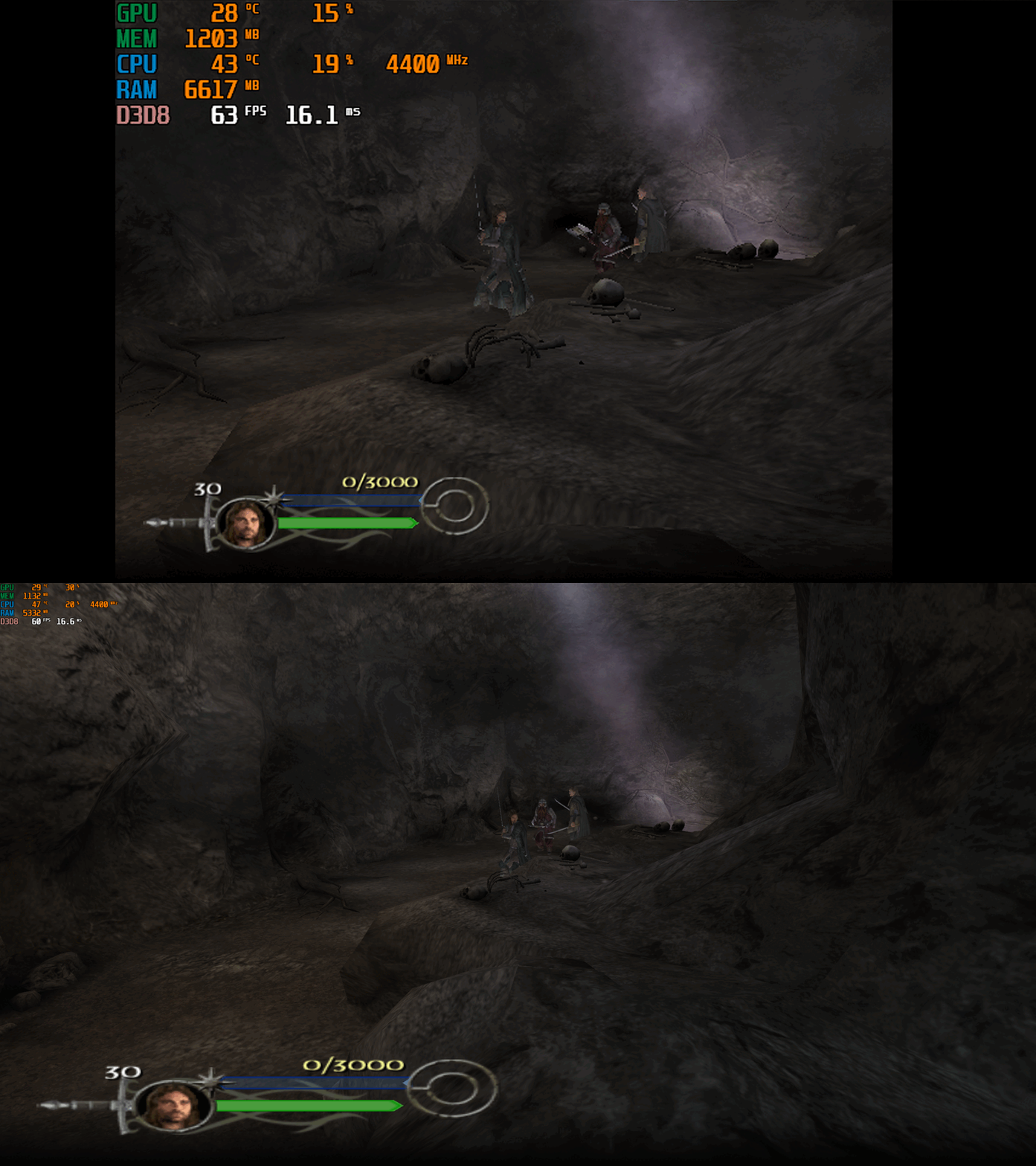
The default for FPS is (60) you can change it as you wish or fully uncap it with (0) with the FPSLimit option in the d3d8.ini file. The FPS has been limited to 120fps in this fix due to game breaking bugs going above 120fps.
FOV
The default for FOV is (0) which is off, you can turn this on in the d3d8.ini by changing the (0) to (1).
It is recommended that this is kept off by default due to FOV being quite broken in multiple areas of the game such as the level selection menu. You can use this setting, and it will work mostly fine during gameplay and will fix issues on higher resolutions where the camera goes inside the characters during cutscenes.
The FOV is a work in progress and will be further looked into.
Issues/Problems
If you have any issues, with the fixes then please go to discord for help linked below.
Vote to see the game return via GOG Dream list
If you are interested in potentially seeing this game easily available to purchase and use today then go and vote on the games GOG Dream list to help make this become a reality, you can vote for the game here and write a message about the game if you wish – The Lord of the Rings the Return of the King GOG Vote
Fix Enhancers
“Creating compatibility fixes and enhancements for legacy PC games.”
Chip – Founder, Reverse Engineer, Programmer, Developer, Game Preservationist
JokerAlex21 – Founder, Admin, Tester


.thumb.png.573424dca099f94733865bd8286986b1.png)


.thumb.png.4b137d2db24f52de50e206c7037524b0.png)

.thumb.png.7810ef07f773545dbd4fac469c54866a.png)

Recommended Comments
There are no comments to display.
Join the conversation
You can post now and register later. If you have an account, sign in now to post with your account.