Search the Community
Showing results for tags 'hud fix'.
Found 4 results
-

Version 1.0.0
131 downloads
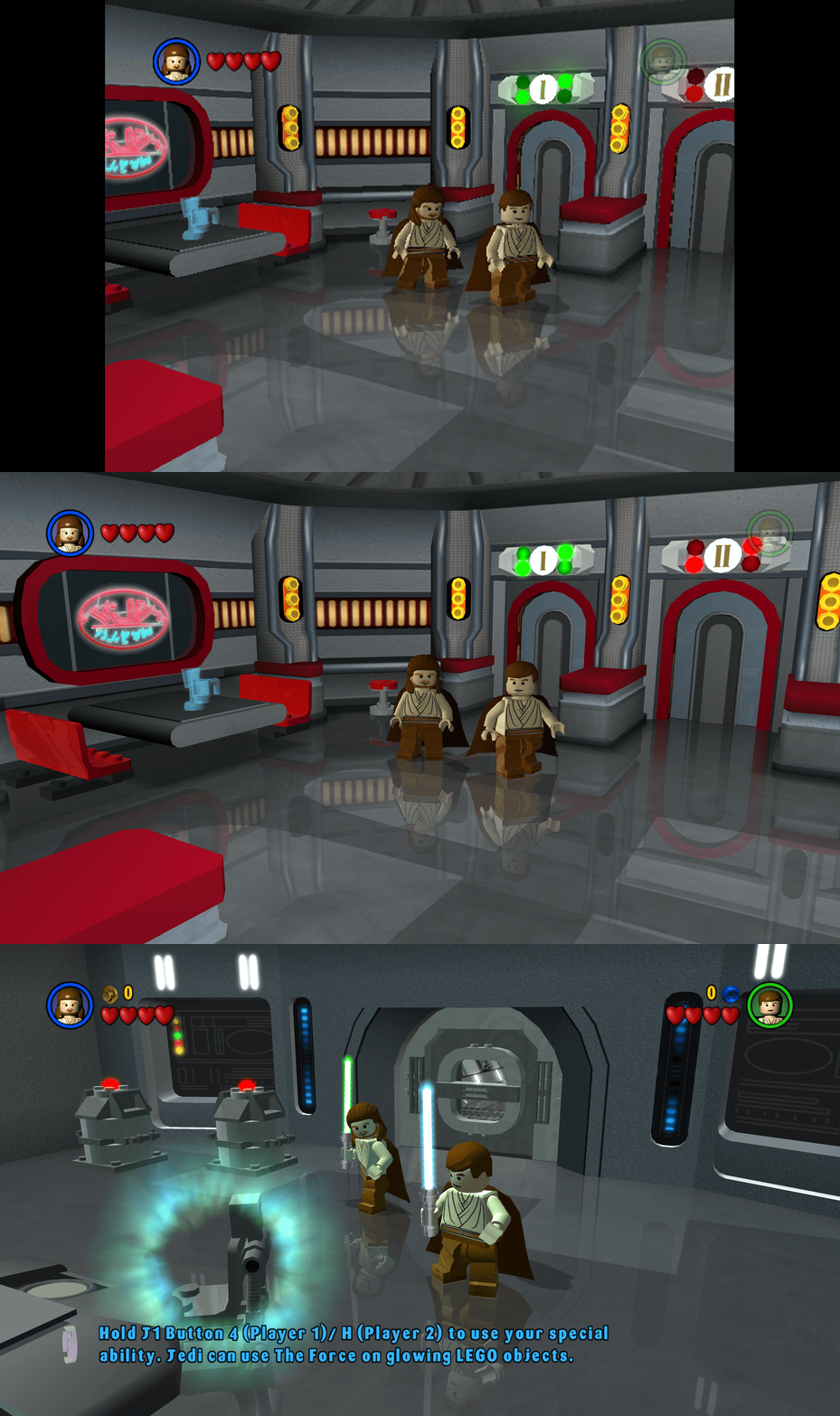
This fix adds modern PC features to Lego Star Wars (2005). Requirements before using the fix Before using the fix for it to work properly you MUST have patched the game up to 1.0.0.2 release. If you have not updated your Lego Star Wars (2005) already then you can download the patch from here - Lego Star Wars (2005) 1.0.0.2 Patch Features included in this fix Higher Resolutions and Aspect Ratio support HUD corrections for higher resolutions/aspect ratios Custom higher framerate support Developer Menu How to use Download the latest Lego Star Wars (2005) PC Fix.zip Extract the d3d9.dll, d3d9.ini, ChipDebug.ini and ChipDebugLSW.exe files into your game folder next to the LegoStarWars.exe file and you are good to go! You can edit the settings you wish to use in the d3d9.ini and ChipDebug.ini files. Resolution,Aspect Ratio and HUD Corrections The default for resolution is set to (1920 x 1080) in the d3d9.ini file. Put the resolution that you wish to use in both the Width and Height area. Aspect Ratio and HUD size is auto calculated by the Resolution you choose. FPS The default for FPS is (60) you can change it as you wish with the FPSLimit option in the d3d9.ini file. It is recommended to not go above 60. Developer Menu Put ChipDebugLSW.exe and ChipDebug.ini with d3d9.dll and d3d9.ini. Go into ChipDebug.ini and set the settings, you SHOULD pay attention to your region of your game. if you want the game to run after you run the patcher program set LAUNCH_GAME=1 if not then LAUNCH_GAME=0 the default is 0 REGION SETTINGS: Set EXACTLY ONE of the following to 1. All others must be 0. EU = Patch the EUROPE / PAL version of the game EU_RESET = Restore the ORIGINAL EU executable US = Patch the UNITED STATES / NTSC version of the game US_RESET = Restore the ORIGINAL US executable Examples: Enable EU debug: EU=1 Disable EU debug: EU_RESET=1 [REGION] Region selection (choose ONE only) EU=1 EU_RESET=0 US=0 US_RESET=0 Developer Menu becomes available in the game after patching it once enabled it is advised that you DON'T use in the main menu its a bit buggy use it once you get into the game itself by pausing and going to options. After setting up in the ini then run ChipDebugLSW.exe then you can play the game normally by using LegoStarwars.exe, if for any reason you want to turn off developer mode then just use the patcher program again. it will also give you a LegoStarwars.exe.bak incase of failures. Issues/Problems If you have any issues, with the fixes then please go to discord for help linked below. Fix Enhancers Discord Server Vote to see the game return via GOG Dream list If you are interested in potentially seeing this game easily available to purchase and use today then go and vote on the games GOG Dream list to help make this become a reality, you can vote for the game here and write a message about the game if you wish – Lego Star Wars (2005) GOG Vote Fix Enhancers Fix Enhancers Website “Creating compatibility fixes and enhancements for legacy PC games.” Chip – Founder, Reverse Engineer, Programmer, Developer, Game Preservationist JokerAlex21 – Founder, Admin, Tester -
Version 1.3
316 downloads
Comes with a RAR file, which includes an ASI plugin intended to fix the aspect ratio and HUD in the third-person horse racing simulation game "Melbourne Cup Challenge" (2006), since the game stretches the view at resolutions with an aspect ratio wider than 4:3. Source code available here: https://github.com/alphayellow1/AlphaYellowWidescreenFixes/blob/main/source/fixes/MelbourneCupChallengeFOVFix Instructions: 1. Extract all files to the game folder. 2. Download ThirteenAG's Ultimate ASI Loader (32-bit version of winmm.dll), and also extract it to the game folder. 3. Set the desired resolution to fix the stretching and FOV factor in MelbourneCupChallengeFOVFix.ini. -
Version 1.0.2
658 downloads
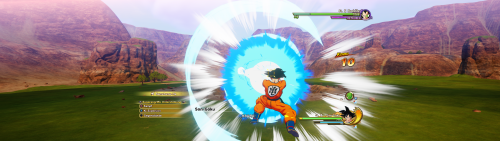
Disclaimer This software is a modification for the game Dragon Ball Z Kakarot and is not affiliated with or endorsed by the Game developers or publishers. Description: Adds native ultrawide support and fixes visual issues caused by extended aspect ratios. Fixes: HUD scaling & centering FMVs Targeting system alignment FOV Features: two FOV modes: auto and custom unlocked fps three choosable hud-ratios Tested with the following aspect ratios: 16:10, 21:9, 32:9, 48:9 How to install Windows: Extract the zip file to the game's installation directory. For HD remaster in ...\dlc\Remaster\AT\Binaries\Win64. For old version in ...\AT\Binaries\Win64. Enter your data in the .ini file and ensure width and height match your resolution. You can also change FOV, FPS and HUD settings here. Don't forget to save. Start the game. Steam Deck/Linux: Extract the zip file to the game's installation directory. For HD remaster in ...\dlc\Remaster\AT\Binaries\Win64. For old version in ...\AT\Binaries\Win64. Enter your data in the .ini file and ensure width and height match your resolution. You can also change FOV and FPS settings here. Don't forget to save. Open the game properties in Steam (Right-click game -> Properties). Under General -> Launch Options, paste exactly this command: WINEDLLOVERRIDES="winmm=n,b" %command% Start the game. Additionally: To ensure having better performance start the game with dx12 by using the following start command in steam launch option: -d3d12 For steam deck/linux you need to paste this command with a space after the %command% If something isn't working, feel free to leave a comment here or in the WSGF Discord. How to uninstall Delete the mod files from the game directory. Requirements Latest Steam version of the game. Support my work Developing complex logic and maintaining updates takes a lot of time and coffee. If this mod improved your game experience, consider buying me a coffee! It helps me keep going and working on fixes for future games. Paypal Ko-fi Credits ThirteenAG - Ultimate-ASI-Loader -
Version 1.0.0
1,168 downloads
Alternative HudLayout.res file fixing misaligned HUD pickup icons in certain resolutions causing icons to appear cut at the bottom. Extract in <path-to-game>\hl2\custom
.thumb.png.573424dca099f94733865bd8286986b1.png)