
Search the Community
Showing results for tags 'fps unlock'.
Found 8 results
-

Version 1.0
2,760 downloads
All credits go to: lk19 This is a mirror from the author's GitHub page (https://github.com/lukek19/CPAGameFixes), for easier reachability. This widescreen fix contains improvements to the game. Instructions (taken from GitHub): Note: This fix is intended for the retail version of the game only. DO NOT USE IT WITH ANY PRE-PATCHED EXE FILES. The official Russian "portable" edition (the one with bugfixes.dll in the game directory) was not tested, but should be compatible with the fix. It simply has a few of the same patches hardcoded into the game's exe. In this case, please set CompatibilityPatch, NoCD and MakePortable to false, although it shouldn't do any harm to patch the code twice). Please note that the Russian version is not really "portable", as the game stores its savegames and configuration in %appdata%\Disney\DonaldDuck. Copy the folder "Donald" from the CD anywhere on your harddrive (e.g. C:\Games\Donald). In the following this will be referred to as <GameDir>. Copy the folder "Data" from the CD to <GameDir>. From the fix, copy Donald.asi, Donald.ini & ubi.ini to <GameDir>. Also copy \dll\GliDX6vf.dll to <GameDir>\dll. Download Ultimate ASI Loader (Win32 version of dinput.dll), and extract it to <GameDir>. Set up a Direct3D wrapper. Instructions for either dgVoodoo or DDrawCompat can be found below. To change aspect ratio and for advanced options, edit <GameDir>\Donald.ini with a text editor. Setup of Direct3D Wrapper dgVoodoo 2 Download the latest stable version of dgVoodoo from here: https://github.com/dege-diosg/dgVoodoo2/releases Copy dgVoodooCpl.exe & dgVoodoo.conf from the main directory as well as D3DImm.dll & DDraw.dll from the \MS\x86\ subdirectory to <GameDir>. Open the configurator dgVoodooCpl.exe. In the "DirectX" tab under "Resolution", choose "Desktop". Under "Miscellanneous", uncheck "dgVoodoo Watermark". Click "Apply" to save the changes. DDrawCompat Download the latest release of DDrawCompat. Also download DDrawCompat.ini. Copy ddraw.dll and DDrawCompat.ini to <GameDir>. Open DDrawCompat.ini with a text editor. Uncomment (remove the "#") the relevant rows and set the following parameters: AlternatePixelCenter = on DisplayAspectRatio = display LogLevel = none ResolutionScale = display(1) Using a game controller To use XInput devices: Download the latest version of Xidi. Find the Win32 version of dinput.dll and rename it to dinputHooked.dll. Copy dinputHooked.dll to <GameDir>. Download the pre-configured Xidi.ini and place it in <GameDir>. Adjust the the configuration to your own taste. FAQ / Known Issues Weird looking symbols in the top left corner This is actually not a bug. The symbols are actual HUD elements, stored in this position when they are not needed. At 4:3 aspect ratio they are off-screen, but at wider aspect ratios (which the developers never intended) they become visible. If you press "9" on the keyboard, they will magically teleport to their proper position in the HUD. To fix this, one would likely need to edit \Data\World\Levels\MapMonde\MapMonde.sna, which is currently out-of-scope for this patch. Background elements in 2D sidescrolling levels In the sidescrolling levels, the 3D background elements will sometimes clip in and out of view. This is likely related to the game's draw distance and I currently do not have a fix for this. GliDX6vf.dll The included file GliDX6vf.dll has been patched to fix the game's internal frame limiter sometimes altering between 60 and 30 FPS. It is almost identical to the one created by Dege (the author of dgVoodoo) for Rayman 2 and Goin' Quackers. However, I have updated it so that it also works with DDrawCompat. Disable internal frame limiter To disable the game's internal frame synchro completely, you may set DisableInternalSync = true in Donald.ini. In this case, there is no need to replace the game's original GliDX6vf.dll with the one provided in this fix. Please make sure that you are using an external frame limiter (e.g. dgVoodoo/DDrawCompat's built-in functionality) and limit the framerate to 60 FPS to avoid speed-up and crashes. FMVs are too small and stretched Plese refer to the separate FMV Troubleshooting Guide. -
Version 1.0.0
879 downloads
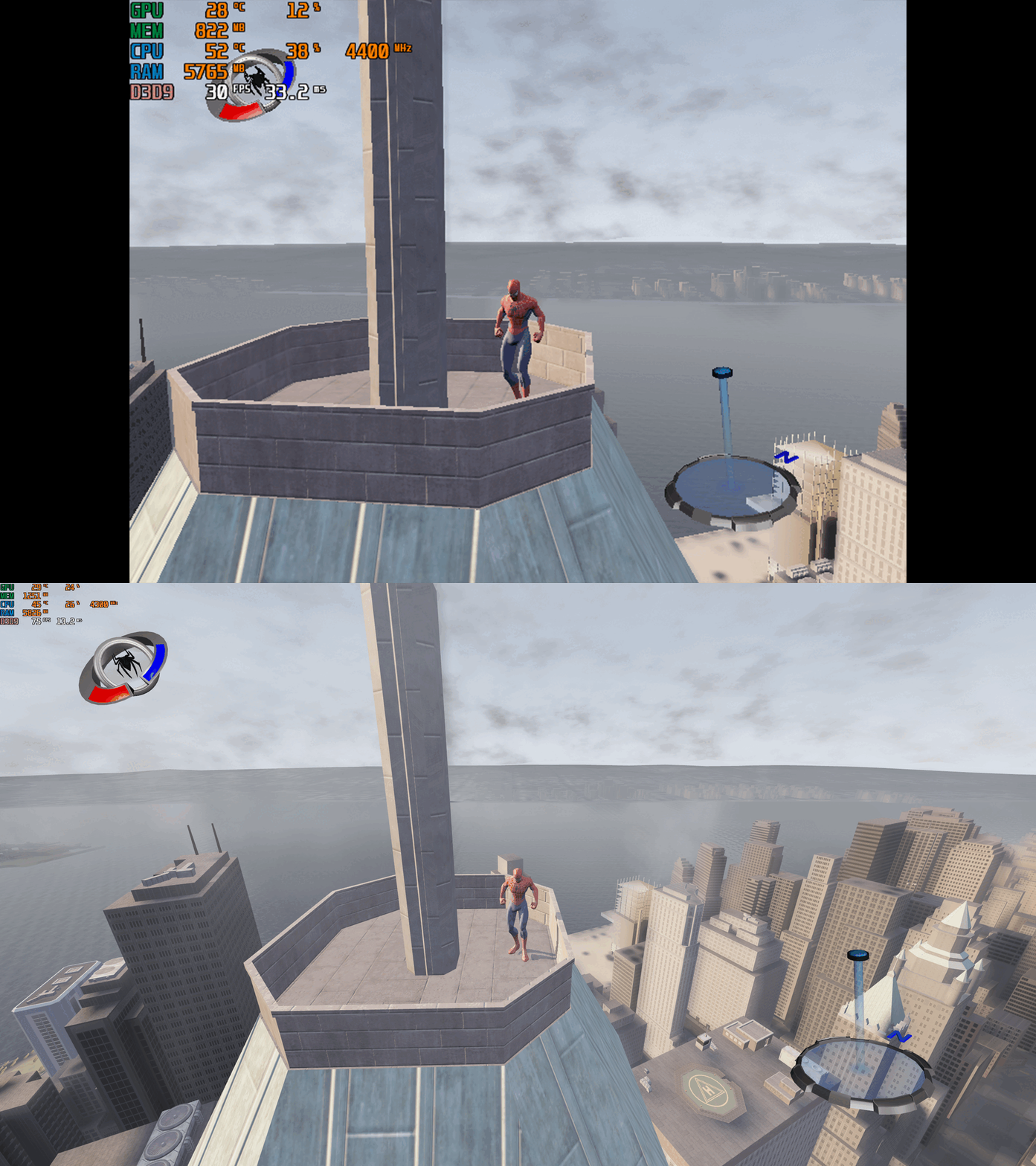
Spider-Man 3 – PC Fix This fix adds modern PC features to Spider-Man 3, including widescreen resolution support, higher aspect ratios, higher framerates (with a toggle system for broken areas) and adjustable FOV. It is based on Elisha Riedlinger’s Direct3D 9 wrapper and expanded with additional enhancements and patches by Chip. Features included in this fix Widescreen and ultrawide resolution support Higher aspect ratio options Adjustable FOV values FPS unlocking (with 30fps toggle for broken areas) Editable d3d9.ini configuration How to use Download the Spider-Man 3 PC Fix. Extract the contents d3d9.dll, d3d9.ini and [hotkey]keycodes.txt files into the installation folder next to game.exe. You can edit the settings you want in the d3d9.ini file. To edit the FPS hotkey you wish to use for the toggle find the keycode from inside the [hotkey]keycodes.txt file and then paste this into the corresponding area inside of the d3d9.ini file for the hotkey option. Resolution and Aspect Ratio The default Resolution is set to 1920x1080. Change the Width and Height fields to your preferred resolution. The default Aspect Ratio value is 1 (16:9). Choose a different preset by selecting the number matching your display. FPS The default FPS limit is 60. You may change this value or uncap it completely with 0 using the FPSLimit option in d3d9.ini. FOV The default FOV value is 0, which corresponds to the game’s original FOV. Increase the FOV value to zoom out the camera further. Issues/Problems If you have any issues, with the fixes then please go to discord for help linked below. https://discord.gg/eVJ7sQH7Cc Vote to see the game return via GOG Dream list If you are interested in potentially seeing this game easily available to purchase and use today then go and vote on the games GOG Dream list to help make this become a reality, you can vote for the game here and write a message about the game if you wish – https://www.gog.com/dreamlist/game/spider-man-3-2007 Credits Base wrapper by Elisha Riedlinger & ThirteenAG. Additional game-specific patches, reverse engineering, enhancements, and configuration by Chip. Fix Enhancers https://fixenhancers.wixsite.com/fix-enhancers “Creating compatibility fixes and enhancements for legacy PC games.” Chip – founder, reverse engineer, programmer, developer, game preservationist JokerAlex21 – founder, admin, tester -


Version 1.0.0
6,769 downloads
Installation: Unpack the archive Copy all files to the game folder, binkw32.dll should be replaced Set your screen resolution in Settings.ini In the Settings.ini file, you can change the following settings [FPS] Limit = 300 FPS limiter value Unlock = 0 0 - disable FPS limiter 1 - enable FPS limiter [RESOLUTION] Width = 0 Height = 0 forces the screen resolution [HUD] Centered = 1 0 - stretched HUD 1 - centered HUD Aspect = 1.777777 HUD aspect ratio value [DRAW_DISTANCE] LOD = 1.000 multiplier for the distance between LOD levels Objects = 1.000 multiplier for objects visibility distance use values no greater than 3.0 to avoid glitches at very high aspect ratios 4.0 - max value Shadows = 1.000 multiplier for shadows visibility distance Fog = 1.000 multiplier for the fog visibility distance [EFFECTS] ColorCorrection = 0 0 - disable yellowish tint 1 - enable yellowish tint DOF = 0 0 - disable "Depth Of Field" effect 1 - enable "Depth Of Field" effect ShadowMapSize = 1024 increase this value to get better shadows quality 256 - min value 15360 - max value -

Version 1.0
401 downloads
This is a program to unlock the framerate in the game Astalon: Tears of the Earth. It's made with Cheat Engine so some Antivirus software will flag it. Extract the archive with the password pcgw The game has a forced 60 fps cap and no Vsync, and from my testing it also has issues with freesync/gsync so it's pretty bad. With this tool you can unlock the FPS which will eliminate input lag and get really smooth motion on camera panning. Since you will probably get 1000+ fps, if you want an fps limit use the Scanline Sync feature from Riva Tuner Statistics Server, which will cap it your refresh rate, eliminate judder and tearing with almost no input lag. Instructions: Extract the archive with the password pcgw Open the tool. Start the game. It should get patched automatically and you should hear a sound effect, otherwise press F1. -

Version 1.0.0
18,216 downloads
Unlocks the fps cap in Call of Duty: Infinite Warfare. Instructions: You'll need .NET Framework 4.8 to work: https://dotnet.microsoft.com/en-us/download/dotnet-framework/net48 Extract File and move to Game folder Launch the game and After skipping the first menu press "ALT TAB" on the keyboard Launch the exe called "IW Frame Unlocker.exe" and a return to the game. Done Sadly you'll have to do it every time you enter the game but still. better that nothing (works with Multiplayer and Zombies) Disclaimer: I didn't make this mod, just reuploaded. 😉- 8 comments
-
- 2
-

-

-
- fps unlock
- call of duty
- (and 2 more)
-

Version 1.0.0
4,933 downloads
Unpack the archive Copy all files to the game folder, binkw32.dll should be replaced In the Settings.ini file, you can change the following settings [FPS] Limit = 60 FPS limiter value Unlock = 0 Value - 1 disables FPS limiter To achieve better performance at high FPS, it is better to disable the internal FPS limiter of the game. Use Vsync or external FPS limiter to limit FPS. This game is designed to work at a constant speed, so you must have a stable FPS, otherwise you will notice a slowdown or acceleration of the game speed. Example for 120 FPS with Vsync or external FPS limiter [FPS] Limit = 120 Unlock = 1 Example for 144 FPS with Vsync or external FPS limiter [FPS] Limit = 144 Unlock = 1 [RESOLUTION] Width = 0 Height = 0 This setting can override game's horizontal and vertical resolution Example for 1920x1080 resolution [RESOLUTION] Width = 1920 Height = 1080 [GAMMA] ColorCorrection = 1 Value - 0 disables color correction Use this setting to get more natural colors [TEXTURES] ShadowMapSize = 1024 Increase this value to get better shadows quality 256 - min value 8192 - max value Lighting = 384 Increase this value to avoid artifacts in some cases 256 - the min value 8192 - the max value- 4 comments
-
- 2
-
-
- widescreen
- fps unlock
- (and 5 more)
-


Version 1.1.2
27,877 downloads
This is a collection of the most important and useful fixes for Star Wars: The Force Unleashed on Steam in one centralised, and easy to download file. The collection contains: 40, 50, 60 and Unlimited FPS executable files originally created by PCGamingwiki Moderator "Garrett" that can replace the game's original .exe file to play at the desired framerate. Config files for playing in 1440p and 4K with Cloth Simulation enabled which can simply be dragged into the user's "Appdata" directory. Replacement "LevelPack" contents to fix missing sounds for levels near the end of the game, originally created by Steam user "Sweetz". A READ ME.txt file with easy to follow installation instructions. Thanks to the original contributors for making this game playable for so many people over the years - have fun! 😄 -
.thumb.png.573424dca099f94733865bd8286986b1.png)


