Search the Community
Showing results for tags 'Resolution'.
Found 19 results
-
Version 1.4.1
512 downloads
This file contains improvements for games made by Pivotal Games. Copy the data from the corresponding folder into the selected game. Start the game with admin rights. Common Features: Resolution selector unlocked FOV scaling and optional multiplier in the scripts/ConflictFixer.ini The game won't disable certain settings if you use dgvodoo Initial Discord rich presence support Contains wrappers to fix compatibility problems Conflict: Desert Storm Framerate limited to 60 to prevent timing anomalies It disable the framelimit on the loading screen to decrease loading times Conflict: Desert Storm 2 Framerate limited to 60 to prevent timing anomalies The main menu slightly changed to fix the misaligment on widescreens Conflict: Vietman Framerate limited to 60 to prevent timing anomalies Upscaled video pack available here Installing the upscaled video pack raise the frame limit in the main menu 25->60 Conflict: Global Storm (Global Terror) Multiplayer restored via Openspy Automatic portforwarding using UPnP The game uses bigger fonts in unsupported resolutions Upscaled video pack available here Installing the upscaled video pack raise the frame limit in the main menu 25->60 Conflict: Denied Ops Multiplayer restored via Openspy Automatic portforwarding using UPnP The Great Escape Skip the company logos Framerate limited to 60 to prevent timing anomalies The game doesn't skip rendered videos Fix the journey and the page turn animation Upscaled video pack available here Notes: The manual video skipping in The Great Escape may require 2 or more slow mouse clicks. Using BandiCam tend to cause crashes.- 3 comments
-
- 1
-

-
- openspy.net
- openspy
- (and 2 more)
-
Version 1.0.0
73 downloads
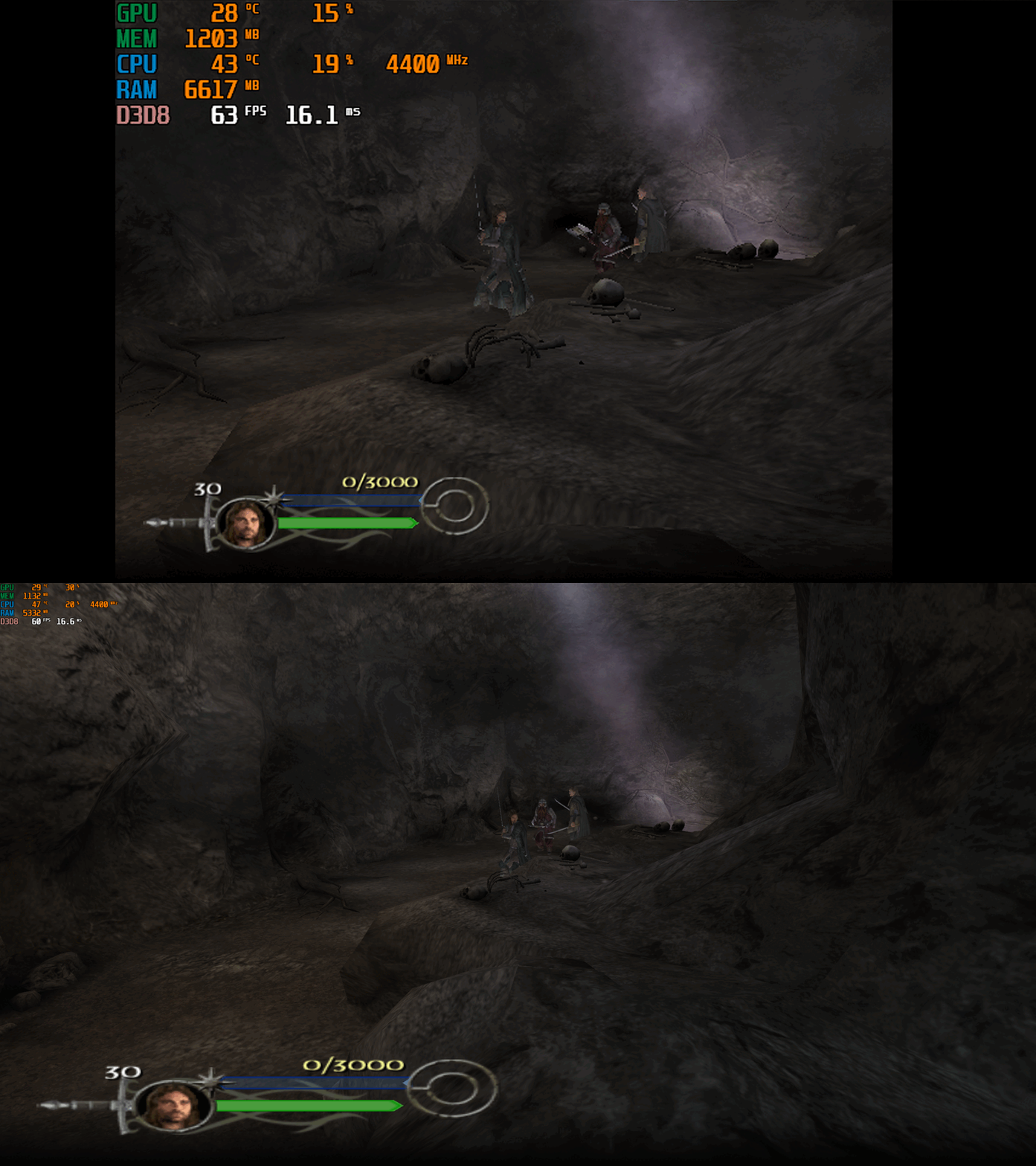
This fix adds modern PC features to The Lord of the Rings the Return of the King. Official Video Guide Requirements before using the fix YOU MUST download the amazing Nemesis2000 widescreen fix from here - Nemesis 2000 LOTRROTK Resolution/Aspect Ratio Fix Once you download the Nemesis2000 fix place the LOTRW.dll and LOTR.ini into the games install folder next to the ROTK.exe file. DO NOT PLACE THE d3d8.dll file from Nemesis2000 fix into the game install area as this is replaced by the Fix Enhancers Fix.dll file instead. The Nemesis2000 fix will cover the resolution and aspect ratio side while the Fix Enhancers fix covers everything else. Features included in this fix Higher Resolutions and Aspect Ratio support (via the Nemesis 2000 fix) Custom higher framerate support Higher FOV support Windowed/Borderless Window support How to use Download the latest The Lord of the Rings the Return of the King PC Fix file Extract it and put the Fix.dll and d3d8.ini into your game folder next to the ROTK.exe file and you are good to go! You can edit the settings you wish to use in the d3d8.ini file. Download the Nemesis 2000 Fix and extract the LOTR.ini and LOTRW.dll files into your game folder next to the ROTK.exe file. Edit the LOTR.ini file to edit the resolution you wish to use. Resolution/Aspect Ratio Open the LOTR.ini file and next to Width and Hight put your resolution for example (3840x2160). Note that once you boot up the game it will now be set to the correct resolution and aspect ratio. However, DO NOT change the resolution in the games graphics options, the resolution you put in the LOTR.ini file will not show up in the resolution list within the game which is normal. FPS The default for FPS is (60) you can change it as you wish or fully uncap it with (0) with the FPSLimit option in the d3d8.ini file. The FPS has been limited to 120fps in this fix due to game breaking bugs going above 120fps. FOV The default for FOV is (0) which is off, you can turn this on in the d3d8.ini by changing the (0) to (1). It is recommended that this is kept off by default due to FOV being quite broken in multiple areas of the game such as the level selection menu. You can use this setting, and it will work mostly fine during gameplay and will fix issues on higher resolutions where the camera goes inside the characters during cutscenes. The FOV is a work in progress and will be further looked into. Issues/Problems If you have any issues, with the fixes then please go to discord for help linked below. Fix Enhancers Discord Server Vote to see the game return via GOG Dream list If you are interested in potentially seeing this game easily available to purchase and use today then go and vote on the games GOG Dream list to help make this become a reality, you can vote for the game here and write a message about the game if you wish – The Lord of the Rings the Return of the King GOG Vote Fix Enhancers Fix Enhancers Website “Creating compatibility fixes and enhancements for legacy PC games.” Chip – Founder, Reverse Engineer, Programmer, Developer, Game Preservationist JokerAlex21 – Founder, Admin, Tester -
.thumb.png.33c3a44d193ce4d2731da43fe11c2aa8.png)
Version 1.1.0
121 downloads
This file contains some general improvements for a game called Scooter pro. Unpack it into the game directory. Features: Resolution selector is unlocked Aspect ratio is fixed The frame rate limited to 60 Field of view is fixed and possible to set a multiplier in scripts/ScooterFixer.ini The game use the WASD keys instead of the arrow keys HUD is partially fixed- 6 comments
-
- 2
-
-

-
- resolution fix
- fov fix
- (and 2 more)
-
Version 1.0.0
45 downloads
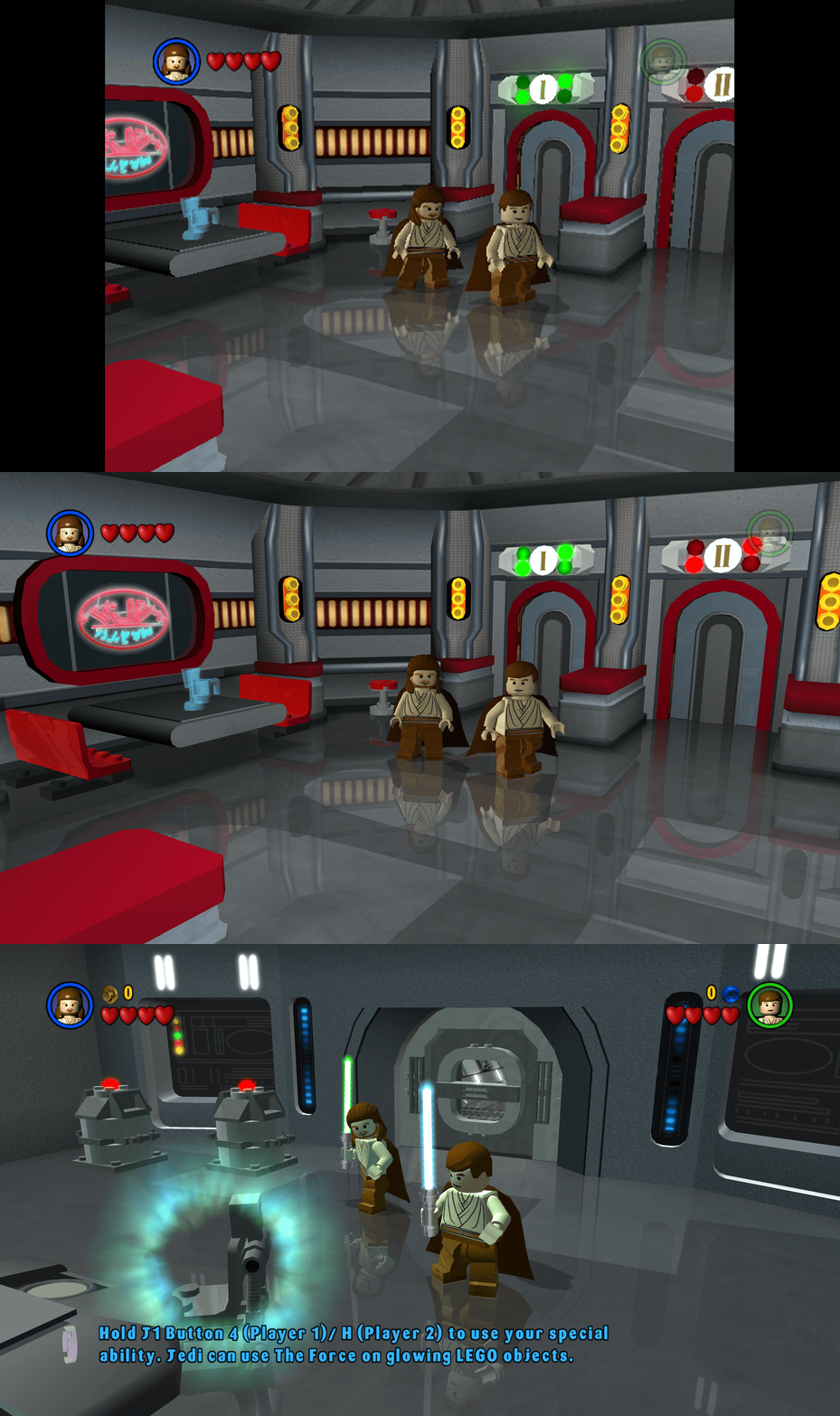
This fix adds modern PC features to Lego Star Wars (2005). Requirements before using the fix Before using the fix for it to work properly you MUST have patched the game up to 1.0.0.2 release. If you have not updated your Lego Star Wars (2005) already then you can download the patch from here - Lego Star Wars (2005) 1.0.0.2 Patch Features included in this fix Higher Resolutions and Aspect Ratio support HUD corrections for higher resolutions/aspect ratios Custom higher framerate support Developer Menu How to use Download the latest Lego Star Wars (2005) PC Fix.zip Extract the d3d9.dll, d3d9.ini, ChipDebug.ini and ChipDebugLSW.exe files into your game folder next to the LegoStarWars.exe file and you are good to go! You can edit the settings you wish to use in the d3d9.ini and ChipDebug.ini files. Resolution,Aspect Ratio and HUD Corrections The default for resolution is set to (1920 x 1080) in the d3d9.ini file. Put the resolution that you wish to use in both the Width and Height area. Aspect Ratio and HUD size is auto calculated by the Resolution you choose. FPS The default for FPS is (60) you can change it as you wish with the FPSLimit option in the d3d9.ini file. It is recommended to not go above 60. Developer Menu Put ChipDebugLSW.exe and ChipDebug.ini with d3d9.dll and d3d9.ini. Go into ChipDebug.ini and set the settings, you SHOULD pay attention to your region of your game. if you want the game to run after you run the patcher program set LAUNCH_GAME=1 if not then LAUNCH_GAME=0 the default is 0 REGION SETTINGS: Set EXACTLY ONE of the following to 1. All others must be 0. EU = Patch the EUROPE / PAL version of the game EU_RESET = Restore the ORIGINAL EU executable US = Patch the UNITED STATES / NTSC version of the game US_RESET = Restore the ORIGINAL US executable Examples: Enable EU debug: EU=1 Disable EU debug: EU_RESET=1 [REGION] Region selection (choose ONE only) EU=1 EU_RESET=0 US=0 US_RESET=0 Developer Menu becomes available in the game after patching it once enabled it is advised that you DON'T use in the main menu its a bit buggy use it once you get into the game itself by pausing and going to options. After setting up in the ini then run ChipDebugLSW.exe then you can play the game normally by using LegoStarwars.exe, if for any reason you want to turn off developer mode then just use the patcher program again. it will also give you a LegoStarwars.exe.bak incase of failures. Issues/Problems If you have any issues, with the fixes then please go to discord for help linked below. Fix Enhancers Discord Server Vote to see the game return via GOG Dream list If you are interested in potentially seeing this game easily available to purchase and use today then go and vote on the games GOG Dream list to help make this become a reality, you can vote for the game here and write a message about the game if you wish – Lego Star Wars (2005) GOG Vote Fix Enhancers Fix Enhancers Website “Creating compatibility fixes and enhancements for legacy PC games.” Chip – Founder, Reverse Engineer, Programmer, Developer, Game Preservationist JokerAlex21 – Founder, Admin, Tester -
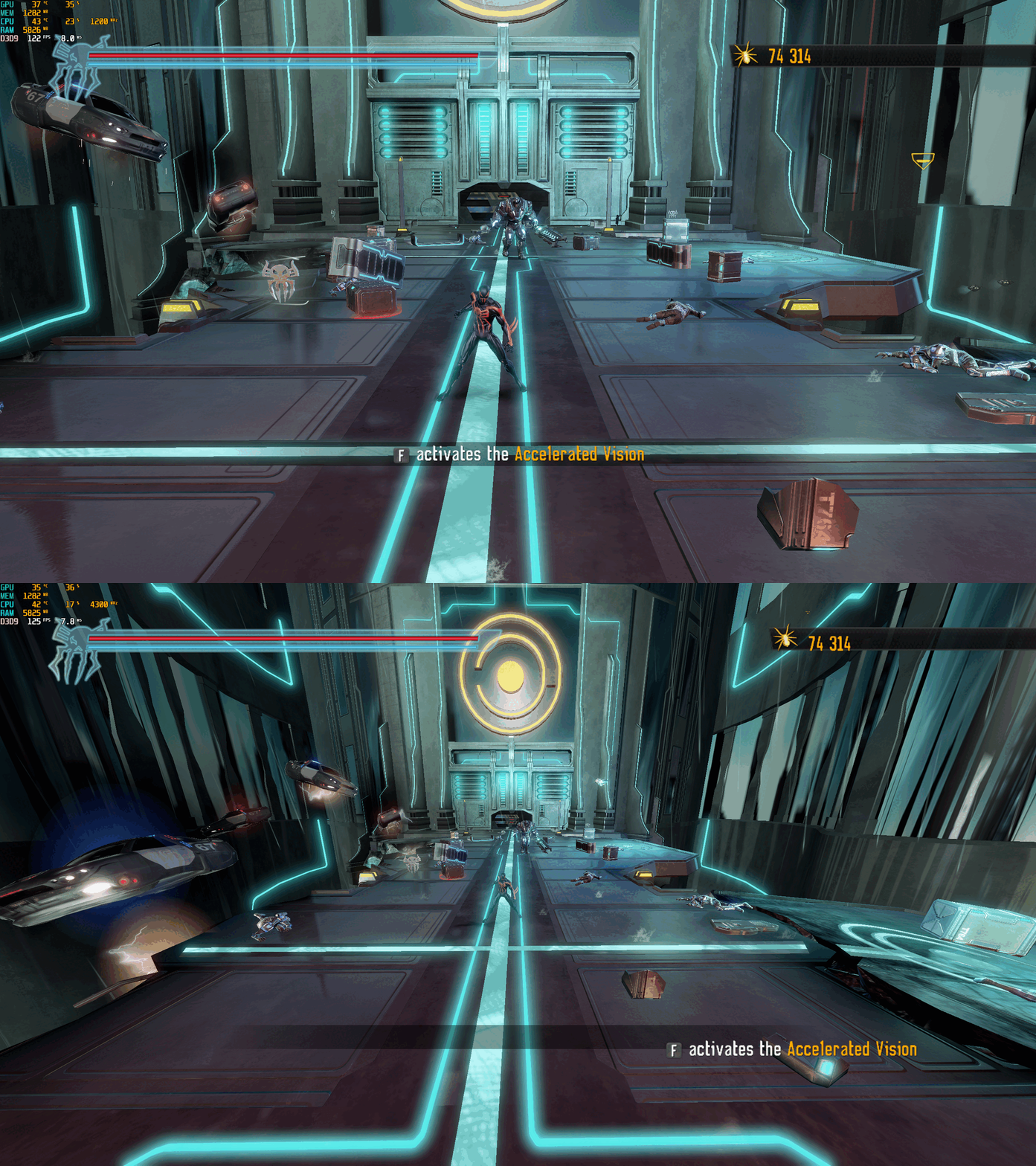
Version 1.0.0
1,177 downloads
Spider-Man: Shattered Dimensions – PC Fix This fix adds modern PC features to Spider-Man: Shattered Dimensions, including fixing widescreen resolutions which auto calculate aspect ratio, uncapped FPS and higher FOV. It is based on Elisha Riedlinger’s Direct3D 9 wrapper and expanded with additional enhancements and patches by Chip. Features included in this fix Widescreen and ultrawide resolution support which auto calculates aspect ratio Higher FOV (with toggle system for broken sections) Uncapped FPS Editable d3d9.ini configuration How to use Download the Spider-Man: Shattered Dimensions fix. Extract d3d9.dll and d3d9.ini and [hotkey]keycodes.txt files into your game folder next to game.exe. Edit d3d9.ini to configure resolution, FPS limit and FOV. To edit the FOV hotkey you wish to use for the toggle find the keycode from inside the [hotkey]keycodes.txt file and then paste this into the corresponding area inside of the d3d9.ini file for the hotkey option. Resolution and Aspect Ratio The default Resolution is set to 1920x1080. Change the Width and Height fields to your preferred resolution. Aspect Ratio is auto calculated by the set resolution. FPS The default FPS limit is 60. You may change this value or uncap it completely with 0 using the FPSLimit option in d3d9.ini. Bare in mind it is advised you do not go above 60 as bugs can occur at higher FPS. FOV The default FOV value is 2, which is fully zoomed out. To set a lower FOV or use the default game FOV set the option to either 0 or 1. Issues/Problems If you have any issues, with the fixes then please go to discord for help linked below. https://discord.gg/eVJ7sQH7Cc Vote to see the game return via GOG Dream list If you are interested in potentially seeing this game easily available to purchase and use today then go and vote on the games GOG Dream list to help make this become a reality, you can vote for the game here and write a message about the game if you wish – https://www.gog.com/dreamlist/game/spider-man-shattered-dimensions Credits Base wrapper by Elisha Riedlinger & ThirteenAG. Additional game-specific patches, reverse engineering, enhancements, and configuration by Chip. Fix Enhancers https://fixenhancers.wixsite.com/fix-enhancers “Creating compatibility fixes and enhancements for legacy PC games.” Chip – founder, reverse engineer, programmer, developer, game preservationist JokerAlex21 – founder, admin, tester -
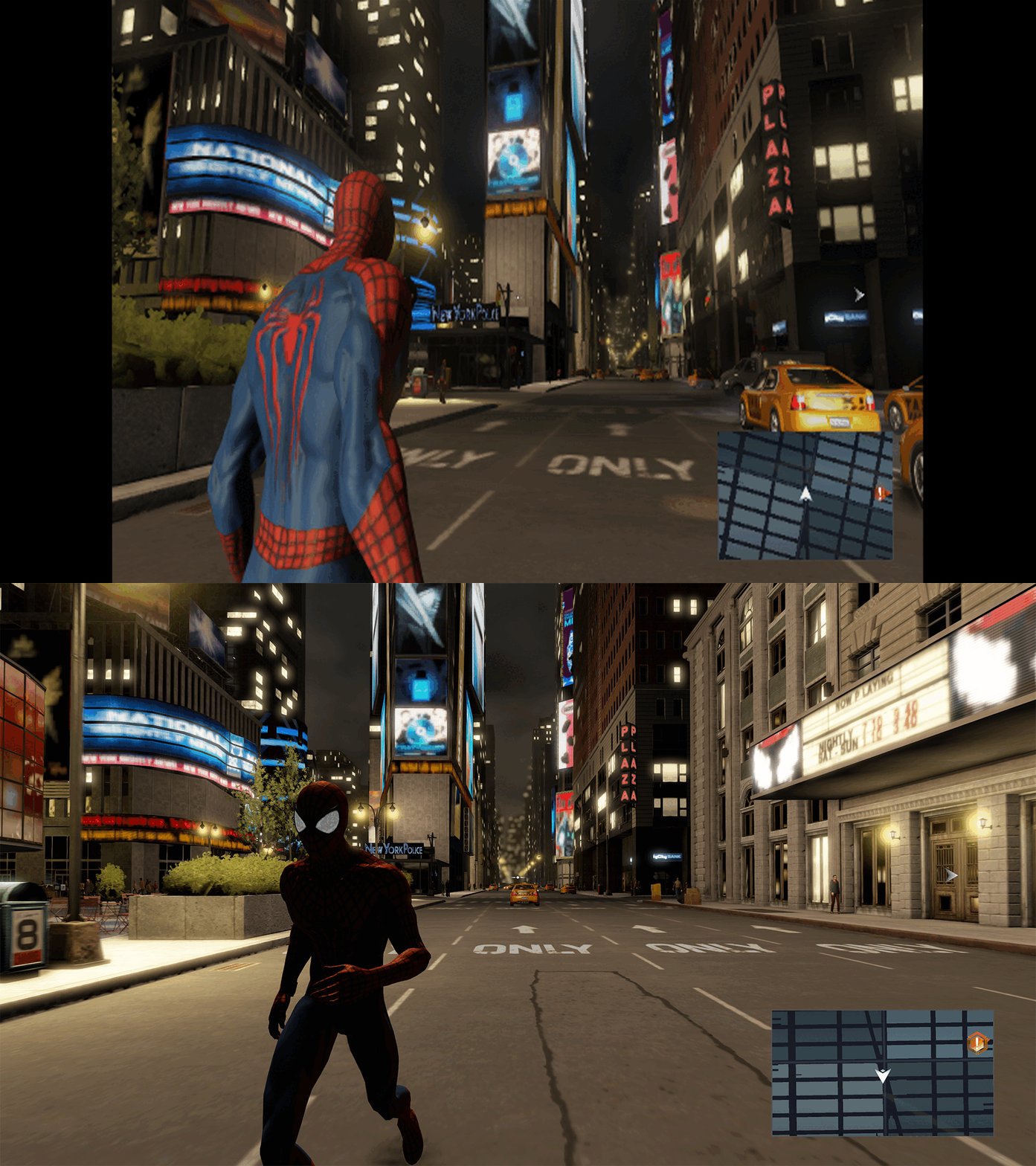
Version 1.0.0
1,036 downloads
The Amazing Spider-Man 2 – PC Fix This fix adds modern PC features to The Amazing Spider-Man 2, including fixing widescreen resolutions and higher aspect ratio support, FPS smoother and Turning off the 30fps v-sync cap. It is based on Elisha Riedlinger’s Direct3D 9 wrapper and expanded with additional enhancements and patches by Chip. Features included in this fix Widescreen and ultrawide resolution support Higher aspect ratio options FPS smoothing/v-sync fix Editable d3d9.ini configuration How to use Download the Amazing Spider-Man 2 fix. Extract d3d9.dll and d3d9.ini into your game folder next to game.exe. Edit d3d9.ini to configure resolution, aspect ratio and FPS limit. Resolution and Aspect Ratio The default Resolution is set to 1920x1080. Change the Width and Height fields to your preferred resolution. The default Aspect Ratio value is 1 (16:9). Choose a different preset by selecting the number matching your display. FPS The fix makes frame rate as smooth as possible by tricking the game to run under an older Nvidia graphics card that it was originally running well on. The default for FPS is set to 0 which is uncapped. The FPS can only go up to 60. Issues/Problems If you have any issues, with the fixes then please go to discord for help linked below. https://discord.gg/eVJ7sQH7Cc Vote to see the game return via GOG Dream list If you are interested in potentially seeing this game easily available to purchase and use today then go and vote on the games GOG Dream list to help make this become a reality, you can vote for the game here and write a message about the game if you wish – https://www.gog.com/dreamlist/game/the-amazing-spider-man-2-2014 Credits Base wrapper by Elisha Riedlinger & ThirteenAG. Additional game-specific patches, reverse engineering, enhancements, and configuration by Chip. Fix Enhancers https://fixenhancers.wixsite.com/fix-enhancers “Creating compatibility fixes and enhancements for legacy PC games.” Chip – founder, reverse engineer, programmer, developer, game preservationist JokerAlex21 – founder, admin, tester -
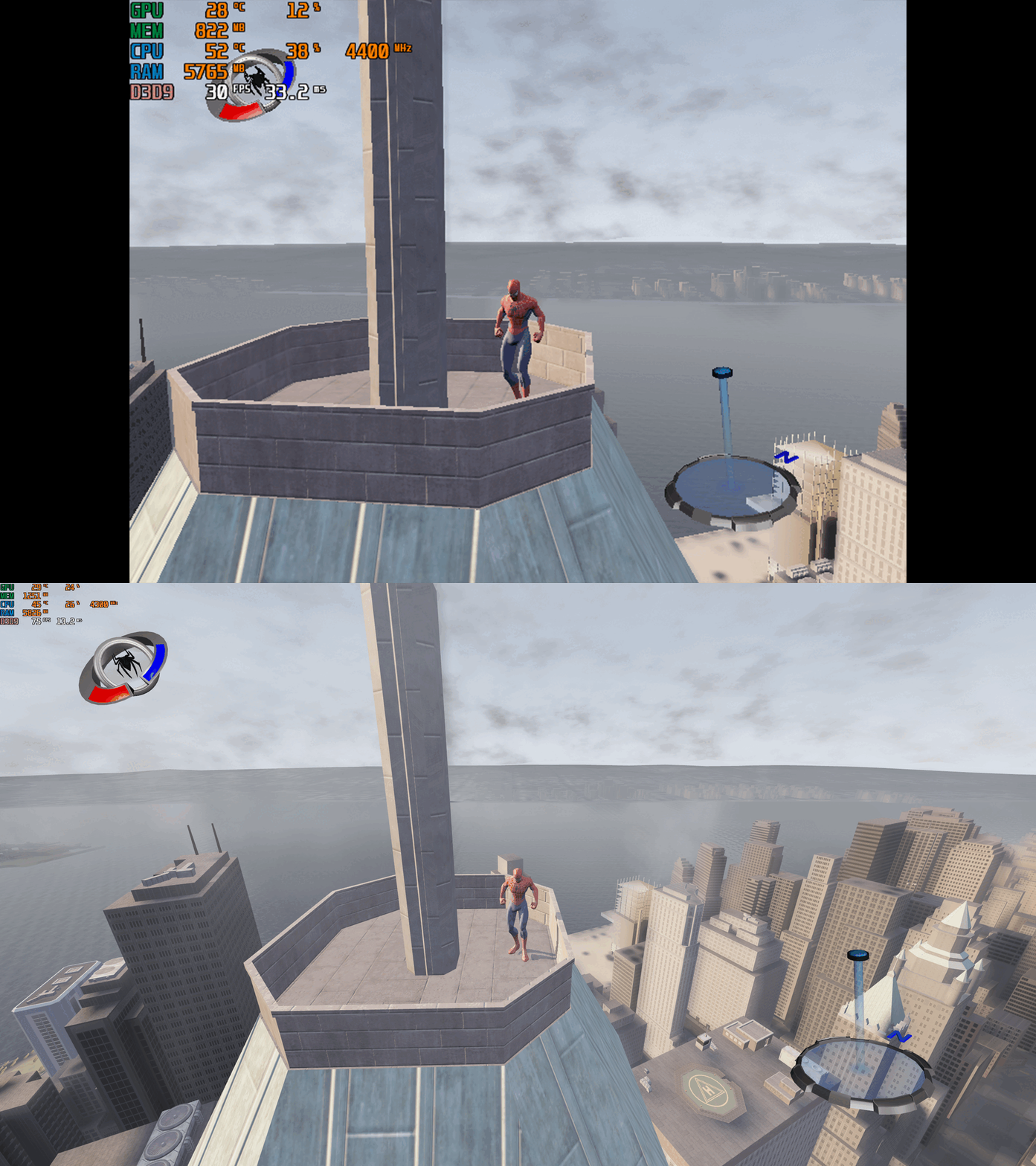
Version 1.0.0
1,062 downloads
Spider-Man 3 – PC Fix This fix adds modern PC features to Spider-Man 3, including widescreen resolution support, higher aspect ratios, higher framerates (with a toggle system for broken areas) and adjustable FOV. It is based on Elisha Riedlinger’s Direct3D 9 wrapper and expanded with additional enhancements and patches by Chip. Features included in this fix Widescreen and ultrawide resolution support Higher aspect ratio options Adjustable FOV values FPS unlocking (with 30fps toggle for broken areas) Editable d3d9.ini configuration How to use Download the Spider-Man 3 PC Fix. Extract the contents d3d9.dll, d3d9.ini and [hotkey]keycodes.txt files into the installation folder next to game.exe. You can edit the settings you want in the d3d9.ini file. To edit the FPS hotkey you wish to use for the toggle find the keycode from inside the [hotkey]keycodes.txt file and then paste this into the corresponding area inside of the d3d9.ini file for the hotkey option. Resolution and Aspect Ratio The default Resolution is set to 1920x1080. Change the Width and Height fields to your preferred resolution. The default Aspect Ratio value is 1 (16:9). Choose a different preset by selecting the number matching your display. FPS The default FPS limit is 60. You may change this value or uncap it completely with 0 using the FPSLimit option in d3d9.ini. FOV The default FOV value is 0, which corresponds to the game’s original FOV. Increase the FOV value to zoom out the camera further. Issues/Problems If you have any issues, with the fixes then please go to discord for help linked below. https://discord.gg/eVJ7sQH7Cc Vote to see the game return via GOG Dream list If you are interested in potentially seeing this game easily available to purchase and use today then go and vote on the games GOG Dream list to help make this become a reality, you can vote for the game here and write a message about the game if you wish – https://www.gog.com/dreamlist/game/spider-man-3-2007 Credits Base wrapper by Elisha Riedlinger & ThirteenAG. Additional game-specific patches, reverse engineering, enhancements, and configuration by Chip. Fix Enhancers https://fixenhancers.wixsite.com/fix-enhancers “Creating compatibility fixes and enhancements for legacy PC games.” Chip – founder, reverse engineer, programmer, developer, game preservationist JokerAlex21 – founder, admin, tester -
-
.thumb.png.55adfb9454ca95abdcda619c3c1420f2.png)
Version 5
11,767 downloads
Nioh2Resolution Adds support for any resolutions to *Nioh 2: Complete Edition* on PC (UI isn't perfectly scaled). Credit to LennardF1989 for the original Nioh 1 version. Edit: This was proven to work on Stranger of Paradise as well (test up to version 1.21), even if it was made specifically for Nioh2, just rename your exe to Nioh2.exe and apply the patch without any extra options on it. Ignore any error that might come up. I do not own the game so I can't make a new patcher for it at the moment. ## How to use? 1) Download the latest release of Nioh2Resolution. 2) Save the content of the archive to the root of the *Nioh 2: Complete Edition* game-directory (Defaults to `C:\Program Files\Steam\steamapps\common\Nioh2` for Steam installs) (you can delete it later on) 3) Run `Nioh2Resolution.exe` and follow the instructions. 4) Start the game and set the resolution to the specified one (if that is not shown in the game menu, set it in %USERPROFILE%\Documents\KoeiTecmo\NIOH2\config.xml) 5) Restart the game as there seems to be a bug that breaks the brightness (and UI scaling) if you change resolution after startup. ## How does it work? Before doing anything, the game will be unpacked using Steamless. This is required because the Steam DRM will otherwise not allow a modified executable. Once unpacked, the patcher will look for the byte representation of the 3440x1440 resolution, and change all occurances to your desired resolution. Anything wider than 21:9 should work decently, especially because the FOV scaling is Horizontal+, but some UI anchoring will be wrong and some other won't be scaled correctly. Loading screens and cutscenes seem fine. Unfortunately Nioh 2 natively has a bug where the UI drifts after certain events at any aspect ratio above 64:27 (2560x1080). There is an EXPERIMENTAL fix that and also allow the game to have fully visible UI and not stretched at aspect ratios below 16:9, but both fixes come with consequences. They are detailed in the patch itself. In theory, this patcher should work for any version of the game. v5 changelog: -Added experimental fix to fix the drifting -Improved text and fixed some false warnings -v4 often ended up reported as a false positive by many anti viruses. I've moved a few things around to make sure this doesn't happen anymore. Virus scan (of v5): https://www.virustotal.com/gui/file/2e3aaf6cd34fe77138e8f7de7a8d5007a6a53217b75db8696d1842de203981f7/detection Source is available anyway. Donations: https://www.paypal.com/donate?hosted_button_id=BFT6XUJPRL6YC -
-
17,712 downloads
http://pcgamingwiki.com/wiki/Silent_Hill_4:_The_Room Sources: ps2wide.net/other/sh4.7z, ps2wide.net/other/sh4.zip Includes both Wrapper by Nemesis and experimental 60 FPS mods, with modified dinput8.dll by Vetle to avoid problems with antivirus softwares. (Virustotal dinput8.dll: Original, Modified) -
-


Version 1.1.2
29,313 downloads
This is a collection of the most important and useful fixes for Star Wars: The Force Unleashed on Steam in one centralised, and easy to download file. The collection contains: 40, 50, 60 and Unlimited FPS executable files originally created by PCGamingwiki Moderator "Garrett" that can replace the game's original .exe file to play at the desired framerate. Config files for playing in 1440p and 4K with Cloth Simulation enabled which can simply be dragged into the user's "Appdata" directory. Replacement "LevelPack" contents to fix missing sounds for levels near the end of the game, originally created by Steam user "Sweetz". A READ ME.txt file with easy to follow installation instructions. Thanks to the original contributors for making this game playable for so many people over the years - have fun! 😄 -

Version 1.0.0
3,947 downloads
This is a collection of the most important and useful fixes for "Enslaved: Odyssey to the West Premium Edition" on Steam in one centralised, and easy to download file. If you've just bought the game and want everything to look and run as well as possible, this is for you! The collection contains: Options to play in 1440p and 4K. Increased shadow resolution, better anisotropy and a fix for the distracting shadow-banding visual bug on characters. An unlimited frame-limit, it can now be played as fast your monitor allows! Originally the game would run at a maximum of 62FPS. The ability to play with Monkey and Trip's extra costumes from a first playthrough, along with the ability to enable both of them at once - for some reason you are not able to do this by default. An accompanying ".txt" file with easy to follow installation instructions. Thanks to the original contributors for making this game playable for so many people over the years - have fun! 😄-
- 1
-
-
- fps unlocker
- resolution
- (and 2 more)
-

Version 1.0.0
2,753 downloads
Mirrored the fixed .exe from the Mega link. -
-
 So I was recently playing some Zoo Tycoon (http://pcgamingwiki.com/wiki/Zoo_Tycoon) via Windows XP in a virtualbox (I'm actually typing this right now in XP, how nostolgic) and whenever I launch the game it is stuck at 1280x1024. I tried the method mentioned on the WSGF link on that wiki page, but whenever I try that I automatically am reverted to the lowest resolution possible when I open the game, and none of the other resolution options are 1920x1080. Any tips, or maybe other ideas I can try? Nevermind, apparently it is working now. I'm not entirely sure how. I set it to 900p in windowed mode and it worked, then I changed it to 1080p fullscreen and it worked somehow. Hopefully that helps anyone else with the same question.
 -
Update: I have found an alternative method to skip the intro videos, which I have added to the wiki page as Method 2. http://pcgamingwiki.com/wiki/Tom_Clancy%27s_Splinter_Cell:_Chaos_Theory#Essential_improvements I'm attemping to follow the suggestion on the wiki page for Chaos Theory to remove the intro movies, along with the widescreen suggestions. Unfortunately neither seem to be working. I've opened the correct files, commented out the lines and set my own X and Y resolution. The game is ignoring them however. The odd thing is that it isn't overwriting the files or anything, which makes me think the game ignores these files entirely for some reason. I'm running the game through Steam, if it helps..
-
My laptop's screen resolution is 1366x768, and for some reason the wiki does not size properly to it and hangs off the right side. Is this an issue with just this resolution, or are other sizes affected too?


.thumb.png.33c3a44d193ce4d2731da43fe11c2aa8.png)


.thumb.png.55adfb9454ca95abdcda619c3c1420f2.png)