
Search the Community
Showing results for tags 'FOV'.
-

Version 1.3
360 downloads
Comes with a RAR file, which includes an ASI plugin intended to fix the aspect ratio in the action FPS game "America's 10 Most Wanted" (2003), since the game stretches the view at resolutions with an aspect ratio wider than 4:3. Source code available here: https://github.com/alphayellow1/AlphaYellowWidescreenFixes/blob/main/source/fixes/Americas10MostWanted Instructions: 1. Extract all files to (path-to-game)/MAKE/. 2. Download ThirteenAG's Ultimate ASI Loader (32-bit version of winmm.dll), and also extract it to (path-to-game)/MAKE/. 3. Set the desired hipfire FOV and zoom factors in Americas10MostWantedFOVFix.ini. -

Version 1.4
1,581 downloads
Comes with a RAR file, which includes an ASI plugin intended to fix the field of view in the action-adventure third-person game "American McGee's Alice" (2000), since the game crops the image at resolutions wider than 4:3 (Vert-). This is a permanent fix, so it's no longer needed to run the "fov" command every level reset/restart or binding the command to a key. Both gameplay and cutscene FOVs are fixed. Source code available: https://github.com/alphayellow1/AlphaYellowWidescreenFixes/blob/main/source/fixes/AmericanMcGeesAliceFOVFix Instructions: 1. Extract all files to the game folder. 2. Download ThirteenAG's Ultimate ASI Loader (32-bit version of winmm.dll), and also extract it to the game folder. 3. Set the desired FOV factor in AmericanMcGeesAliceFOVFix.ini. -

Version 1.3
54 downloads
Comes with a RAR file, which includes an ASI plugin intended to fix the aspect ratio and field of view in the strategy action game "American Civil War: Gettysburg" (2006), since the game crops the view at resolutions with an aspect ratio wider than 4:3 (Vert-). Source code available here: https://github.com/alphayellow1/AlphaYellowWidescreenFixes/blob/main/source/fixes/AmericanCivilWarGettysburgFOVFix Instructions: 1. Extract all files to the game folder. 2. Download ThirteenAG's Ultimate ASI Loader (32-bit version of winmm.dll), and also extract it to the game folder. 3. Set the desired FOV and zoom factors in AmericanCivilWarGettysburgFOVFix.ini. -

Version 1.3
329 downloads
Comes with a RAR file, which includes an ASI plugin intended to fix the aspect ratio and field of view in the truck racing game "Big Mutha Truckers" (2003), as the game stretches the view at resolutions with an aspect ratio wider than 4:3. Source code available here: https://github.com/alphayellow1/AlphaYellowWidescreenFixes/blob/main/source/fixes/BigMuthaTruckersFOVFix Instructions: 1. Extract all files to the game folder. 2. Download ThirteenAG's Ultimate ASI Loader (32-bit version of dinput8.dll), and also extract it to the game folder. 3. Set the desired FOV factor in BigMuthaTruckersFOVFix.ini. -

Version 1.3
84 downloads
Comes with a RAR file, which includes an ASI plugin intended to fix the resolution and aspect ratio in the beach soccer game "Ultimate Beach Soccer" (2003), since the game only supports a limited amount of 4:3/5:4 resolutions. Source code available here: https://github.com/alphayellow1/AlphaYellowWidescreenFixes/blob/main/source/fixes/UltimateBeachSoccerWidescreenFix Instructions: 1. Extract all files to the game folder. 2. Download ThirteenAG's Ultimate ASI Loader (32-bit version of winmm.dll), and also extract it to the game folder. 3. Set the desired FOV factor in UltimateBeachSoccerWidescreenFix.ini. 4. In Resolution.exe, choose the desired resolution in the list. -

Version 1.4
197 downloads
Comes with a RAR file, which includes an ASI plugin intended to fix the resolution, aspect ratio and HUD in the simulation strategy firefighting game "Emergency Fire Response" (2003), as the game only runs at limited 4:3 resolutions by default. Source code available here: https://github.com/alphayellow1/AlphaYellowWidescreenFixes/blob/main/source/fixes/EmergencyFireResponseWidescreenFix Instructions: 1. Extract all files to the game folder. 2. Download ThirteenAG's Ultimate ASI Loader (32-bit version of winmm.dll), and also extract it to the game folder. 3. Set the desired main menu resolution and FOV factor in EmergencyFireResponseWidescreenFix.ini. 4. In the in-game video options, choose the desired resolution in the list. - Issues: :-: Disappearing geometry at very wide aspect ratios when the camera is at a lower zoom level (wider than 32:9 or so). -

Version 1.4
360 downloads
Comes with a RAR file, which includes an ASI plugin intended to fix the resolution and field of view in the stealth third-person game "Secret Agent Barbie" (2001), since the game only runs in 640x480 by default. Source code available here: https://github.com/alphayellow1/AlphaYellowWidescreenFixes/blob/main/source/fixes/SecretAgentBarbieWidescreenFix Credits also go to: AuToMaNiAk005 Instructions: 1. Extract all files to the game folder. 2. Download ThirteenAG's Ultimate ASI Loader (32-bit version of winmm.dll), and also extract it to the game folder. 3. Set the desired resolution and FOV factor in SecretAgentBarbieWidescreenFix.ini. - Issues: :-: Main menu stays at a 640x480 area, and doesn't scale to fit the resolution chosen. :-: HUD doesn't scale, so use a display wrapper like dgVoodoo2 to upscale it. :-: Letterboxed black bars during cutscenes no longer appear at any resolutions other than 640x480 (Might or might not be an issue, depends on your preferences). -
.thumb.png.573424dca099f94733865bd8286986b1.png)

Version 1.1
44 downloads
Comes with a RAR file, which includes an ASI plugin intended to fix the resolution and field of view in the hunting FPS/TPS game "Bass Pro Shops: Trophy Hunter 2007" (2006), as the game only supports limited 4:3/5:4 resolutions by default. Source code available here: https://github.com/alphayellow1/AlphaYellowWidescreenFixes/blob/main/source/fixes/BassProHunterTrophyHunter2007WidescreenFix - Instructions: 1. Extract all files to the game folder. 2. Download ThirteenAG's Ultimate ASI Loader (32-bit version of winmm.dll), and also extract it to the game folder. 3. Set the desired FOV factor in BassProShopsTrophyHunter2007WidescreenFix.ini. 4. Once in-game, go to the video options and choose the desired resolution from the list. - Issues: - HUD remains stretched in non-4:3 resolutions. -

Version 1.2
135 downloads
Comes with a RAR file, which includes an ASI plugin intended to fix the field of view in the tactical sci-fi third-person shooter game "Alpha Black Zero: Intrepid Protocol" (2004), since the game crops the view at resolutions with an aspect ratio wider than 4:3 (Vert-). Source code available here: https://github.com/alphayellow1/AlphaYellowWidescreenFixes/blob/main/source/fixes/AlphaBlackZeroIntrepidProtocolFOVFix Instructions: 1. Extract all files to the game folder. 2. Download ThirteenAG's Ultimate ASI Loader (32-bit version of winmm.dll), and also extract it to (path-to-game)/Bin/. 3. Set the desired hipfire FOV and weapon zoom factors in AlphaBlackZeroIntrepidProtocolFOVFix.ini. -

Version 1.3
196 downloads
Comes with a RAR file, which includes an ASI plugin intended to fix the aspect ratio and field of view in the third-person tennis game "Agassi Tennis Generation" (2002), since the game stretches the view at resolutions with an aspect ratio wider than 4:3. Source code available here: https://github.com/alphayellow1/AlphaYellowWidescreenFixes/blob/main/source/fixes/AgassiTennisGenerationFOVFix Instructions: 1. Extract all files to the game folder. 2. Download ThirteenAG's Ultimate ASI Loader (32-bit version of winmm.dll), and also extract it to the game folder. 3. Set the desired FOV factor in AgassiTennisGenerationFOVFix.ini. -

Version 1.3
112 downloads
Comes with a RAR file, which includes an ASI plugin intended to fix the field of view in the third-person LEGO arcade racing game "Drome Racers" (2002), as the game crops the image at resolutions with an aspect ratio wider than 4:3 (Vert-). Source code available here: https://github.com/alphayellow1/AlphaYellowWidescreenFixes/blob/main/source/fixes/DromeRacersFOVFix Instructions: 1. Extract all files to the game folder. 2. Download ThirteenAG's Ultimate ASI Loader (32-bit version of winmm.dll), and also extract it to the game folder. 3. Set the desired FOV factor in DromeRacersFOVFix.ini. -

Version 1.7.1
1,240 downloads
Comes with a RAR file, which includes an ASI plugin intended to fix the resolution and aspect ratio in the action FPS game "Nina: Agent Chronicles" (2002), as the game only supports limited 4:3/5:4 resolutions by default. Source code available here: https://github.com/alphayellow1/AlphaYellowWidescreenFixes/blob/main/source/fixes/NinaAgentChroniclesWidescreenFix Instructions: 1. Create a folder in the game folder called "scripts". 2. Inside it, create a file named "global.ini" and put the following contents inside it: [GlobalSets] LoadPlugins=1 LoadFromScriptsOnly=1 3. Extract the fix files to the newly created "scripts" folder. 4. Download ThirteenAG's Ultimate ASI Loader (32-bit version of dinput.dll), and extract it to the root game folder. 5. Set the desired FOV factor in NinaAgentChroniclesWidescreenFix.ini. 6. In the in-game video options, choose the desired resolution from the list. -

Version 1.2
83 downloads
Comes with a RAR file, which includes an ASI plugin intended to fix the field of view in the australian rugby game "AFL Live 2003" (2002), since the game crops the view at resolutions with an aspect ratio wider than 4:3 (Vert-). Source code available here: https://github.com/alphayellow1/AlphaYellowWidescreenFixes/blob/main/source/fixes/AFLLive2003FOVFix Instructions: 1. Extract all files to the game folder. 2. Download ThirteenAG's Ultimate ASI Loader (32-bit version of winmm.dll), and also extract it to the game folder. 3. Set the desired FOV factor in AFLLive2003FOVFix.ini. -


Version 3.1.1
6,128 downloads
Unpack the trainer archive for your platform with software like 7zip - the password is pcgw Launch the game Launch the tool Press the keys as instructed to remove the black bars and enable FOV modifications, then manipulate in real time. Tested on the latest GOG version at 2560x1080 and 7680x1080. The Steam version was confirmed as working by Ferosnow95. You can buy me a coffee or become a patron. Backup repository. -
Fix.thumb.gif.1c578ff01b954548648adb2653e1675b.gif)
Version 1.0.0
49 downloads
This fix adds modern PC features to The Hobbit (2003). Official Video Guide Requirements before using fix For the fix to work properly YOU MUST HAVE patched the game up to version 1.3, which also contains bug fixes. If you have not done so already then you can download the patch from here - The Hobbit (2003) 1.3 Patch Features included in this fix FPS Toggle (between 60 and 30fps) Higher FOV support Full mouse look movement Windowed/Borderless Window support How to use Download the latest The Hobbit (2003) fix (that is correct for you) of either: The Hobbit (2003) Mouse Look On Fix (Main fix to use) The Hobbit (2003) DLL Only Fix (If user wishes to use other 3rd party apps such as Reshade use this fix) The Hobbit (2003) General Fix Once you have downloaded the correct fix for you extract the files into your games main install folder next to the Meridian.exe file and you are good to go! You can edit the settings you wish to use in the various ini files. Resolution It is advised that the Resolution is changed within the pause menu options. This is due to a bug that can occur on the main menu which prevents the user from being able to change their Resolution properly. FPS FPS can be toggled in the game, you can set whichever hotkey you wish in d3d8.ini use [hotkey]keycodes.txt to see which hex code belongs to the key you want to use and copy paste it to the d3d8.ini hotkey setting. This will mean that you can use the key you select to toggle between 30 and 60 FPS in game at any time. The default is 0x55 which is the "U" key on the keyboard. The user will have to use this toggle on the chest puzzles as they speed up on any FPS above 30 and become impossible to complete. It is also advised the user does this for the vines that can break under Bilbo's weight. These can sometimes break faster than intended but not all the time. FOV FOV is off by default in the ini which is set to '0'. The d3d8ini has 3 options to choose from in this fix, slightly zoomed out, a bit more zoomed out and mega zoomed out (1),(2) or (3). The Hobbit (2003) Mouse Look On Fix This version is so that you can use the mouse to not only pan the camera left and right but also pan the camera up and down at all times during gameplay using the MouseLook feature. IMPORTANT make sure to go into the main menu -> options -> controls -> keyboard -> next -> next -> MouseLook -> Remap this key specifically to the NUMPAD - (subtract) on your keyboard by clicking the key its set to -> then clicking NUMPAD subtract '-'. Play the game with full camera pan in all directions on the mouse. Incase you dont have acess to the NUMPAD subtract '-' key on your keyboard then follow the instructions below: Set your own key for this inside of d3d8.ini under [INPUT] AlwaysHoldVK=0x6D -> default is numpad - (subtract) You can use the included file called [hotkey]keycodes.txt to change the key. If you change the key in the d3d8.ini make sure you also go into the main menu -> options -> controls -> keyboard -> next -> next -> MouseLook -> Remap this key specifically to the key you have now set inside of d3d8.ini otherwise this feature will not work. The Hobbit (2003) DLL Only Fix This version uses 13AGs ultimate ASI loader to inject a DLL only version of the fix into the game. This will work alongside ReShade, RTX Remix, and other mods using d3d8.dll. Put the winmm.dll and update folder into your game folder next to the Meridian.exe and your good to go. If you want to just use the DLL only then take Chip.asi and chip.ini rename Chip.asi to Chip.dll and you can inject it yourself. Issues/Problems If you have any issues, with the fixes then please go to discord for help linked below. Fix Enhancers Discord Server Vote to see the game return via GOG Dream list If you are interested in potentially seeing this game easily available to purchase and use today then go and vote on the games GOG Dream list to help make this become a reality, you can vote for the game here and write a message about the game if you wish – The Hobbit (2003) GOG Vote Fix Enhancers Fix Enhancers Website “Creating compatibility fixes and enhancements for legacy PC games.” Credit to Elisha Riedlinger for the base wrapper and ThirteenAG ultimate asiloader. Chip – Founder, Reverse Engineer, Programmer, Developer, Game Preservationist JokerAlex21 – Founder, Admin, Tester -

Version 1.3
189 downloads
Comes with a RAR file, which includes an ASI plugin intended to fix the field of view in the life simulation game "7 Sins" (2005), as the game crops the view at resolutions with an aspect ratio wider than 4:3 (Vert-). Source code available here: https://github.com/alphayellow1/AlphaYellowWidescreenFixes/blob/main/source/fixes/7SinsFOVFix Instructions: 1. Extract all files to the game folder. 2. Download ThirteenAG's Ultimate ASI Loader (32-bit version of winmm.dll), and also extract it to the game folder. 3. Set the desired FOV factor in 7SinsFOVFix.ini.-
- 1
-

-
- ultrawide fix
- ultrawide
- (and 36 more)
-
Version 1.0.0
1,056 downloads
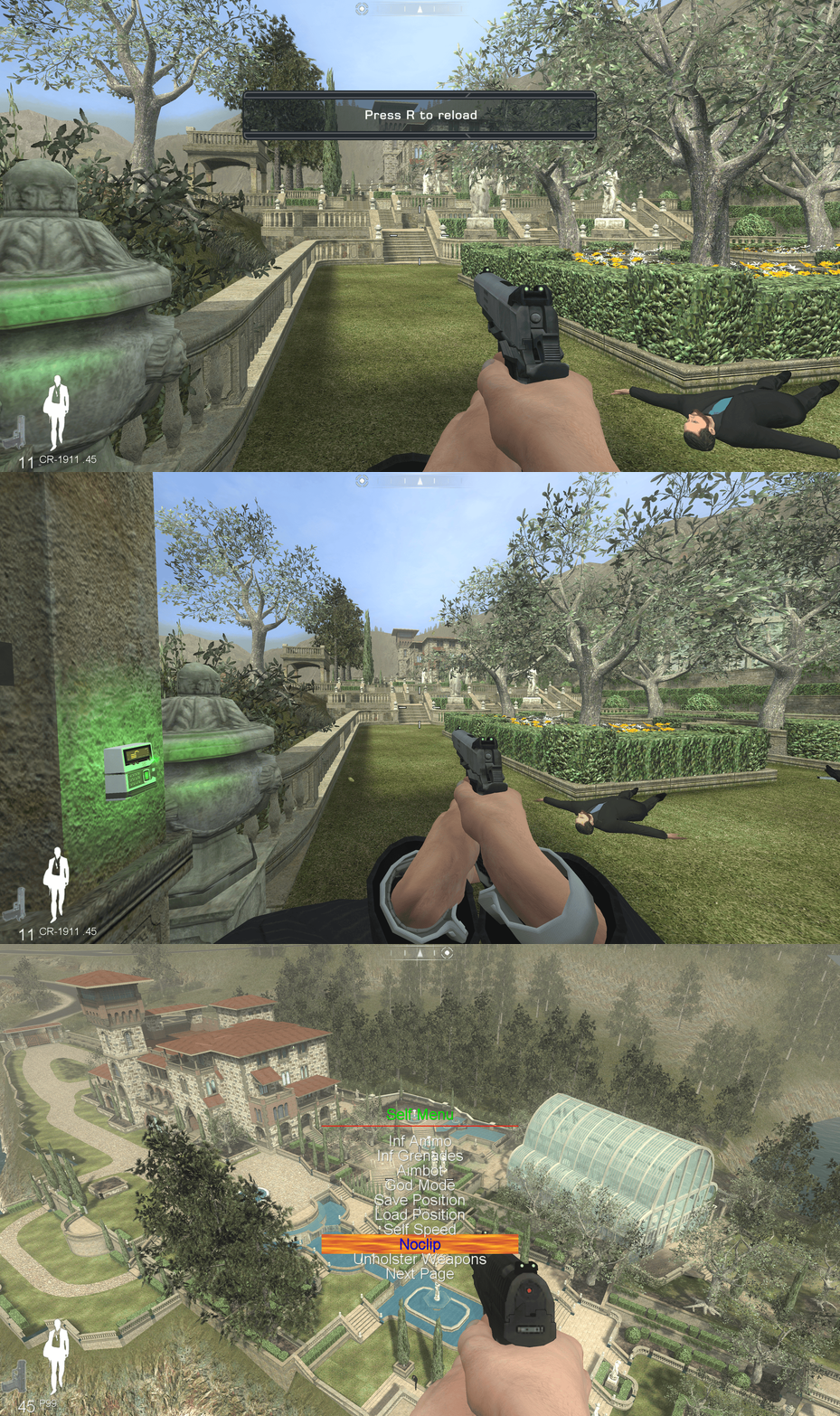
Important Information This fix is made for the Singleplayer portion of the game, if you need a Multiplayer fix then please see the Plutonium client for their fix - Plutonium Multiplayer Fix This fix adds modern PC features to James Bond Quantum of Solace Fix Features included in this fix Custom higher framerate support Custom higher FOV support X-Input Controller Support Mod Menu How to use Download the James Bond Quantum of Solace fix. Depending on the fix chosen of either 'JamesBondQOSFix' or 'JamesBondQOSFixASI' extract the contents of the folder into your games install folder next to the JB_Launcher_s.exe. If using the 'JamesBondQOSFix' edit the d3d9.ini to configure the options. If using the 'JamesBondQOSFixASI' open the Scripts folder and edit Chip.ini to configure the options. Play the game. It is advised that if using the mod menu and you have played the game before to make a backup of your save file. FPS Default for FPS is 120 which you can change in the d3d9.ini or chip.ini file. The user can use the FPS toggle if they find it breaks at certain points at too high FPS. The toggle will set it back down to the original 30fps. When in game, press the hotkey the user has chosen in [hotkey]keycodes.txt and enter the virtual code in the d3d9.ini or chip.ini to toggle between the original and the new FPS setting. FOV Default is FOVAutomatic=1 You can set your preferred in-game FOV using: [FOV] value=100 ; set this to any FOV you prefer Automatic FOV Mode (FOVAutomatic=1) If FOVAutomatic=1, the game will always enforce the FOV from value= for the entire session (no hotkey toggle). [FOV] FOVAutomatic=1 value=100 Toggle FOV Mode (FOVAutomatic=0) If FOVAutomatic=0, the mod enables the FOV toggle hotkey. While in-game, press the hotkey configured in d3d9.ini or chip.ini to toggle between: The game’s original FOV Your user-defined FOV (value=) [FOV] FOVAutomatic=0 value=100 The original FOV is automatically detected and stored when the game initializes, allowing safe switching between the default value and your custom value during gameplay. Controller This is the first as accurate as possible implementation of controller support written by Chip (ChipXinput) for the Singleplayer of this game. The layout is the same as the layout of the Xbox 360 release of the game. VERY IMPORTANT – user must go into the games option menu controls and set the ‘Cycle Weapon’ option to ‘5’. If this is not done, then the ability to cycle weapons will not work. QTEs (Quick Time Events) will still show up as keyboard prompts so it is advised that the user makes a note of what these keys correspond to on the controller. You can fully customise the layout of the controller inside of d3d9.ini or chip.ini all explained inside the configuration file. Recomended if you are using the controller to go into the game options -> gameplay -> look sensitivity and turn it down to somewhere between 0 - 4 otherwise it is very fast trying to look around on controller. You can use controller also for the FOV toggle and FPS toggle by default it would be LB + left FPS toggle, LB + right FOV toggle. If you change the hotkeys for FOV and FPS here: [FOV] hotkey_vk=0x05 [FPS] toggle_vk=0x06 You will have to update the corresponding key here: combo6=LB+DpadRight combo6_vks=0x05 ----- FOV toggle <- make sure this matches the same hotkey as under [FOV above] combo6_modes=HOLD combo6_suppress=1 combo7=LB+DpadLeft combo7_vks=0x06 ----- FPS toggle <- make sure this matches the same hotkey as under [FPS above] combo7_modes=HOLD combo7_suppress=1 You can use controller also for the Mod Menu as follows: xbox input ----------------------- keyboard input ------------------ action select -------------------------------- tab---------------------- open phone menu LB + UP -------------------------------- 2----------------------- start the mod menu Start --------------------------------- esc --------------------- back to game right trigger/ left trigger --------- rmb/lmb --------------- navigate the mod menu X -------------------------------------- F ------------------- select things in the menu LB + Down ------------------------------ Q ---------------------- quit the menu Mod Menu This fix includes the mod menu from Speedrun QOS Mod Menu for convenience of the end user to have everything all together in one fix and to preserve the menu so that it is not lost. FIX ENHANCERS MAKES IT CLEAR THAT IT DID NOT MAKE THIS MOD MENU AND IF THE ORIGINAL CREATOR WISHES IT REMOVED FROM THE FIX, THEN IT WILL BE REMOVED. All this DLL does with Mod Menu is installs the required file for you via automation instead of having to do it yourself, it will also revert back to the original file if on = 0 under [ModMenu] in the ini The user can turn on the Mod Menu inside of the d3d9.ini or chip.ini file via the option [ModMenu] which is off ‘0’ by default. Once turned on in the d3d9.ini or chip.ini file to activate in-game, press Tab then use the ‘2’ key. Left Click and Right Click to navigate the menus, ‘F’ to select, and ‘Q’ to exit. Note that the first step is always tied to opening the phone and will reflect if this binding is changed from the default Tab. You can use controller also for the Mod Menu as follows: xbox input ----------------------- keyboard input ------------------ action select -------------------------------- tab---------------------- open phone menu LB + UP -------------------------------- 2----------------------- start the mod menu Start --------------------------------- esc --------------------- back to game right trigger/ left Trigger --------- rmb/lmb --------------- navigate the mod menu X -------------------------------------- F ------------------- select things in the menu LB + Down ------------------------------ Q ---------------------- quit the menu Issues/Problems If you have any issues, with the fixes then please go to discord for help linked below. Fix Enhancers Discord Server Vote to see the game return via GOG Dream list If you are interested in potentially seeing this game easily available to purchase and use today then go and vote on the games GOG Dream list to help make this become a reality, you can vote for the game here and write a message about the game if you wish – James Bond Quantum of Solace GOG Vote Credits Credit to Elisha Riedlinger for the base wrapper (d3d9) and ThirteenAG for the ultimate asi loader xlive.dll used in JamesBondQOSFixASI.zip. Fix Enhancers Fix Enhancers Website “Creating compatibility fixes and enhancements for legacy PC games.” Chip – Founder, Reverse Engineer, Programmer, Developer, Game Preservationist JokerAlex21 – Founder, Admin, Tester -
Version 1.0.0
89 downloads
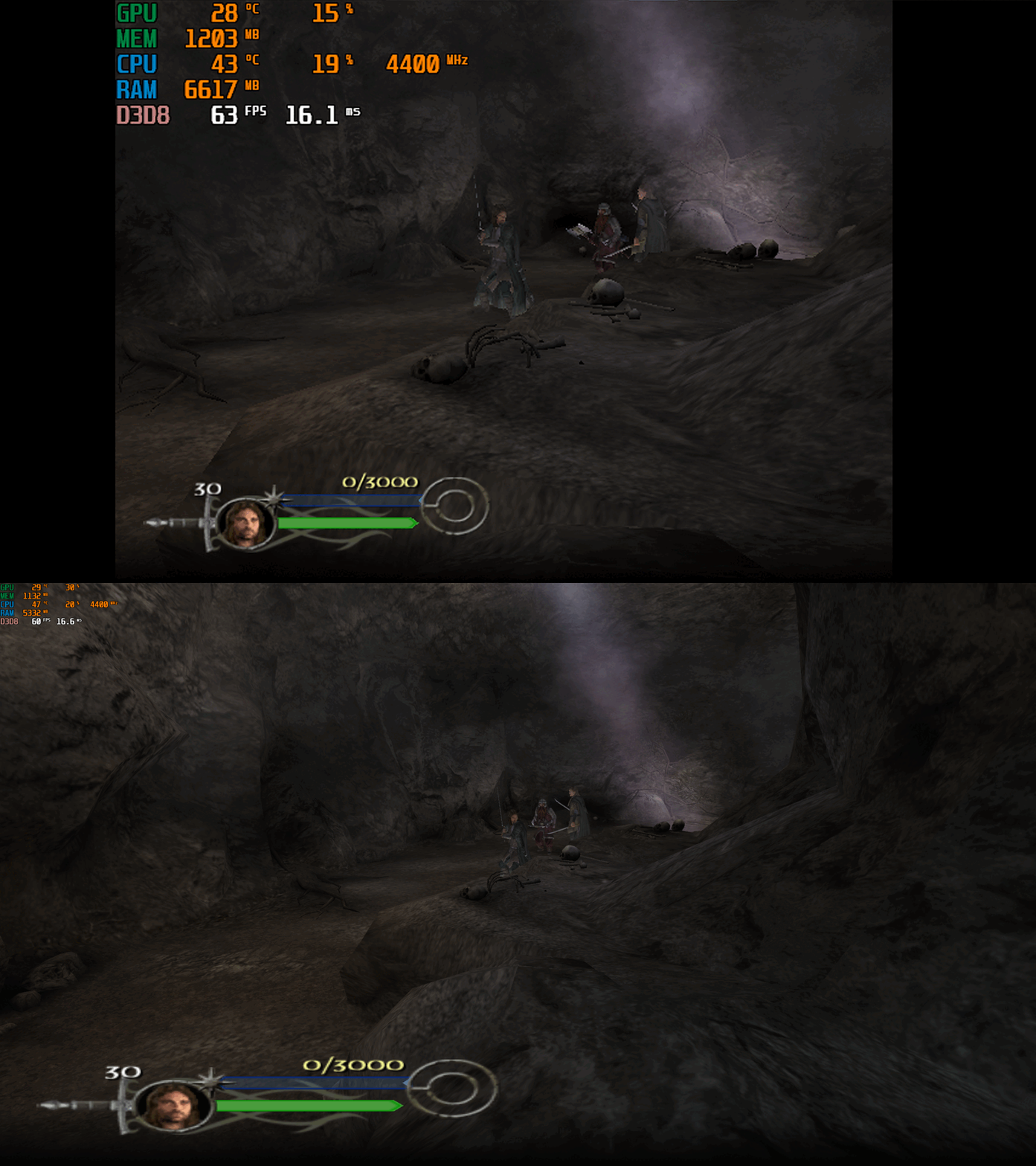
This fix adds modern PC features to The Lord of the Rings the Return of the King. Official Video Guide Requirements before using the fix YOU MUST download the amazing Nemesis2000 widescreen fix from here - Nemesis 2000 LOTRROTK Resolution/Aspect Ratio Fix Once you download the Nemesis2000 fix place the LOTRW.dll and LOTR.ini into the games install folder next to the ROTK.exe file. DO NOT PLACE THE d3d8.dll file from Nemesis2000 fix into the game install area as this is replaced by the Fix Enhancers Fix.dll file instead. The Nemesis2000 fix will cover the resolution and aspect ratio side while the Fix Enhancers fix covers everything else. Features included in this fix Higher Resolutions and Aspect Ratio support (via the Nemesis 2000 fix) Custom higher framerate support Higher FOV support Windowed/Borderless Window support How to use Download the latest The Lord of the Rings the Return of the King PC Fix file Extract it and put the Fix.dll and d3d8.ini into your game folder next to the ROTK.exe file and you are good to go! You can edit the settings you wish to use in the d3d8.ini file. Download the Nemesis 2000 Fix and extract the LOTR.ini and LOTRW.dll files into your game folder next to the ROTK.exe file. Edit the LOTR.ini file to edit the resolution you wish to use. Resolution/Aspect Ratio Open the LOTR.ini file and next to Width and Hight put your resolution for example (3840x2160). Note that once you boot up the game it will now be set to the correct resolution and aspect ratio. However, DO NOT change the resolution in the games graphics options, the resolution you put in the LOTR.ini file will not show up in the resolution list within the game which is normal. FPS The default for FPS is (60) you can change it as you wish or fully uncap it with (0) with the FPSLimit option in the d3d8.ini file. The FPS has been limited to 120fps in this fix due to game breaking bugs going above 120fps. FOV The default for FOV is (0) which is off, you can turn this on in the d3d8.ini by changing the (0) to (1). It is recommended that this is kept off by default due to FOV being quite broken in multiple areas of the game such as the level selection menu. You can use this setting, and it will work mostly fine during gameplay and will fix issues on higher resolutions where the camera goes inside the characters during cutscenes. The FOV is a work in progress and will be further looked into. Issues/Problems If you have any issues, with the fixes then please go to discord for help linked below. Fix Enhancers Discord Server Vote to see the game return via GOG Dream list If you are interested in potentially seeing this game easily available to purchase and use today then go and vote on the games GOG Dream list to help make this become a reality, you can vote for the game here and write a message about the game if you wish – The Lord of the Rings the Return of the King GOG Vote Fix Enhancers Fix Enhancers Website “Creating compatibility fixes and enhancements for legacy PC games.” Chip – Founder, Reverse Engineer, Programmer, Developer, Game Preservationist JokerAlex21 – Founder, Admin, Tester -

Version 1.3
99 downloads
Comes with a RAR file, which includes an ASI plugin intended to fix the field of view in the first/third-person racing game "4x4 Hummer" (2007), since the game crops the view at resolutions with an aspect ratio wider than 4:3 (Vert-). Source code available here: https://github.com/alphayellow1/AlphaYellowWidescreenFixes/blob/main/source/fixes/4x4HummerFOVFix Instructions: 1. Extract all files to the game folder. 2. Download ThirteenAG's Ultimate ASI Loader (32-bit version of winmm.dll), and also extract it to the game folder. 3. Set the desired FOV factor in 4x4HummerFOVFix.ini. -

Version 1.2
96 downloads
Comes with a RAR file, which includes an ASI plugin intended to fix the resolution, aspect ratio and HUD in the hospital building and management game "Hospital Tycoon" (2007), since the game stretches the view at resolutions with an aspect ratio wider than 4:3, and the maximum selectable resolution in-game is 1920x1080. Source code available here: https://github.com/alphayellow1/AlphaYellowWidescreenFixes/blob/main/source/fixes/HospitalTycoonWidescreenFix Instructions: 1. Extract all files to the game folder. 2. Download ThirteenAG's Ultimate ASI Loader (32-bit version of winmm.dll), and also extract it to the game folder. 3. Set the desired FOV factor in HospitalTycoonFOVFix.ini. 4. In the in-game display settings, select the desired resolution from the list. -

Version 1.4
183 downloads
Comes with a RAR file, which includes an ASI plugin intended to fix the resolution, HUD and field of view in the action FPS game "Beyond Normandy: Assignment Berlin" (2003). This fix only works in version 1.05. Credits also go to: AuToMaNiAk005 Source code available here: https://github.com/alphayellow1/AlphaYellowWidescreenFixes/blob/main/source/fixes/BeyondNormandyAssignmentBerlinWidescreenFix Instructions: 1. Extract all files to the game folder. 2. Download ThirteenAG's Ultimate ASI Loader (32-bit version of winmm.dll), and also extract it to the game folder. 3. Set the desired resolution, FOV factor and HUD offset in BeyondNormandyAssignmentBerlinWidescreenFix.ini. -

Version 1.6
306 downloads
Comes with a RAR file, which includes an ASI plugin intended to fix the aspect ratio in the third-person racing game "Adrenalin: Extreme Show" (2005), since the game stretches the view at resolutions wider than 4:3. Source code available here: https://github.com/alphayellow1/AlphaYellowWidescreenFixes/blob/main/source/fixes/AdrenalinExtremeShowFOVFix Instructions: 1. Extract all files to the game folder. 2. Download ThirteenAG's Ultimate ASI Loader (32-bit version of winmm.dll), and also extract it to the game folder. 3. Set the desired FOV factor in AdrenalinExtremeShowFOVFix.ini.- 3 comments
-
- 1
-

-
- widescreen patch
- widescreen fix
- (and 5 more)
-

Version 1.5
1,151 downloads
Comes with a RAR file, which includes an ASI plugin intended to fix the aspect ratio in the puzzle adventure game "Largo Winch: Empire Under Threat" (2002), since the game stretches the view at resolutions with an aspect ratio wider than 4:3. Source code available here: https://github.com/alphayellow1/AlphaYellowWidescreenFixes/blob/main/source/fixes/LargoWinchEmpireUnderThreatFOVFix Instructions: 1. Extract all files to the game folder. 2. Download ThirteenAG's Ultimate ASI Loader (32-bit version of winmm.dll), and also extract it to the game folder. 3. Set the desired FOV factor in LargoWinchEmpireUnderThreatFOVFix.ini. -

Version 1.1
70 downloads
Comes with a RAR file, which includes an ASI plugin intended to fix the resolution and aspect ratio in the third-person arcade racing game "Room Zoom: Race for Impact" (2003), since the game only supports a limited amount of 4:3/5:4 resolutions. Source code available here: https://github.com/alphayellow1/AlphaYellowWidescreenFixes/blob/main/source/fixes/RoomZoomRaceForImpactWidescreenFix Instructions: 1. Extract all files to the game folder. 2. Download ThirteenAG's Ultimate ASI Loader (32-bit version of winmm.dll), and also extract it to the game folder. 3. Set the desired FOV factor in RoomZoomRaceForImpactWidescreenFix.ini. 4. In the startup launcher, select the desired resolution in the list. -

Version 1.3
251 downloads
Comes with a RAR file, which includes an ASI plugin intended to fix the aspect ratio and field of view in the exercise game "Yourself!Fitness" (2004), since the game stretches the view at resolutions with an aspect ratio wider than 4:3. Source code available here: https://github.com/alphayellow1/AlphaYellowWidescreenFixes/blob/main/source/fixes/Yourself!FitnessFOVFix Instructions: 1. Extract all files to (path-to-game)/gameData/. 2. Download ThirteenAG's Ultimate ASI Loader (32-bit version of winmm.dll), and also extract it to (path-to-game)/gameData/. 3. Set the desired FOV factor in Yourself!FitnessFOVFix.ini.
.thumb.png.573424dca099f94733865bd8286986b1.png)


Fix.thumb.gif.1c578ff01b954548648adb2653e1675b.gif)


