
Search the Community
Showing results for tags 'Installer'.
Found 7 results
-

Version 1.0.0
23 downloads
This is a powershell script to finish the installation of the disc version of The Wheel of Time game, NOT the GOG version. Not all files get moved off of the disc despite having the installer do a complete installation, this is by design from the developers and not a bug. During the era that this game was made in, Hard Drive space was a lot more scarce so some files were intentionally left on the disc to save space. In modern times, hard drive space is more plentiful, especially for this game. What the script does: This script should work regardless of where the game is installed or what drive letter the CD-ROM drive is. It does not bypass the DRM, Disc will be needed for the check. It will scan the registry to find where the game is installed to. It will look for the drive letter the disc is located in. Move the missing files from the disc into the install directory (The music and movies to be more specific). Patch WOT.ini to accommodate the changes (so it won't look for the disc). The script can be opened with any text editor to view what it does. Instructions: Run the script after the game is installed from the official installer. Just download, extract the zip file, and run the script with Powershell. It's not file path dependent so it should work no matter where it's ran. If the script won't run, open settings -> System -> Advanced and under Powershell, enable powershell to run unsigned scripts. Change the setting back after running the script for extra security. Details The script has two checks: It checks to see if the registry entry it needs exists and if the correct disc is inserted. The registry path it checks may differ on 32-bit systems. I plan to update the script to accommodate this in the future once I figure out how. If on a 32-bit system, remove WOW6432Node from line 1 if errors occur. The script checks for a drive named WOT_DISC_TWO since this is the official name of the disc when inserted. If your virtual disc (ISO) is named differently, then change the name in Line 2 of the script to the name you set. Known Issues: The console window is blank while the script is running. Not sure if this can be easily fixed. Progress should be indicated by the CD-ROM usage if using the physical disc. -

Version 1.0.0
144 downloads
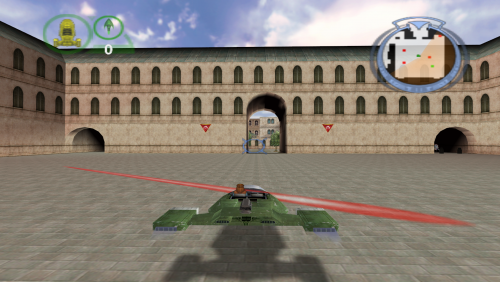
Star Wars: Episode I – Battle for Naboo – 64-bit Installer With Optional Modern Game Fixes This is a complete, preservation-grade 64-bit replacement installer for the original 1999 PC release, rebuilt from scratch for modern versions of Windows. This is the definitive way to install and play Star Wars: Episode I – Battle for Naboo on modern hardware, with full widescreen support, DX9 translation, stability fixes (all optional), and resolution unlocking. The original retail PC release uses a 16-bit Windows installer, which will not run on any 64-bit version of Windows. This makes the game effectively un-installable on modern systems. To preserve the game, the installer was fully rebuilt into a native 64-bit modern version that works on all current Windows versions, requires the original retail disc, recreates the full install logic, and optionally applies modern fixes and enhancements. Features included in this fix Full 64-bit replacement installer Requires the original retail disc Recreates full install logic Widescreen and modern resolution unlock DX7 to DX9 translation Thruster fix for >60Hz ASI Loader support Folder permission repair ChipResolution custom resolution support How to use Download Fix. Mount your original game disc. Launch the installer and browse to the root of the disc (e.g. D:). Follow the on-screen prompts. A desktop shortcut will be created automatically. Requirements You must own the original English retail PC CD. No game files are distributed. Mount the disc before running the installer. Common mount locations: D:\ E:\ F:\ Modern Fix Pack (Optional) In the installer you can uncheck the option for the fixes and install only the base game. ElishaCloud’s DXWrapper (D3D7 → D3D9) Adds anti-aliasing, anisotropic filtering, DX7 to DX9 translation, optional window mode through dxwrapper.ini, and a fix for the thruster bug. ThirteenAG’s Ultimate ASI Loader Automatically loads all included .asi plugins. UCyborg’s Legacy D3D Resolution Hack Unlocks modern GPU resolutions including 1080p, 1440p, ultrawide, and full 4K. Full Folder Permission Repair Automatically removes read-only attributes, fixes NTFS permissions, allows editing INI files, and prevents write errors. ChipResolution – Custom Resolution Support Allows entering resolutions directly, such as: 1920x1080 Suggestion It seems that the game does not like to go past 1920 x 1080 so just leave the configuration files as they are set up for you. If you change any settings it is done so at your own risk. Controller Support Works automatically with no additional configuration needed. The game includes native controller functionality. Rebind controls inside the game’s options menu. Issues/Problems If you have any issues with the fixes then please go to the Discord for help: https://discord.gg/eVJ7sQH7Cc Vote to see the game return via GOG Dream list If you are interested in potentially seeing this game easily available to purchase and use today then go and vote on the games GOG Dream list to help make this become a reality, you can vote for the game here and write a message about the game if you wish – https://www.gog.com/dreamlist/game/star-wars-episode-i-battle-for-naboo Credits Elisha Riedlinger — DXWrapper UCyborg — Legacy D3D Resolution Hack ThirteenAG — Ultimate ASI Loader Chip — Creating 64 bit installer, reverse engineering 16 bit installer, registry patching, modern fix integration, resolution override tool Fix Enhancers https://fixenhancers.wixsite.com/fix-enhancers “Creating compatibility fixes and enhancements for legacy PC games.” Chip – founder, reverse engineer, programmer, developer, Game Preservationist JokerAlex21 – founder, admin, tester -
Version 2.12.59
180 downloads
Do not install this on your host unless an old 16-bit application specifically asks or requires DLL files from this installer. This was uploaded for archival purposes and should only be used for specific purposes or when specifically needed. Use caution on modern Windows. This was extracted from the Kid Pix Studio Deluxe disk and has a newer date than the one on Archive <dot> org, but this and Archive's seem to be the same version. Express folder will install normally with little user input and default settings Custom folder will install with specified preferences from the user. ~Legend~ Modern Windows = Windows 7+ Older Windows = Windows 95 - Windows XP (32-bit) ~Installation~ Modern Windows: Use winevdm to install but please note that this QuickTime will install in the Windows directory so make sure winevdm is setup to use an alternative directory as "Windows" to be safe. Winevdm will throw some errors but QuickTime will install with it. QuickTime installer will read other directories on your system but does not write to them. It will also write changes in the Registry. Older Windows: Install like any normal program. ~Uninstallation~ Modern Windows: Uninstaller will show up in Window's app settings, but will require Winevdm to run. Older Windows: Uninstall like any normal program. Tested on a real up-to-date Windows 11 machine. -
2,123 downloads
A mirror of directx_Jun2010_redist.exe file from Microsoft that acts as a replacement installer for the DirectX End-User Runtime Web Installer. The original download was retired from Microsoft's download center at the end of 2020 as it was signed using SHA-1, see this page for details. Instructions 1. Run directx_Jun2010_redist and point it to extract its contents to a new temporary folder of your choice. 2. Browse to the folder you extracted the file to, and run DXSETUP. 3. Proceed through the installer to install the legacy DirectX SDK redist. 4. After the installation both the temporary folder and directx_Jun2010_redist can be removed. -
Version 2.20.903.0
1,984 downloads
This is a generic 32-bit version of the InstallShield 2 setup engine. This file can be used as a replacement installer for games that use 16-bit versions of InstallShield 2. To determine if the game uses InstallShield, check the list of files that are in the setup directory (normally, there should be a dedicated folder for the installer somewhere on the game disk). If the file "_inst32i.ex_" is included, then the game uses InstallShield in some form. From there, the version of the installer currently used needs to be verified to ensure that the replacement file will work. In the setup folder, find a "SETUP.EXE", "SETUP32.EXE", or other similarly named files. Once the installer is found, right click it, select "Properties", and go to the "Version"/"Details" tab. If the "Product version" and/or "File version" fields have a value along the lines of 2.xx.xxx.x, then the game uses version 2 of the setup engine and is compatible with this file. For specific details on installer use, check the game article that requires it. For generic instructions, check the link at the top of this description. -
Version 5.52.164.0
5,059 downloads
Original source: ReactOS Forums This is a generic 32-bit version of the InstallShield 5 setup engine. This file can be used as a replacement installer for games that use 16-bit versions of InstallShield 5. To determine if the game uses InstallShield, check the list of files that are in the setup directory (normally, there should be a dedicated folder for the installer somewhere on the game disk). If the file "_inst32i.ex_" is included, then the game uses InstallShield in some form. From there, the version of the installer currently used needs to be verified to ensure that the replacement file will work. In the setup folder, find a "SETUP.EXE", "SETUP32.EXE", or other similarly named files. Once the installer is found, right click it, select "Properties", and go to the "Version"/"Details" tab. If the "Product version" and/or "File version" fields have a value along the lines of 5.xx.xxx.x, then the game uses version 5 of the setup engine and is compatible with this file. For specific details on installer use, check the game article that requires it. For generic instructions, check the link at the top of this description. -
Version 3.00.117.0
38,193 downloads
Original file: http://www.reactos.org/forum/viewtopic.php?p=90351 This is a generic 32-bit version of the InstallShield 3 setup engine. This file can be used as a replacement installer for games that use 16-bit versions of InstallShield 3. To determine if the game uses InstallShield, check the list of files that are in the setup directory (normally, there should be a dedicated folder for the installer somewhere on the game disk). If the file "_inst32i.ex_" is included, then the game uses InstallShield in some form. From there, the version of the installer currently used needs to be verified to ensure that the replacement file will work. In the setup folder, find a "SETUP.EXE", "SETUP32.EXE", or other similarly named files. Once the installer is found, right click it, select "Properties", and go to the "Version"/"Details" tab. If the "Product version" and/or "File version" fields have a value along the lines of 3.xx.xxx.x, then the game uses version 3 of the setup engine and is compatible with this file. For specific details on installer use, check the game article that requires it. For generic instructions, check the link at the top of this description.


