
Search the Community
Showing results for tags 'level selection menu'.
Found 1 result
-

Version 1.0.0
400 downloads
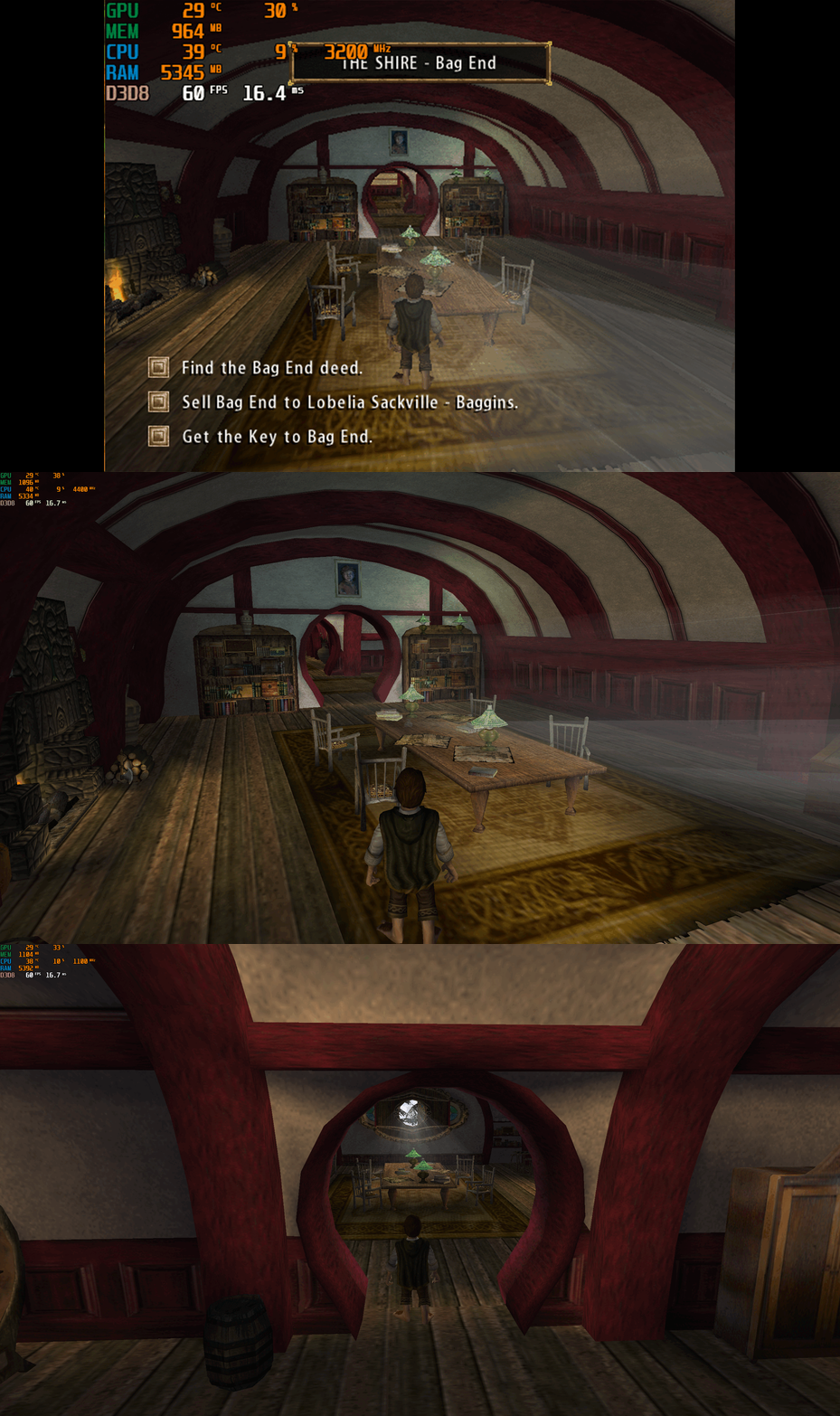
Lord of the Rings the Fellowship of the Ring V1.1 – PC Fix Requirements before using this fix For this fix to work properly you MUST be on the 1.1 release of the game. You can update your version of the game with the Official Update for this game here - This fix adds modern PC features to Lord of the Rings The Fellowship of the Ring V1.1, including black screen on start up fix, unlocking widescreen resolution support, higher framerates (custom FPS limiter added), auto calculated FOV, custom windowed mode support, X-Input controller support, level selection menu and cheat hotkeys. It is based on Elisha Riedlinger’s Direct3D 8 wrapper and expanded with additional enhancements and patches by Blankname and Chip. Features included in this fix Black Screen on start up fix Widescreen and ultrawide resolution support (recommended to not go above 2K due to culling) FPS Unlocking (custom FPS limiter added) Adjustable FOV X-Input Controller Support Custom Windowed Mode support Level Selection Menu on New Game Cheat Hotkeys Editable d3d8.ini and fellowship.ini configuration and patcher.exe How to use Download the Lord of the Rings the Fellowship of the Ring V1.1 fix. Extract d3d8.dll, d3d8.ini, fellowship.dll, fellowship.ini, fellowship.rfl, levellist.txt and FellowshipPatcher.exe into your game folder next to the fellowship.exe. Run FellowshipPatcher.exe to patch the games exe to fix Black Screen and unlock Level Selection Menu. Edit d3d8.ini to configure X-Input controller options. Edit fellowship.ini to unlock Resolutions, change FOV, change FPS limit, enable or disable Cheats, set Windowed Mode options and enable Game Speed Tied to FPS (experimental BREAKS cutscenes and is recommended to be kept off). Resolution and Aspect Ratio This can be edited in the fellowship.ini file. It is advised to only go as high as 2560 x 1440 resolution because this game engine on anything above that will have texture popping issues (culling) so for example at 4K (3840 x 2160) on the edges of the screen you will have texture popping but this is not present in 2560 x 1440 or under. FPS Default for FPS is 60 which you can change in the fellowship.ini file. The game functions on higher fps up to 120 without too many issues, however above this or uncapped is not advised. It is best to leave the option for FPSAnimations alone as this can easily break the game in multiple areas and the option only exists for experimentation in gameplay. FOV This fix automatically calculates FOV in the game based on the resolution that you choose in the game. It can however be changed in the fellowship.ini file but this is not advised due to it potentially causing issues. X-Input Controller Support Fellowship now features custom controller X-Input (Xbox) controller support which mimics the layout of the PS2 port of the game in the d3d8.ini you can turn this off with 0 or have controller support on by setting [Xinput] ControllerSupport = 1 then you will be able to use a Xbox controller In the game, if you don't have an Xbox controller you can spoof it with the software DS4 Windows or you can add the game to Steam as a non Steam game and make sure Steam uses X-Input then you can enjoy the game with full controller support! The layout can be seen in the image attached. Changing Level List Names If you would like to be able to change the level list names to the correct names instead of the developer names given to them then you will need to do the following edits to the levels listed below: Weathertop Mtn Night Weathertop Mtn Troll Shaws House of Elrond IGC_Forest Anduin 1 Inside of the LevelList.txt file edit the levels above lines to the following and save it: Levels/Weathertop/Weathertop Mtn/Weathertop.lvl Levels/Weathertop/Weathertop Mtn/Night Weathertop.lvl Levels/Weathertop/Troll Shaws/Trollshaws.lvl Levels/Rivendell/House of Elrond/Rivendell.lvl Levels/Lothlorien/IGC_Forest/Lothlorien.lvl Levels/River Anduin/Anduin 1/Amon Hen.lvl Then you will need to go to where Fellowship is installed, Levels and then inside of each of the levels listed above’s folders find and edit the .lvl file to the name of the level. For example, IGC_Forest.lvl you would edit to Lothlorien.lvl. Once you do this for each of the levels above when you go in game you should now see the names have been updated in the menu level list. Cheats/Extras Enable or disable Cheats in the fellowship.ini file. To use the cheats when in gameplay simply press the options listed below: F5 - fly -> Fly F6 - drop -> Drop F7 - tim -> Invincible F8 - tele -> Teleport F9 - mrclean -> MrClean F10 - heal -> Full Health F11 - bye -> Suicide F12 - invisowalls -> Show Invisible Statics On clicking New Game, you shall now have access right away to all the levels within the game. Simply select a level you wish to play or the first level in you wish to start from the beginning of the game like normal. Official video guide Issues/Problems If you have any issues, with the fixes then please go to discord for help linked below. https://discord.gg/eVJ7sQH7Cc Vote to see the game return via GOG Dream list If you are interested in potentially seeing this game easily available to purchase and use today then go and vote on the games GOG Dream list to help make this become a reality, you can vote for the game here and write a message about the game if you wish – https://www.gog.com/dreamlist/game/the-lord-of-the-rings-the-fellowship-of-the-ring-2002 Credits Base wrapper by Elisha Riedlinger & ThirteenAG. Additional game-specific patches, reverse engineering, enhancements, and configuration by Blankname and Chip. Fix Enhancers https://fixenhancers.wixsite.com/fix-enhancers “Creating compatibility fixes and enhancements for legacy PC games.” Chip – founder, reverse engineer, programmer, developer, game preservationist JokerAlex21 – founder, admin, tester Blankname - fellowship.dll and ini creator Testers - (These people helped us with multiple tests of Fellowship's fix) Osen33, LovelyClaire
