
Search the Community
Showing results for tags 'p5 glove'.
Found 2 results
-

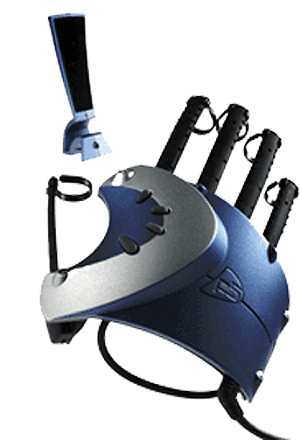
Version 1.0.0
17 downloads
********************************************************** ** USING THE P5 WITH SERIOUS SAM - THE SECOND ENCOUNTER ** ********************************************************** Installing Serious Sam patch 1. Install the retail version of the game 2. Install the Serious Sam patch ========================================================= = I. Configuring P5 acceleration and finger Sensitivity = ========================================================= 1. In the Main Menu, click on 'Options' 2. In the Options Menu, click on 'P5 Options'. 3. To change the acceleration of the P5 cursor in the horizontal and vertical directions, click on the slider bar labelled 'Acceleration'. The lower the value of the acceleration bar, the slower the P5 cursor will move while in the game. Conversely, the higher the value of the acceleration bar, the faster the P5 cursor will move. 4. To change the click sensitivity of the fingers on the P5, click on the slider labelled 'Finger Sensitivity'. The lower the value of the finger sensitivity, the more you will have to bend your fingers to generate a click while in the game. Conversely, the higher the value of the finger sensitivity, the less ou will havve to bend your fingers to generate a click while in the game. ================================================ = II. Configuring the P5 for a specific player = ================================================ The game actions that can be controlled by a P5 component can be configured for each player. The P5 can also be enabled or disabled for each individual player. ============================================== = IIa. Enabling the P5 for a specific palyer = ============================================== 1. In the Options Menu, click on 'Players and Controls'. 2. In the Player Profile Menu, click on the number of the player profile you want to configure. These numbers are located under the heading 'Profile'. 3. Click on 'Customize Controls'. 4. In the Controls Menu, click on 'Enable P5' to enable or disable the P5 for the specific player chosen in step 2. ================================================= = IIb. Customizing the P5 for a specific palyer = ================================================= 1. In the Options Menu, click on 'Players and Controls'. 2. In the Player Profile Menu, click on the number of the player profile you want to configure. These numbers are located under the heading 'Profile'. 3. Click on 'Customize Controls'. 4. In the Controls Menu, click on 'Customize P5 Controls'. 5. In the Customize P5 Components Menu, click on the game action you wish to re-map. 6. To map the game action to finger gesture, bend the fingers with which you want to control this action. 7. To map the game action to a P5 button, press the button with which you want to control this action. =================================== = III. Miscellaneous Instructions = =================================== ================================================= = IIIa. Controlling strafe movement with the P5 = ================================================= 1. In the Customize P5 Components Menu, click on the action labelled 'Strafe'. Bend the fingers or button with which you want to control strafe movement. 2. To use strafe movement with the P5 while in the game, make the finger gesture or press the button which controls strafing. With the strafe finger gesture or strafe button made/pushed, roll your hand to the left to strafe left and roll your hand to the right to strafe right. ================================= = IIIb. Sniper zoom with the P5 = ================================= 1. While in the game, arm the sniper rifle. 2. Press the control (keyboard, P5, mouse) that activates the sniper scope. 3. To zoom in with P5 while in sniper mode, move your hand towards the detector. To zoom out with P5 while in sniper mode, move your hand away from the detector. =========================================== = IIIc. Using the P5 in split screen mode = =========================================== The P5 can be used to control a single player or multiple players when playing in split screen mode. To control a single player in split screen mode with the P5, enable the P5 for a specific player, as described in section IIa; disable the P5 for all other players, using the steps described in IIa. To control multiple players in split screen mode with the P5, enable the P5 for a specific player, as described in section IIa; do not disable the P5 for other players. -
